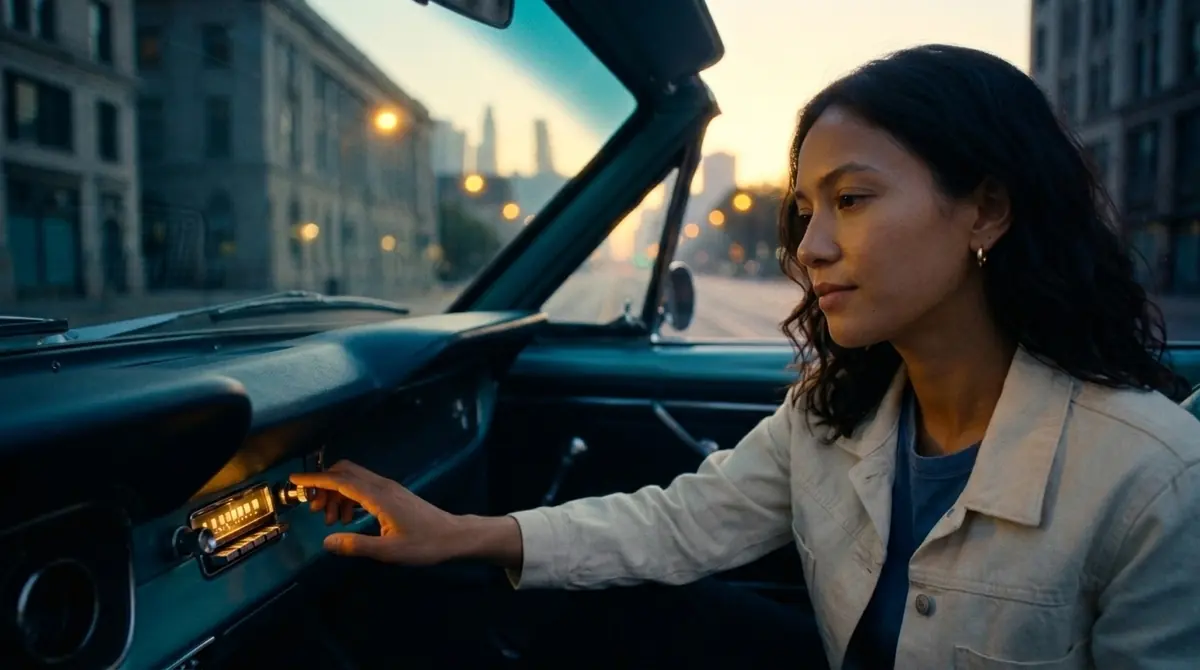
Edit your MP3's tags and cover art
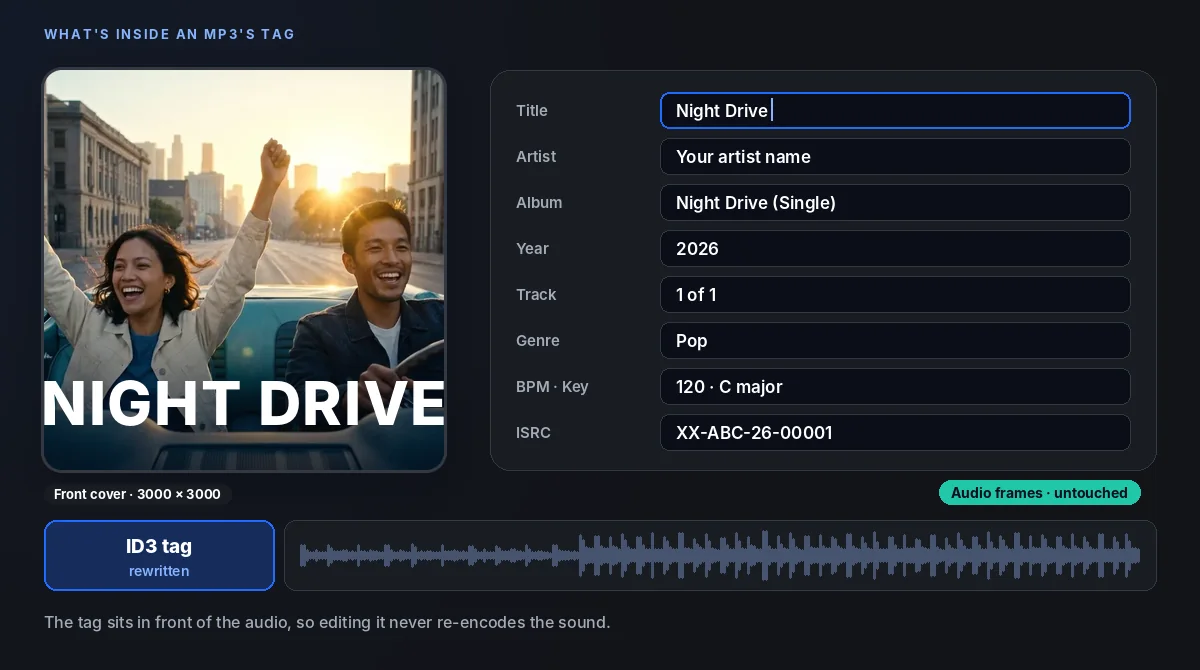
Open an MP3 and its ID3 tags appear in a form: title, artist, album, album artist, year, track and disc numbers, genre, composer, BPM, key, ISRC, comment, lyrics and the front cover. Change what you need and save a new MP3 with an ID3v2.3 tag, while every byte of the audio stays exactly as it was. The file is read on your device and never uploaded.
Free, no sign-up. Runs in your browser: nothing is uploaded.
Drop an MP3 here
MP3 files up to 500 MB. The file is read on your device and never uploaded.
Song finished? Upload it and Muvora plans the whole video on its beats. The storyboard is free.
Make the videoUpload a new songHow to use the MP3 tag editor
- 01
Open the MP3
Choose or drop an MP3 of up to 500 MB. The editor reads the tags at the start and the end of the file and the first frames of audio, and shows the length, bitrate and sample rate beside the tags it found.
- 02
Edit the fields
Type over any field, pick a genre or a key from the suggestions, paste the lyrics, and fix anything marked in red: the year takes four digits, the BPM a whole number and an ISRC twelve characters.
- 03
Change the cover
Replace the front cover with a JPEG or PNG, remove it, or save the one inside as an image file. Its shape and size are checked against the album cover checker's store rules as you go.
- 04
Save the new MP3
Choose whether to keep an ID3v1 tag at the end for very old players, then save. The new file downloads under the same name: play it once to check, then let it replace the old copy.
What an ID3 tag holds, and why version 2.3
An MP3's tags sit in front of the audio as an ID3v2 tag: a header, then frames such as TIT2 for the title, TPE1 for the artist, TRCK for the track number and APIC for a picture. Version 2.3 dates from 1999 and is the one players, car stereos and operating systems have read the longest; 2.4 followed in 2000 with UTF-8 text and full recording dates, and some players still don't read it fully. The older ID3v1 tag is 128 bytes at the very end of the file, with room for 30 Latin characters a field. This editor reads every one of them and writes 2.3, in plain Latin-1 where the text fits and UTF-16 where it doesn't, so accents and other scripts come through.
- Reads ID3v2.2, v2.3, v2.4 and ID3v1
- Writes ID3v2.3, with UTF-16 for non-Latin text
- Frames it can't carry over are listed before you save
Cover art inside the file
Embedded art is a picture frame marked as the front cover, stored as a JPEG or a PNG. Players show it beside the song, and every copy of the MP3 carries it, so a 3000 x 3000 PNG of several megabytes makes each file that much bigger. For copies you hand out, a JPEG of the same art at 1000 or 1400 pixels a side keeps the file light and still looks sharp on a phone; keep the full-size artwork for your distributor. Some older players and car stereos skip progressive JPEGs, which the editor flags. To make the art, try the album cover maker; to check it against the stores' rules, the album cover checker.
- JPEG or PNG, saved as the front cover
- Shows how much it adds to every copy
- Flags progressive JPEGs for older players
Where tags travel, and where they don't
Tags go wherever the file goes: they're what a music app, a DJ library or a phone shows for a demo sent to a label, a promo copy for a blog, a download you sell yourself or a song in your own collection. Streaming services never read them. Your distributor takes the title, credits, ISRC and artwork through its own upload, and that's what listeners see there. The ISRC field records the code you were given; typing one in registers nothing. For lyrics timed to the song rather than a block of words, make an LRC file with the lyric timestamp exporter.
- Demos, promo copies, downloads and DJ libraries
- Streaming services take metadata from your distributor
- An ISRC in a tag registers nothing
From a tagged MP3 to a music video
Upload the same MP3 to Muvora and it becomes the soundtrack of an AI music video exactly as it is, from its first sample, with every cut planned on its beats. The exports are MP4 files with their own sound track, so the ID3 tags and cover inside the MP3 don't carry into the video and don't matter to the upload: you can type the title when you add the song. The storyboard is free to read and edit before anything renders.
Questions, answered
Can't find what you need? Start a free storyboard and see for yourself.
Does editing the tags change how my MP3 sounds?
No. The new file is the new tag, then the original's audio frames copied byte for byte, then an ID3v1 tag if you keep one. Nothing is decoded or encoded again, so the sound, the bitrate and the length are exactly what they were.
Which tag versions can it read and write?
It reads ID3v2.2, v2.3 and v2.4 tags at the start of the file, unsynchronised tags, extended headers and footers included, a v2.4 tag appended at the end, and ID3v1 and v1.1. It writes ID3v2.3, the most widely read version. A few frames only v2.4 has, such as its relative volume adjustment, have no v2.3 form; anything that can't be carried over is listed with the reason before you save.
Can I edit the tags of an M4A, FLAC or WAV file here?
No. Those formats keep their tags their own way: M4A in MP4 metadata boxes, FLAC as Vorbis comments, WAV in its own chunks or sometimes an ID3 chunk. The editor names the format when you open one, so you know which kind of tagger to look for.
Will Spotify or Apple Music show the cover art I embed?
No. Streaming services take the title, artist, credits, ISRC and artwork from your distributor's upload, not from inside an audio file. Embedded tags matter for files that travel as files: demos, promo copies, downloads you sell and your own library.
Is my MP3 uploaded when I edit its tags?
No. The tags, the first frames of audio and the end of the file are read on your device, and the new MP3 is put together in this page from your file's own bytes. Nothing is sent to Muvora or anyone else. Edit only files you made or have the rights to.
Is there a size limit?
Yes, 500 MB, which is over three and a half hours at 320 kbps, so songs, albums and long mixes fit. Saving writes a complete second copy of the file, and the limit keeps that within what browsers, on phones especially, handle comfortably.
Keep exploring
Add album art to an MP3
Embed a cover in an MP3's ID3 tag in your browser or a desktop app, pick the size to embed, and see why Spotify and Apple Music never read it.
Read the guideAlbum cover maker
Make 3000 × 3000 cover art from your own photo or a color, with the artist name and title in fonts licensed for commercial use.
Open the toolAlbum cover checker
Check cover art against Apple Music, Spotify and distributor rules: square, pixel size, format, color mode and file size.
Open the tool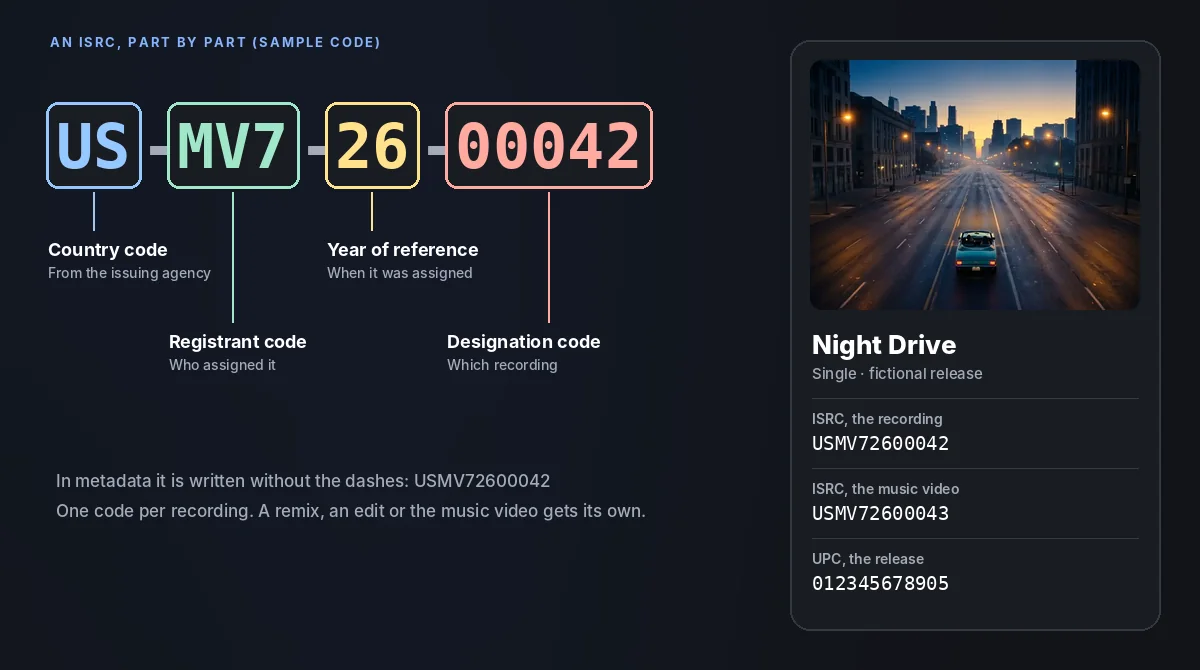
What is an ISRC code?
The 12-character code for a recording: its four parts, ISRC vs ISWC vs UPC, when a remix, an edit or a music video needs its own, and how to get one.
Read the guideMP3 to WAV converter
Convert MP3, M4A, AAC, FLAC or OGG files to 16-bit, 24-bit or 32-bit float WAV on your device, several at once.
Open the toolLyric timestamp exporter
Time your lyrics to the vocals and download LRC, SRT or WebVTT.
Open the tool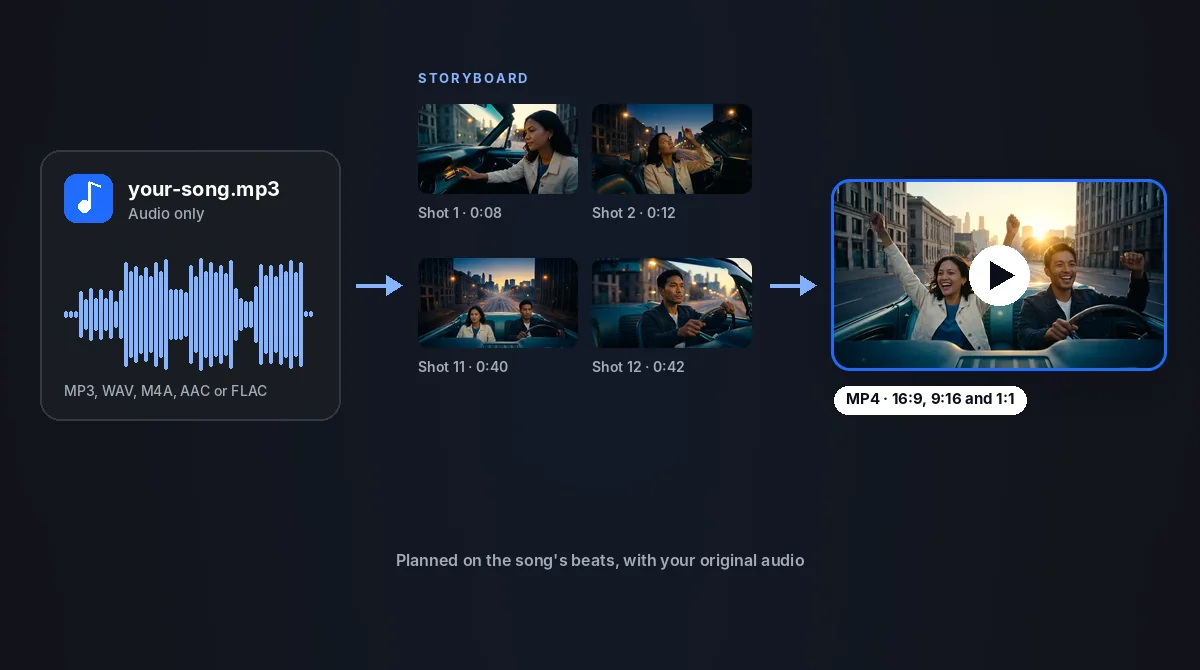
MP3 to video
Convert an MP3 or WAV into an MP4 with AI visuals cut to the song, ready for YouTube.
Learn moreSilence remover
Trim the silence from the start and end of a song file, with every cut shown on its levels, and save a WAV at the file's own rate.
Open the tool
More free tools: release and promotion
Pitch the song, write the press release, build the press kit, plan release week, write the YouTube description and estimate what streams pay.
Your song deserves a music video
Upload a track and get a free beat-synced storyboard in minutes. Render it when you are ready.
No card needed to start.