The short answer
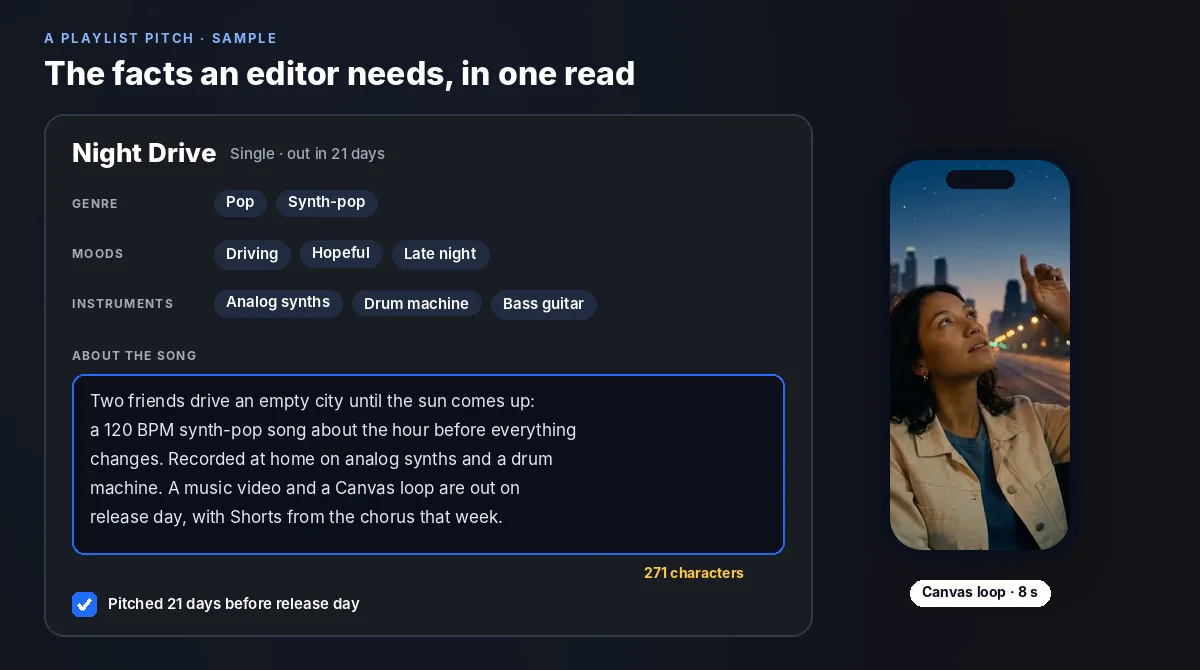
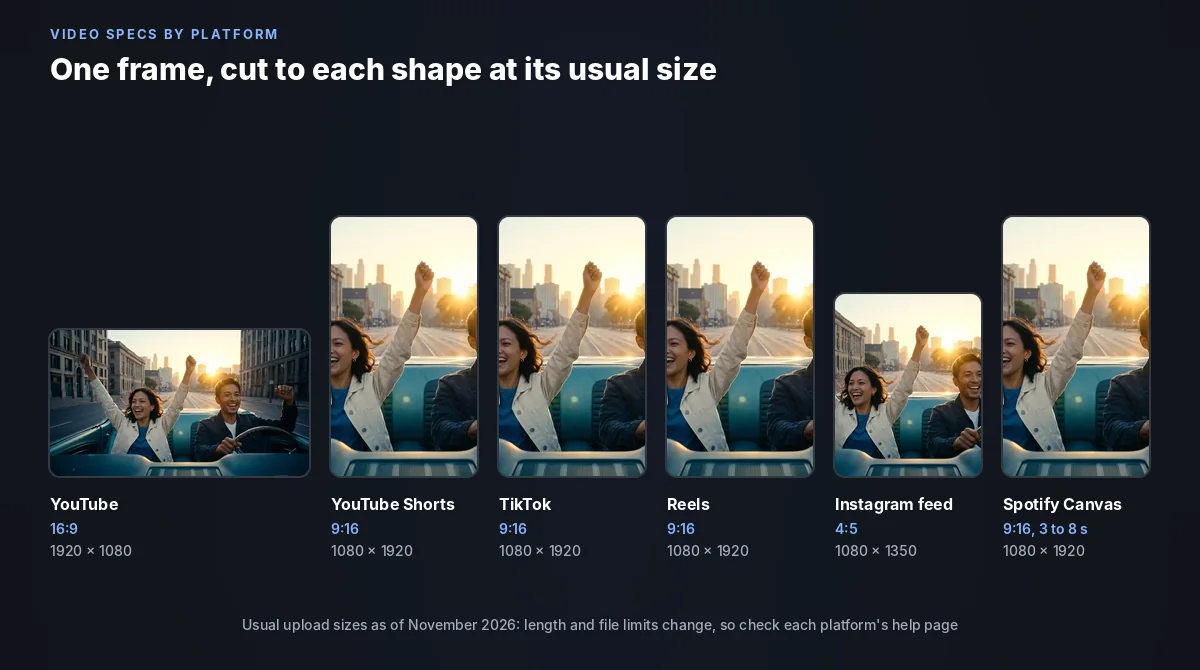
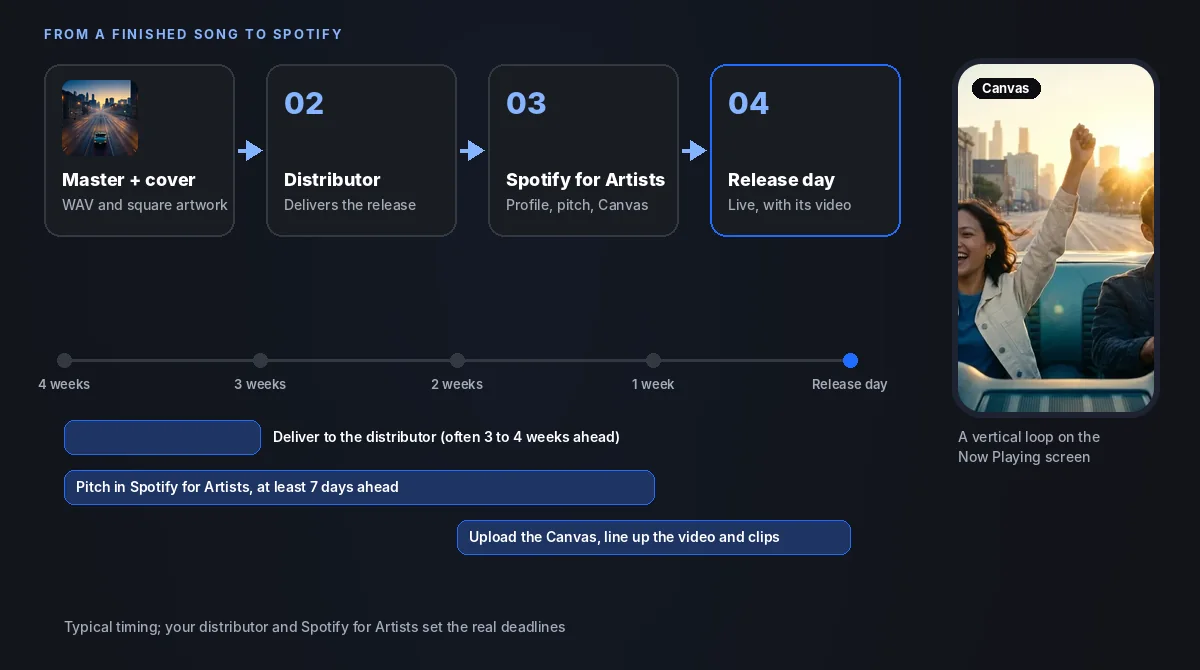
A Spotify Canvas is a 3 to 8 second vertical video loop (9:16, at least 720 pixels tall, MP4, or a JPG still) that replaces the cover art on the Now Playing screen while your song plays. You upload it per track in Spotify for Artists. The best ones loop seamlessly, keep the bottom of the frame clear and match the song's mood rather than retelling it.
- Specs: 3 to 8 seconds, vertical 9:16, at least 720 px tall, MP4 or JPG.
- Design for the loop: the last frame should flow into the first without a jump.
- Keep the bottom third quiet: the track title and player controls sit on top of it.
- No text, links or logos: the loop is a mood, not an ad.
- Cutting the Canvas from your music video keeps one look across the whole release.
On this page (6 sections)ShowHide
What a Spotify Canvas is and where it shows
Canvas replaces the static cover art on the Now Playing screen of the Spotify mobile app with a short video that loops for as long as the song plays. Listeners see it full-screen behind the track title, the artist name and the player controls. It plays silently: your song is the soundtrack.
Because it sits in the place where listeners already look, a Canvas is one of the cheapest visuals a release can have and one of the most seen. It is set per track, so every song on an EP or album can have its own, and you can change it at any time in Spotify for Artists without touching the release itself.
Your song
Your name
Loops while the song plays
Length: 3 to 8 seconds
Shape: vertical 9:16, at least 720 px tall
Keep clear: the bottom of the frame, where the player sits
Spotify Canvas specs
Spotify publishes the requirements on its Canvas guidelines page. The core ones have been stable for years; the file size and format details occasionally change, so check the upload screen in Spotify for Artists before you export.
| Requirement | Value | Why it matters |
|---|---|---|
| Length | 3 to 8 seconds | A clip even a fraction over 8 seconds is refused at upload. |
| Aspect ratio | Vertical 9:16 | It fills the phone screen; other shapes are cropped or refused. |
| Resolution | At least 720 px tall | 1080 x 1920 is the usual target and looks sharp on large phones. |
| File type | MP4 video, or a JPG still | Export H.264 MP4 for video; a still is allowed but loses the motion. |
| Sound | None | The song plays over it, so any audio track in the file is ignored. |
Skip the blank page
Upload your song and Muvora's AI director plans a shot-by-shot storyboard on the beat. Edit every shot for free, and pay only if you render.
Design rules for a loop that works
A Canvas is watched in a way no other video is: small, silent, half-noticed and over and over. The rules below come from that, and from the guidelines Spotify publishes.
- Make the loop seamless. The moment the clip restarts should be invisible. Either the last frame matches the first, or the end dissolves into the start. A visible jump every eight seconds gets old by the second chorus.
- Keep the bottom third quiet. The track title, artist name, progress bar and buttons sit over the lower part of the frame. Put faces and the main action in the upper two thirds.
- No text, links or logos. Spotify's guidelines steer away from lettering, URLs and calls to action in the loop. The title is already on screen; let the picture carry the mood.
- Use motion that reads small. Slow pushes, drifting light, hair or fabric in the wind, water and smoke read well on a phone. Fast cuts and tiny details turn to noise.
- Go easy on flashing. Strobing light and rapid flicker are uncomfortable on a loop that never stops. Spotify's guidelines ask you to avoid them.
- Match the song's mood, not its plot. Eight seconds can't tell your story. It can set the feeling the song starts in.
Canvas ideas by genre
Start from the strongest image of your video or cover art and ask what a single slow movement would add to it. A few starting points that loop naturally:
- EDM
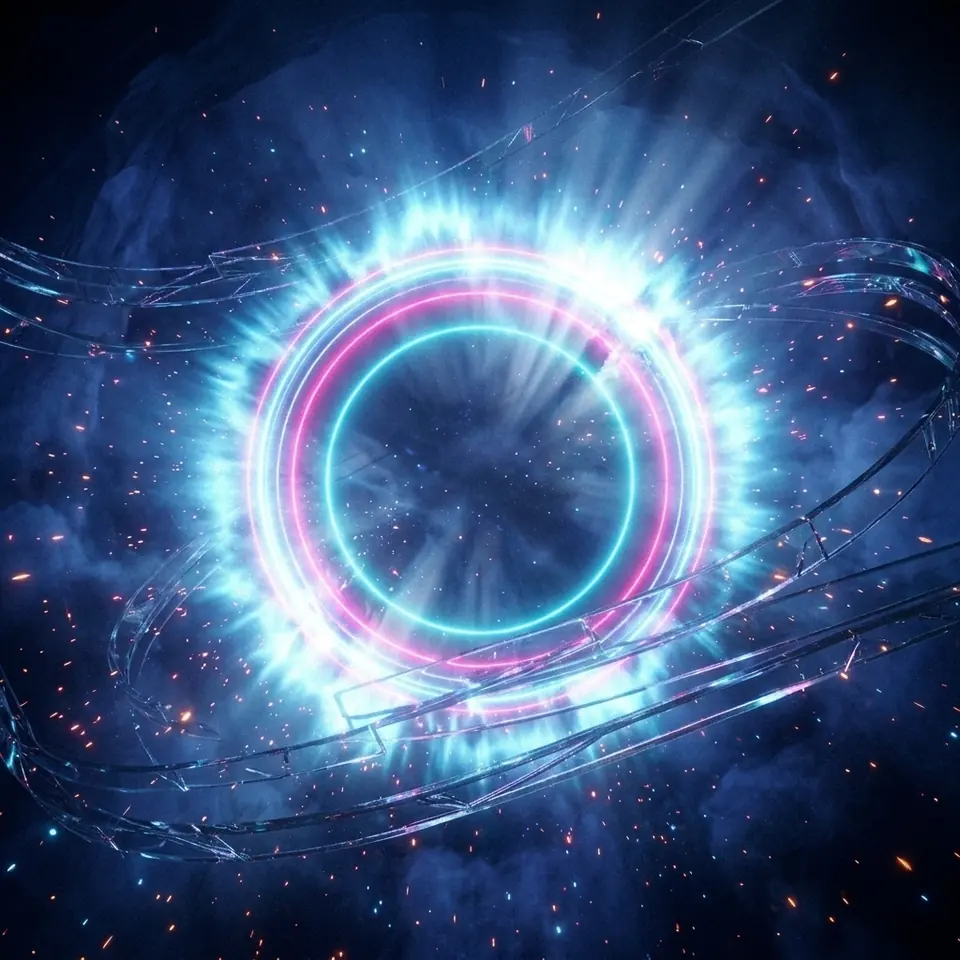
Neon that breathes
A ring or line of light that slowly pulses and swells, with particles drifting through. Loops cleanly because the motion is cyclical.
Use this idea on my songUse this idea on my song - Lo-fi
Rain on the glass
A window at night, a warm lamp behind, raindrops running down. The rain hides the loop point.
Use this idea on my songUse this idea on my song - Pop
The car that never arrives
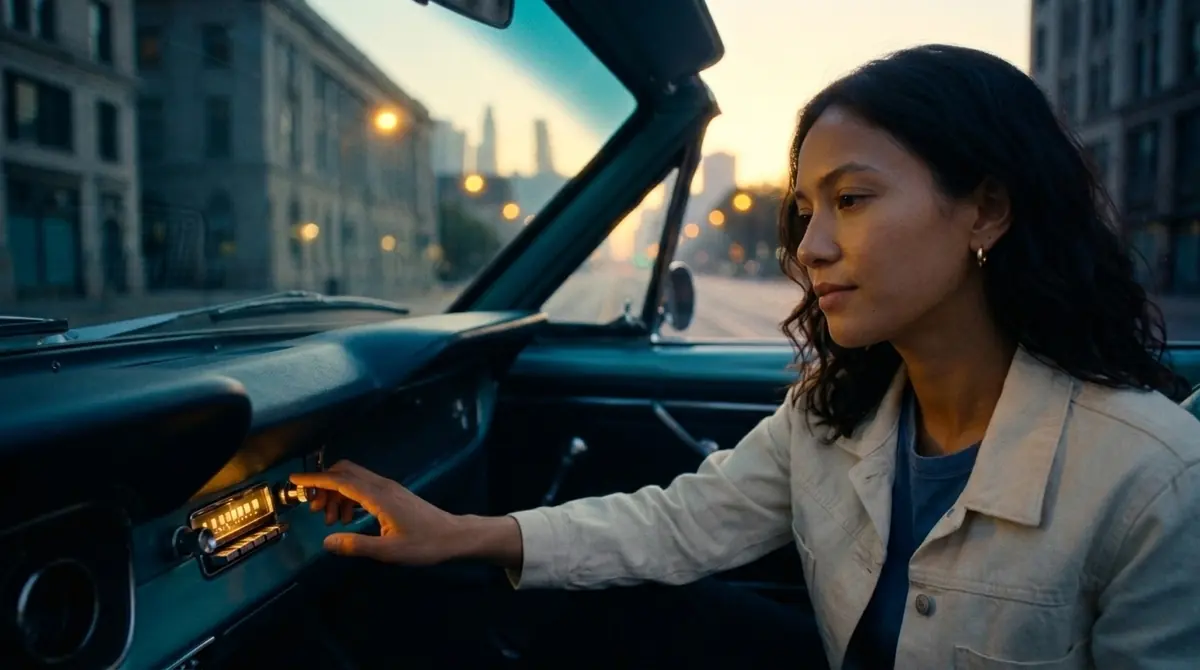
Streetlights sliding over a windshield on an endless avenue. Steady forward motion feels like the song is carrying you.
Use this idea on my songUse this idea on my song - Hip-hop
Smoke and a silhouette
A figure half-lit against a wall, smoke rolling slowly through the beam. Keep the face high in the frame.
Use this idea on my songUse this idea on my song - Rock
Stage light sweeping
Haze and a single beam crossing an empty stage. The sweep returns to its start, which makes the loop.
Use this idea on my songUse this idea on my song - Ballad
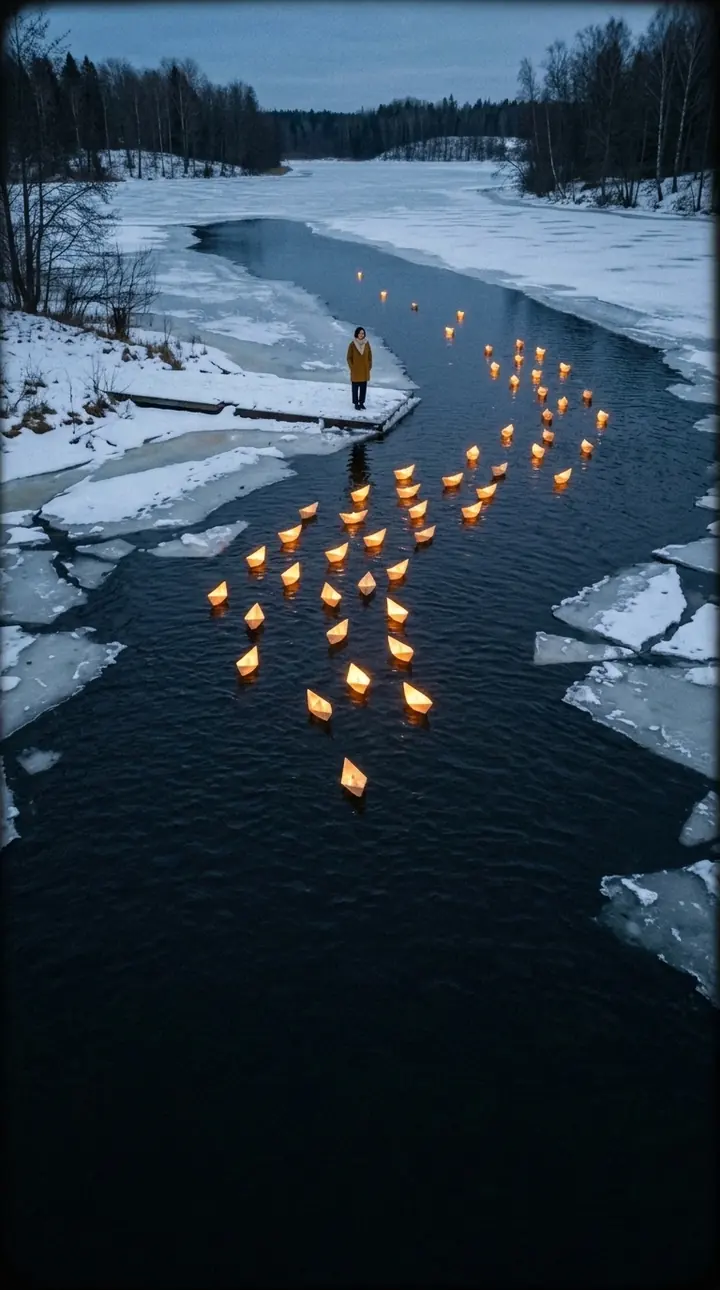
Petals or paper drifting
Something light falling or floating through soft light. Slow, gentle and easy to loop with a dissolve.
Use this idea on my songUse this idea on my song
For more concepts you can grow into a full video, see the music video ideas guide or try the idea generator.
Three ways to make a Canvas
- 01
Cut it from your music video
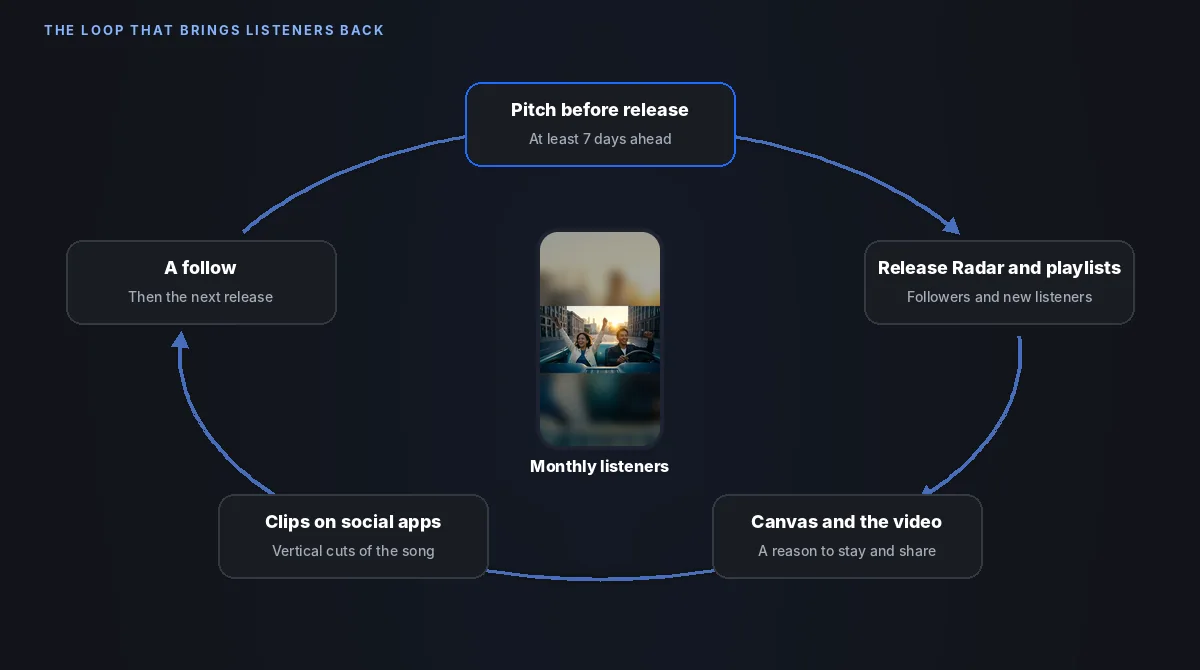
If the song has a video, pick the strongest eight seconds of the chorus, reframe them to 9:16 and make the end flow into the start. This keeps the Canvas, the video and the vertical clips looking like one release. It's what Muvora does for every video it renders.
- 02
Animate your cover art or a photo
A slow push-in on a still image, with the image whole over a blurred copy of itself if it isn't vertical, loops cleanly and takes minutes. Muvora's free Canvas from an image tool makes exactly that: a 1080 x 1920 loop of 3 to 8 seconds with no sound.
- 03
Shoot or generate a loop on purpose
Film a single slow movement (water, smoke, fabric, light) or generate one, then trim it so it repeats. Plan the motion so it ends where it began.
Whichever you choose, check the file with the Canvas checker before uploading, and watch it loop on a phone for a full minute. If the restart catches your eye, it will catch your listeners' too.
How Muvora makes a Canvas from your video
Every video rendered in Muvora comes with a Canvas beside the 16:9, 9:16 and 1:1 exports, so you never make one separately. The loop is built from the edit itself:
- It is 8 seconds long, vertical 9:16 and silent, cut from the vertical export (or from the main video when that is already 9:16).
- It comes from the strongest chorus moment, found from the song's energy, and passes over stretches where the picture repeats.
- It starts on a cut, and its last half second dissolves into the frames before its start, so the restart is hard to see.
- It has the same characters, colors and style as the video, because it is the video.
Get a Canvas with your music video
Upload your song, shape the free storyboard, and every render exports a Canvas loop beside the YouTube, vertical and square cuts.
Written by the Muvora team. Last updated November 13, 2026. Spotted something out of date? Tell us at [email protected].