The short answer
To make a music video with AI, start from the finished song: find its tempo, beats and sections, write a one-line concept, plan a shot between each pair of downbeat cuts, lock the look and the lead with reference frames, then generate each shot as a short clip and cut them together on the beat. Muvora does the analysis and the storyboard for free, so you only pay to render.
- Plan from the music: cuts on downbeats, longer shots in verses, faster cuts in choruses.
- Write a concept with a lead, a few places and a change from start to end, not a list of pretty images.
- Fix the look and the character before rendering, so every shot looks like the same video.
- Render shot by shot and redo only the shots that miss, instead of regenerating the whole video.
- Export every format you release in from one render: 16:9, 9:16, 1:1 and a Canvas loop.
On this page (7 sections)ShowHide
- 1.What AI does in a music video (and what you still decide)
- 2.The seven steps
- 3.Plan from the music, not from the prompts
- 4.Keep the same character in every shot
- 5.Choose a quality and know the price first
- 6.Pick a style: story, abstract, lyric or performance
- 7.Common mistakes and how to avoid them
- Questions
What AI does in a music video (and what you still decide)
An AI music video is a real edit made of generated shots. An image model draws the first frame of each shot, a video model brings it to life for a few seconds, and an editor cuts the shots together over your song. The models are good at pictures and motion. What they don't know is your song: where the chorus lands, which line matters, how long a shot can hold before it drags.
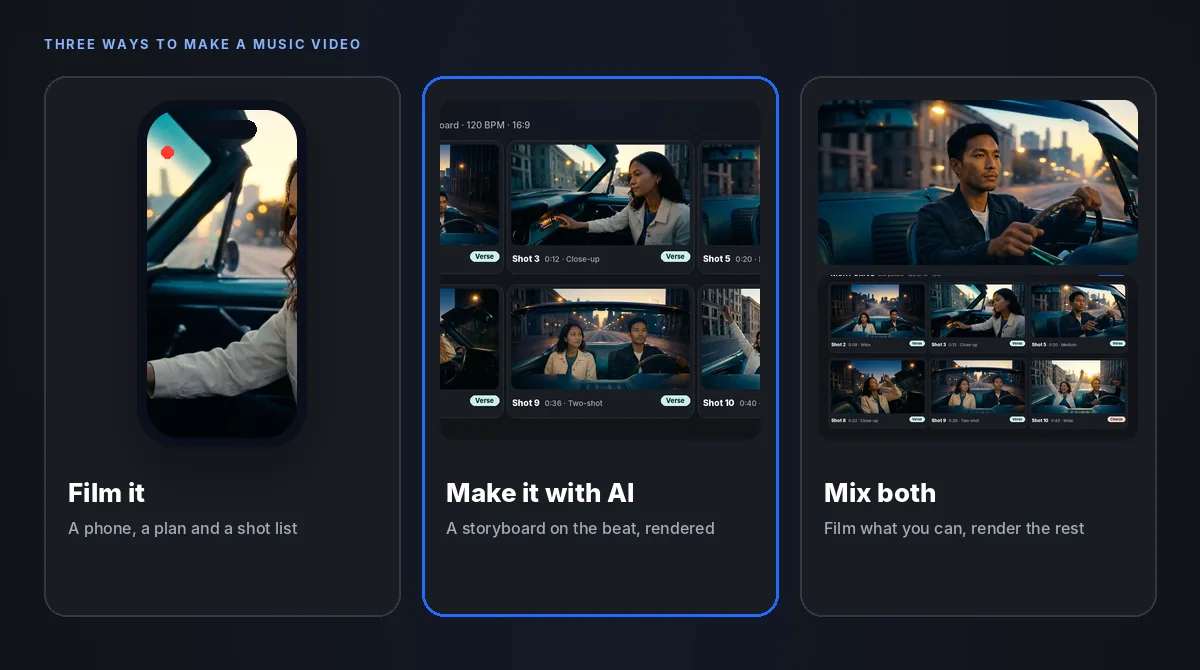
That's why the best results come from planning first. Treat the AI as a crew that can shoot anything, and yourself as the director who decides what gets shot, in what order and for how long. The workflow below is the one Muvora is built around, but the steps apply whatever tools you use. Still deciding between filming and AI? How to make a music video compares every route and the steps they share.
- 1. UploadMP3, WAV, M4A or FLAC
- 2. AnalysisTempo, beats, sections
- 3. StoryboardFree, every shot editable
- 4. RenderKeyframes, then video
- 5. Export16:9, 9:16, 1:1, Canvas
Steps 1 to 3 are free. You pay credits at step 4, and see the exact price before you do.
The seven steps
- 01
Start from the finished mix
Export the final master as WAV, FLAC or a high-quality MP3. Every cut will be timed to this exact file, so don't plan the video on a demo whose arrangement may still change. Muvora takes MP3, WAV, M4A and FLAC up to 8 minutes.
- 02
Map the song: tempo, beats and sections
Find the BPM, where each bar starts (the downbeats) and where the intro, verses, choruses, bridge and drops begin. This map decides the edit. You can read it by ear, check it with the free BPM and key finder and song structure visualizer, or let Muvora do it when you upload.
- 03
Write the concept in one sentence
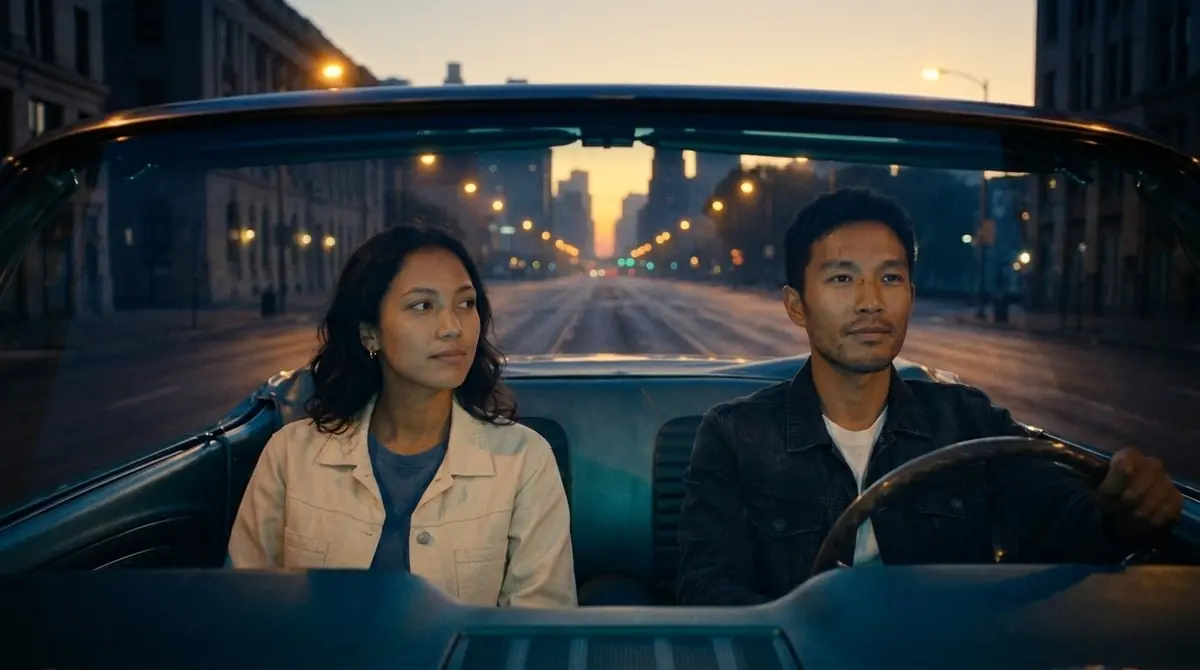
A good concept has a lead, a world and a change: "two friends drive through a sleeping city until the road carries them into the sunrise." It gives every shot a reason to exist. Stuck? Try the music video idea generator or browse music video ideas by genre.
- 04
Plan the shots on the beat
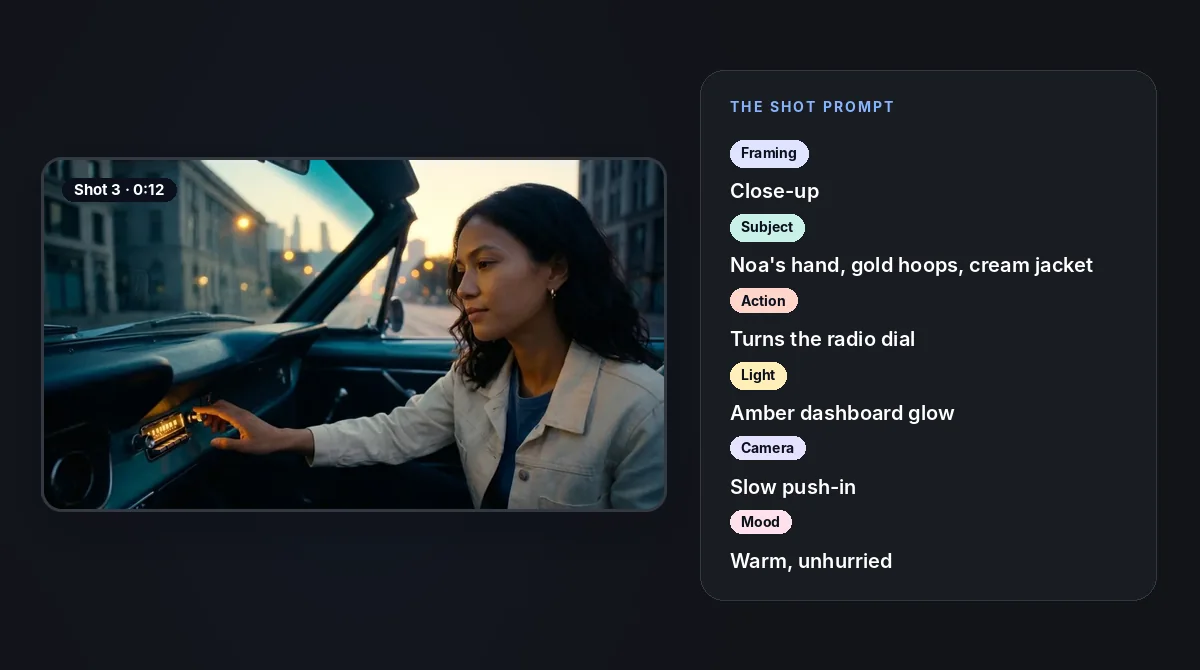
Cut on downbeats. Hold long, calm shots in the intro and verses, cut every bar or two in the chorus, and change the framing at every cut (wide, then medium, then close-up). Write one line per shot: who, doing what, where, in what light. See how to storyboard a music video.
- 05
Lock the look and the characters
Before rendering, make reference frames: a character sheet for your lead, an establishing shot of the main location and a hero frame for the chorus. Every shot is then drawn from the same references, which is what keeps a face, a jacket or a car the same from shot to shot.
- 06
Render, then fix only what misses
Generate each shot as a short clip from its own first frame. Watch the result once through and redo only the shots with a problem (a hand, a stray person, a move that drifts), with a sharper prompt if needed. Regenerating the whole video for one bad shot wastes time and money.
- 07
Assemble, caption and export
Cut the clips together frame-accurately over the original audio, add lyric captions if you want them, and export every shape you release in: 16:9 for YouTube, 9:16 for Shorts, Reels and TikTok, 1:1 for the feed and a short vertical loop for Spotify Canvas.
Skip the blank page
Upload your song and Muvora's AI director plans a shot-by-shot storyboard on the beat. Edit every shot for free, and pay only if you render.
Plan from the music, not from the prompts
The single biggest difference between an AI video that feels like a music video and one that feels like a slideshow is timing. When cuts fall on the downbeat, the picture seems to play the song. When they fall anywhere, it looks pasted on.
Bar height: how loud the section is. The strip under them: the shots, each cell one cut. Louder sections get more, shorter shots.
A simple rule of thumb that works for most songs: in quiet parts hold a shot for two to four bars, in mid-energy parts for one to two bars, and in the loudest parts for a bar or less. Always cut where a new section starts, and save your strongest image for the first chorus. Muvora's planner does exactly this from the analysis, and you can preview it with the free shot list generator.
Keep the same character in every shot
Generated video has a memory problem: each shot is made on its own, so a lead's face, hair and clothes drift unless every shot starts from the same reference. The fix is to describe the character once, in concrete words (age, build, hair, skin, one or two items of clothing), draw a character sheet from that description, and give the sheet to every shot that shows them.
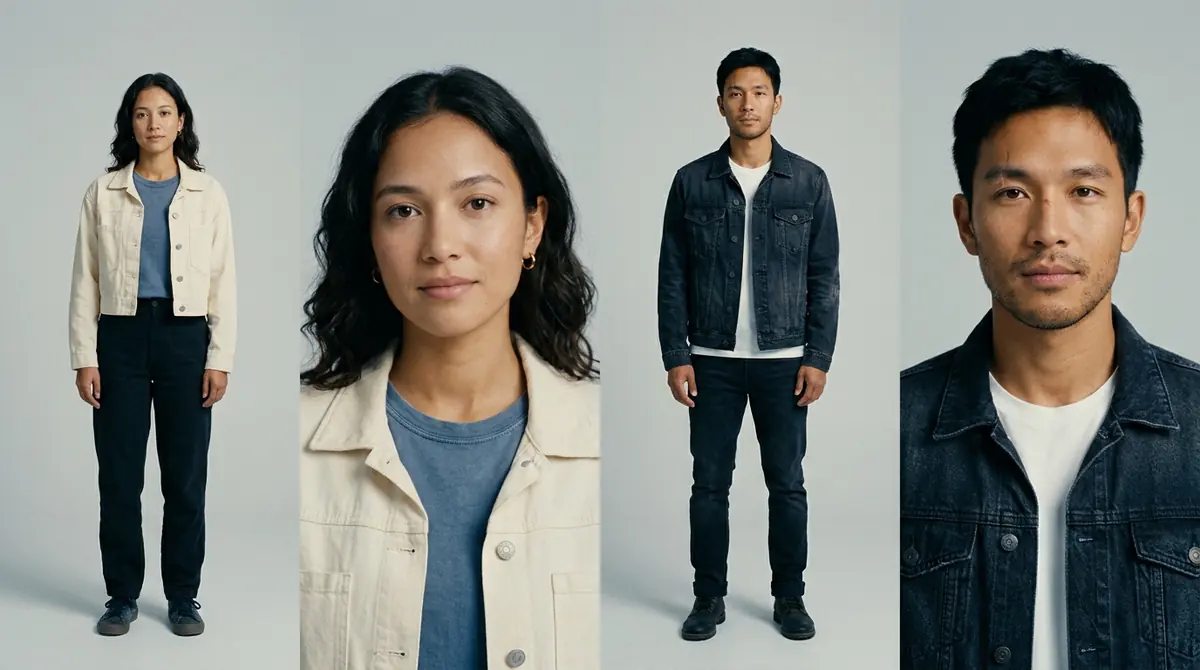
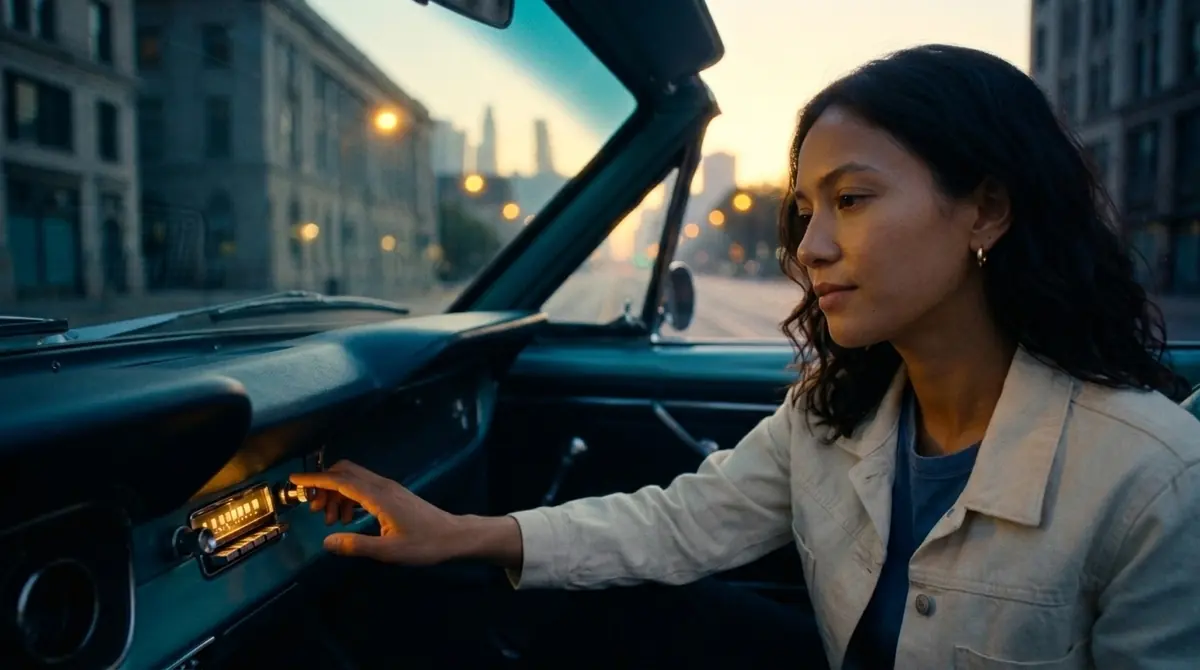
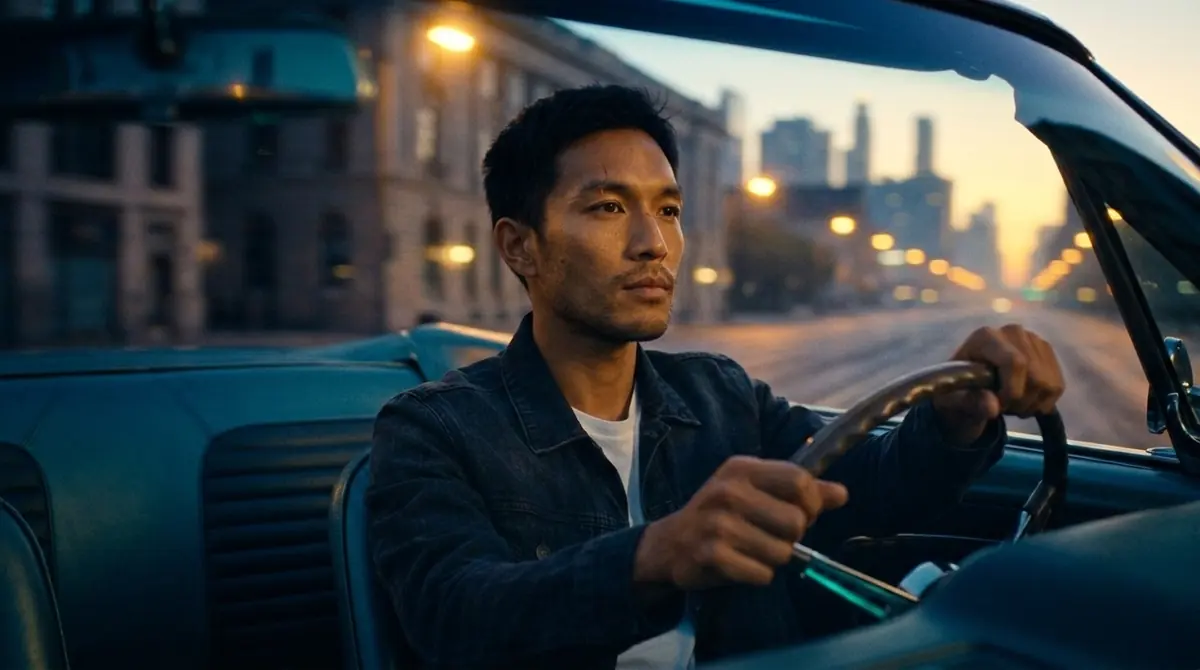
Muvora draws a character sheet from the storyboard's brief, uses it as the reference for every keyframe that shows the character, then checks each keyframe against it and redraws one that drifts before any video is made. Keep the cast small: one or two recognisable people carry a video better than five strangers.
Choose a quality and know the price first
AI video is priced by the second, so length and quality decide the cost. In Muvora the storyboard is free, and rendering is charged per finished second of video at the quality you pick. The final price is shown before you press Generate, and shots that fail to render cost nothing.
| Quality | Best for | Credits per finished second | A 3-minute video |
|---|---|---|---|
| Visualizer | Covering a whole song affordably, lo-fi and long tracks | 38 | 6,840 credits |
| Standard | Singles and social cuts with consistent characters | 60 | 10,800 credits |
| Cinematic | The release's main video, up to 1080p | 110 | 19,800 credits |
Pick a style: story, abstract, lyric or performance
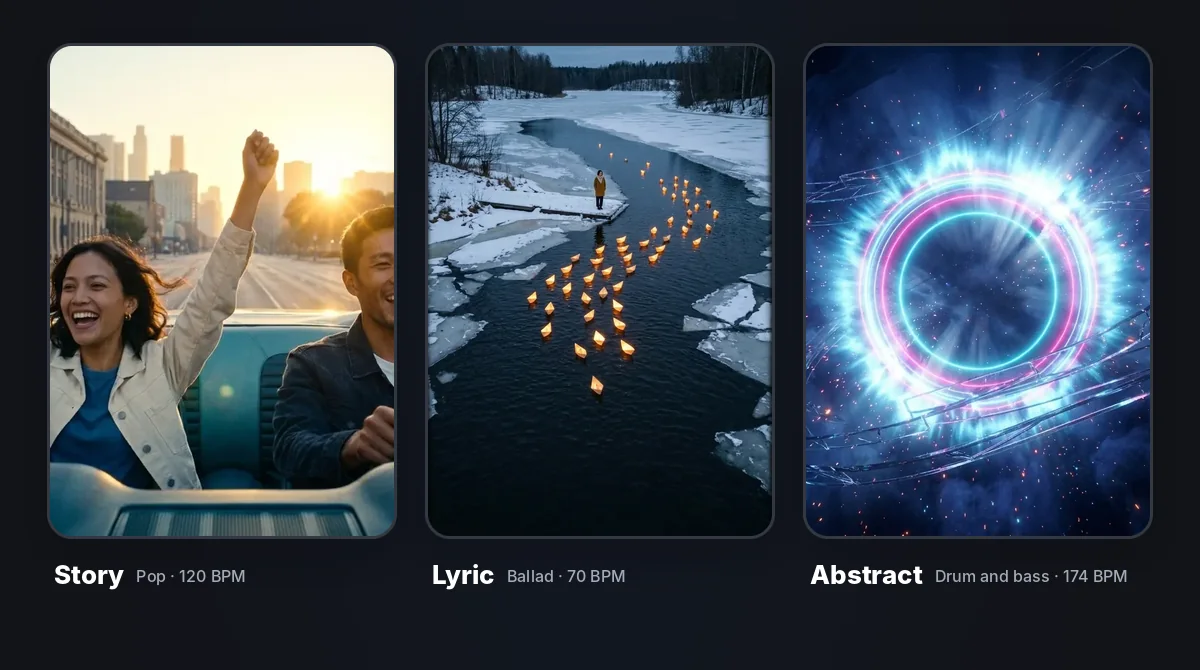
Not every song wants a narrative. Pick the style that fits the track and the budget:
- Story: a lead, a few places and a change from the first shot to the last. The classic music video.
- Abstract: shapes, light and texture that move with the music. Great for electronic and instrumental tracks; see the music visualizer.
- Lyric: the words on screen, timed to the vocal, over visuals. See how to make a lyric video.
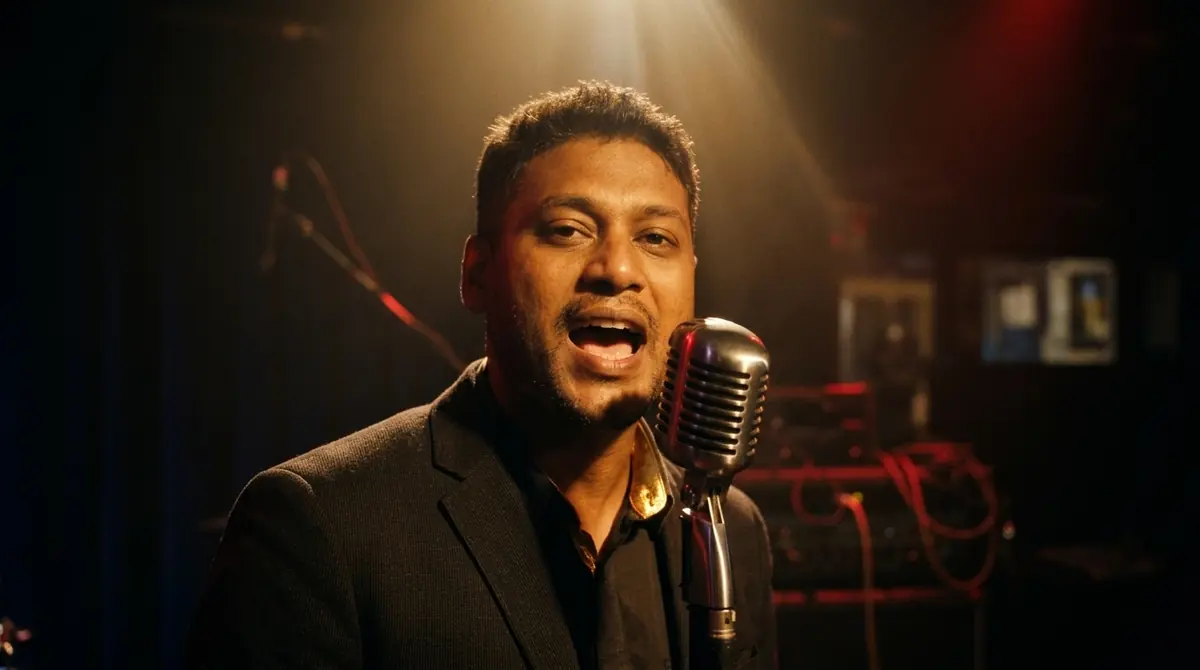
- Performance: a singer, made from one photo, who lip-syncs to your vocals where the song is sung. See the AI lip sync guide.
Common mistakes and how to avoid them
- Pretty shots with no thread. Ten unrelated beautiful images read as a mood board. Give the video a lead and a change.
- Every shot the same size. Alternate wide, medium and close-up so the edit has rhythm.
- Cuts off the beat. Time every cut to a downbeat, and every section change to a cut.
- A new face every shot. Describe the lead once and draw every shot from the same character sheet.
- On-screen text in the prompts. Video models garble lettering. Put the words in captions instead.
- Regenerating everything for one bad shot. Re-roll the shot, not the video.
See your song as a storyboard in minutes
Upload a track and Muvora plans every shot on the beat, draws the look and the characters, and shows the exact price before you render.
Written by the Muvora team. Last updated November 14, 2026. Spotted something out of date? Tell us at [email protected].