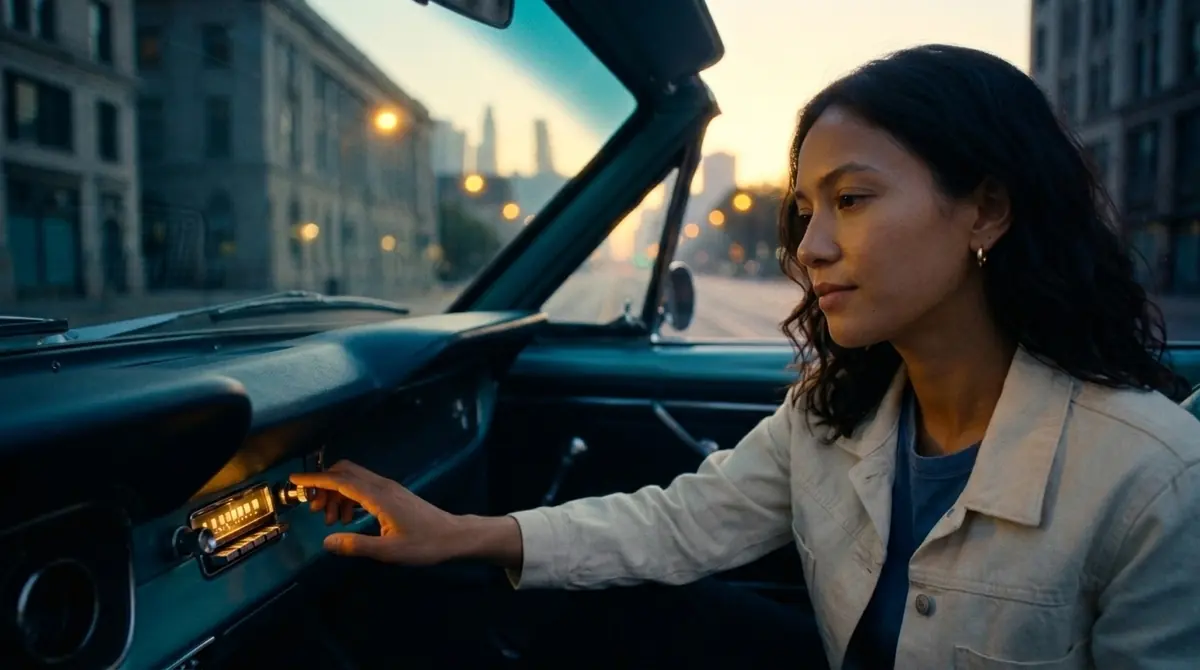
Turn your cover art into a Spotify Canvas
Open a JPEG, PNG or WebP and turn it into a vertical Canvas loop of 3 to 8 seconds at 1080 × 1920, with a preview playing before you save. Your browser draws every frame and writes the video file itself, so the picture never leaves your device.
Free, no sign-up. Runs in your browser: nothing is uploaded.
How to use the Spotify Canvas from an image
- 01
Tick the box, then open the image
Confirm you made the image or have permission to use it, then drop it on the box or choose it. JPEG, PNG and WebP work, up to 10 MB and at least 480 pixels on the shorter side.
- 02
Watch the preview and set the loop
The push-in plays on the page straight away. Pick the length, whether the picture fills the frame or sits whole over a blur of itself, and 1080 × 1920 or 720 × 1280; the preview follows each change.
- 03
Make the MP4
Your browser draws each frame and encodes it as H.264 at 24 frames a second, which takes a few seconds on a laptop. Where it has no encoder for that, it records the loop in real time instead and tells you whether the file is MP4 or WebM.
- 04
Check it and add it to your track
The finished loop plays beside a check against Spotify's published Canvas specs. Download it, or save a still JPG, then in Spotify for Artists open Music, pick the track and choose Add Canvas.
A slow push-in that loops without a jump
The picture zooms in on a cosine curve and eases back out, so it moves slowest just as the loop restarts, and the step from the last frame back to the first is the same size as the step from the first to the second. It starts 2% in, never at full size, and reaches 8% in on an 8-second loop, less on a shorter one, so every length moves at the same speed. The second half is the first played backward: what Spotify's guidelines call a rebound, made from a still. The Spotify Canvas guide covers the other kinds of loop.
- Exactly 24 frames a second: 72 for 3 seconds, 192 for 8
- The way back mirrors the way in, frame for frame
- No audio track: your song plays under it
Framed for the Now Playing screen
A Canvas fills the phone screen in Spotify's Now Playing view, in place of the cover art, so the video is 9:16. A picture within 10% of that shape fills the frame with its center cropped. A square cover, a landscape photo or a long screenshot is shown whole instead, small enough that the deepest zoom keeps all of it, over a soft, slightly darker blur of itself. Switch between the two whenever you like.
- Crop to fill, or whole over a blur of itself
- 1080 × 1920, or 720 × 1280 for a smaller file
- Phone photos stand upright, as your gallery shows them
Made on your device, and plain about the file
Where your browser has an H.264 encoder (the WebCodecs API), every frame is encoded in turn and written into an MP4 with exactly the loop's frames, so an 8-second loop lasts 8.000 seconds. Where it doesn't, the browser's own recorder captures the loop as it plays, which can run a frame or two either way: MP4 where the recorder writes it, WebM where it doesn't, and the result says which. Spotify's guidelines ask for an MP4 or a JPG, so convert a WebM or save the still JPG, and the Spotify Canvas checker reads any finished file again.
- An H.264 MP4 with an exact frame count where the browser can encode
- A real-time recording elsewhere, named MP4 or WebM
- Every result checked against Canvas's published specs

Get a Canvas cut from a music video
Upload the song to Muvora and it makes an AI music video cut to the beat, then exports an 8-second Canvas from the strongest chorus moment alongside the vertical and square videos. The storyboard is free, and you see the price before anything renders.
Questions, answered
Can't find what you need? Start a free storyboard and see for yourself.
Does my cover art get uploaded anywhere?
No. Your browser decodes the image, draws every frame and writes the video on your device, and nothing from the picture is sent to Muvora or anyone else. Use only images you made or have permission to use.
What does Spotify ask a Canvas file to be?
Its Canvas guidelines, as of November 2026, ask for 3 to 8 seconds, a vertical 9:16 ratio, "Between 720px - 1080px tall" and an MP4 or JPG file. The maker saves 1080 × 1920, or 720 × 1280 if you pick it. Spotify's help page warns that an upload can fail when the length or size is even slightly off; if yours is refused, its advice is to check the file against those specs or to add the Canvas from the Spotify for Artists mobile app.
Why did my browser record the loop instead of encoding it?
Encoding frame by frame needs the browser's H.264 encoder, part of the WebCodecs API. Without it, the maker plays the loop on a canvas and the browser's recorder captures it, which takes as long as the loop, needs the tab in front the whole time, and can run a frame or two long or short, so it aims a little inside 3 to 8 seconds. The file is MP4 where the recorder writes MP4 and WebM where it doesn't.
Which pictures make the best Canvas loops?
Your cover art, or a photo at least 1080 pixels wide if you want it to fill the frame. Spotify's guidelines note that the edges may get cut off on some phones and suggest leaving out the song and artist name, which the Now Playing view already shows, so keep what matters near the middle. Images under 480 pixels on the shorter side are turned away because the loop would look soft.
Can a Canvas be a still image?
Yes. Spotify's guidelines take a JPG as well as an MP4, and Save a still JPG gives you the loop's first frame at the size you picked. The loop adds the slow movement a still lacks.
Keep exploring

Spotify Canvas
An 8-second vertical loop cut from your video, sized for Canvas.
Learn moreSpotify Canvas checker
Check a video against Canvas's specs before you upload: length, shape, resolution and format.
Open the toolSpotify Canvas guide
Canvas specs, loop design rules, ideas by genre and the quickest way to make one from your video.
Read the guide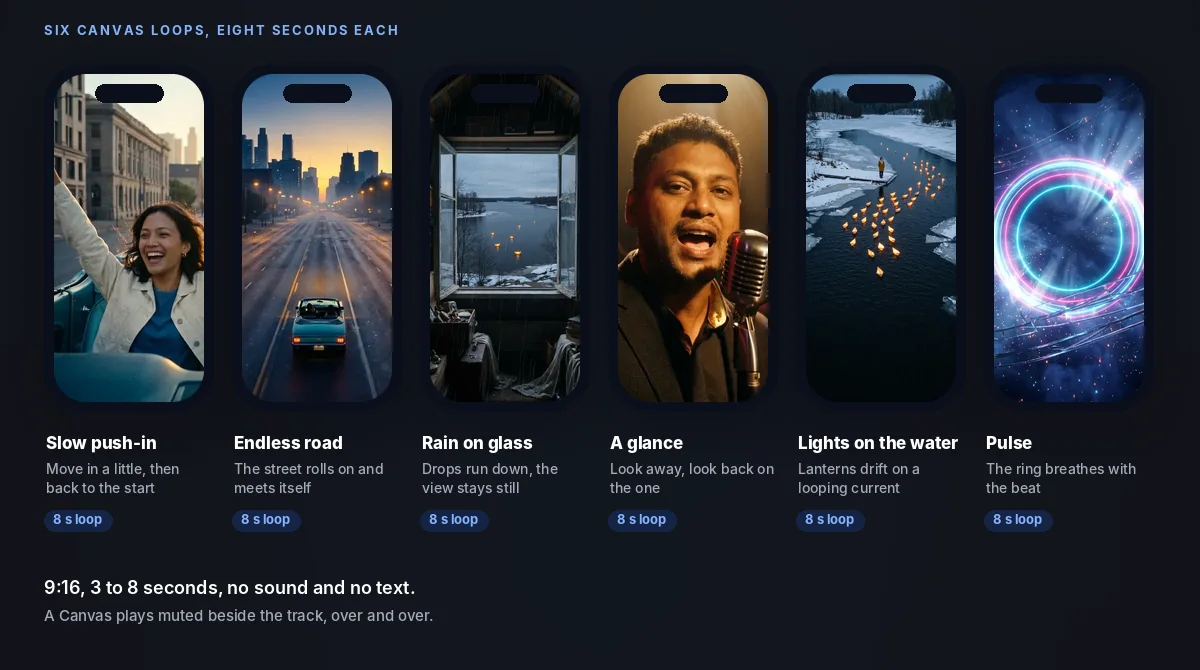
Spotify Canvas ideas
15 eight-second loop ideas for a Spotify Canvas, how each one loops, what Spotify asks for, and a Canvas cut from every music video you render.
Read the guide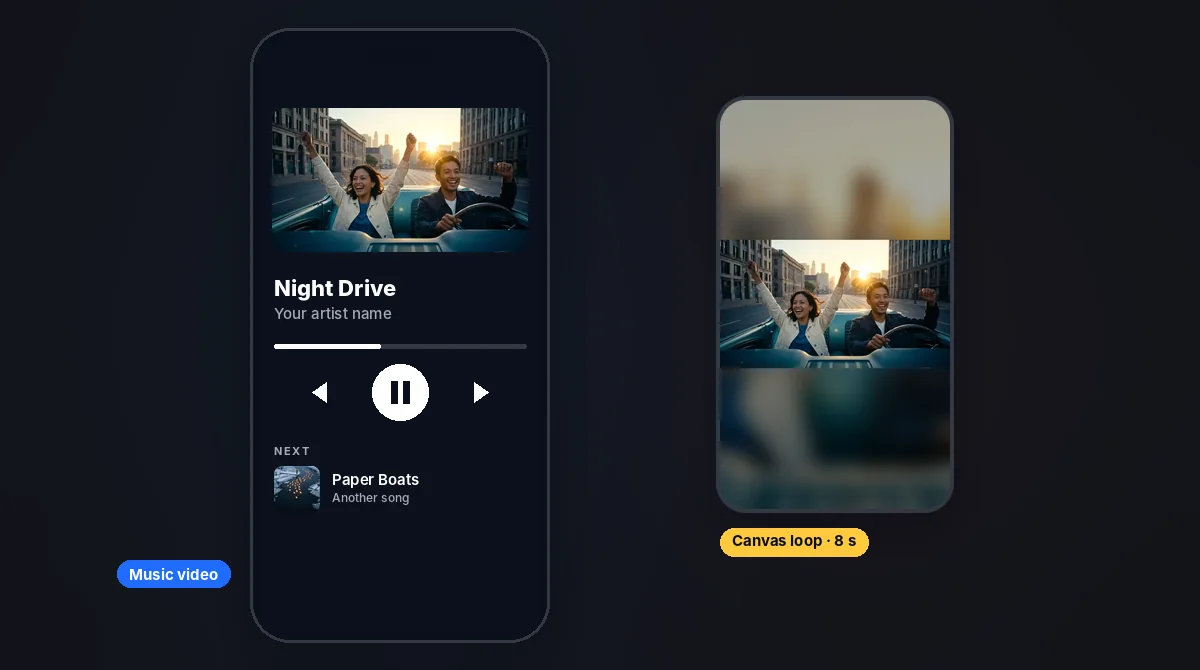
Get your music video on Spotify
The two ways a music video reaches Spotify, who can watch it, the specs, which videos count, pitching one to editors, and what to post while you wait.
Read the guideVertical video converter
Turn a horizontal clip into a 9:16 video for TikTok, Reels and Shorts: crop with a position you choose, or fit it over a blurred fill.
Open the toolAlbum cover maker
Make 3000 × 3000 cover art from your own photo or a color, with the artist name and title in fonts licensed for commercial use.
Open the tool
TikTok, Reels & Shorts
Vertical 9:16 cuts of your hook, priced by the second.
Learn more
Your song deserves a music video
Upload a track and get a free beat-synced storyboard in minutes. Render it when you are ready.
No card needed to start.