Remove the silence from the start and end of a song
Open a song or any recording on your device and the silence remover finds where its sound starts and stops: it measures every 10 ms, and anything under a threshold you set (-50 dBFS to begin with) counts as silence. A level graph marks what will be cut, a short pad and a fade keep the first attack and the last decay intact, and the trimmed file plays in the page as the very WAV you save, at the file's own sample rate. Silence inside the song stays put unless you ask. Your browser does the work, so the audio never leaves your device.
Free, no sign-up. Runs in your browser: nothing is uploaded.
Decoded by your browser at the file's own sample rate and saved as WAV. MP3, WAV, M4A, AAC and FLAC open in current browsers; OGG and Opus depend on the browser. Only trim audio you made or have permission to use.
Song finished? Upload it and Muvora plans the whole video on its beats. The storyboard is free.
Make the videoUpload a new songHow to use the silence remover
- 01
Open the file
Choose an MP3, WAV, M4A, AAC or FLAC file of up to 15 minutes. Your browser decodes it at its own sample rate, measures every 10 ms and trims it with the default settings straight away.
- 02
Check what will be cut
The graph shows the whole song, then close-ups of its first and last seconds, with the threshold as a dashed line and the cuts tinted. Move the threshold or the pads and the cut follows at once.
- 03
Decide about the silence inside
Leave it alone, as the tool does unless told otherwise, or shorten every silence longer than 1, 2 or 4 seconds to a quarter, a half or a whole second, knowing that everything after each gap then plays earlier.
- 04
Listen, then save the WAV
Play the trimmed file in the page, then download it at the file's own sample rate and bit depth. Change a setting and press Trim again for another version from the same decoded audio.
Why the silence at the start of a file matters
A song file plays from its first sample, whatever is there. Exports often start with the pre-roll a session began with, a bar of nothing before the count-in, and end with the seconds the export range ran on after the last note. In a playlist that is dead air before the song, in a 15-second clip it's a second wasted, and in a music video it is a picture with no music: a Muvora video runs from the uploaded file's first sample to its last, so 2 seconds of silence at the start are 2 seconds of video before the first note. Trim the file before you upload and the video starts on the music. Setting the export range in your DAW is the cleaner fix where you can (the how to export a song guide covers it); this tool is for the files you already have.
- A file plays from its first sample
- Pre-roll and run-on tails are common
- A Muvora video starts where the file starts
How the threshold, the pads and the fades decide the cut
Every 10 ms of the file is measured as RMS in dB below full scale (dBFS), taking the louder channel, so a full-scale sine reads about -3 dBFS and digital silence sits at the bottom of the graph. Sound is anything at or above the threshold that lasts at least 30 ms, so a lone click or pop before the music doesn't count as its start. The default of -50 dBFS sits far above the dither of a 16-bit or 24-bit export and below most quiet music; if a recording's hiss is louder than that, the graph shows it as a flat floor, and you raise the threshold just above it. A pad is kept on each side (0.1 seconds before the first sound, 0.5 after the last) so a breath, a pick noise or a reverb tail under the threshold isn't clipped, and a 10 ms fade sits inside each pad so the cut doesn't click. The music itself isn't processed at all: only its edges are cut.
- 10 ms readings, the louder channel
- A sound must last 30 ms to count
- Pads and fades sit inside the silence
Silence inside a song, lossy files and file sizes
Shortening long silences inside a song is meant for spoken word, demos and live recordings, and it is off by default for a reason: cutting time out of the middle moves everything after the gap earlier, so lyrics timed to the original, a click track or your DAW session no longer line up, and a deliberate stop loses its weight. Trimming the start moves timed lyrics too, so time them against the trimmed file (the lyrics formatter cleans them up first). A file that began as an MP3 or AAC stays lossy as a WAV: it holds what the encoder kept and only gets bigger. Size grows with length, bit depth and sample rate, so a 3-minute stereo WAV at 24-bit and 48 kHz is about 50 MB, under Muvora's 60 MB upload limit, while a longer song fits better as FLAC, which is lossless and smaller and which Muvora takes. The tool says when a WAV is over the limit.
- Inside the song: only when you ask
- A lossy file stays lossy as WAV
- Long songs fit the upload better as FLAC
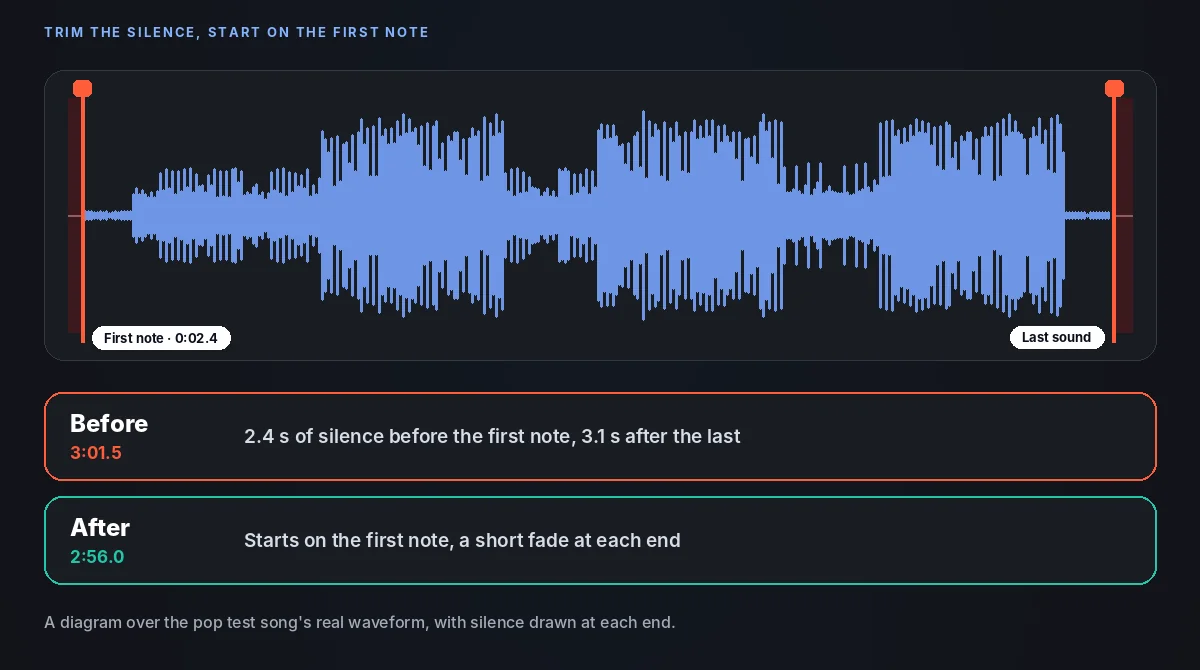
Upload the trimmed file and the video starts on the first note
Upload the trimmed WAV (or a FLAC made from it) to Muvora: MP3, WAV, M4A, AAC or FLAC, up to 8 minutes and 60 MB. Muvora keeps your file as the video's soundtrack, unchanged, and measures the new file's beats, sections and drops from its first sample, so the AI director's storyboard puts the opening shot with the music instead of over silence, and every later cut on a downbeat. Reading and editing the storyboard is free, and you see the price before you render.
Questions, answered
Can't find what you need? Start a free storyboard and see for yourself.
How do I remove silence from the start of a song?
Open the file on this page and it is trimmed at once: everything quieter than -50 dBFS before the first sound and after the last goes, apart from a 0.1-second pad before and a 0.5-second pad after. Check the cut on the graph, play the result and download the WAV.
Will it cut a quiet intro?
Not one that reaches the threshold. A soft pad, a held note or a fade-in louder than -50 dBFS counts as sound, and only the part of a fade-in quieter than that is trimmed, less the pad. If an intro is quieter still, lower the threshold until the graph shows it as kept.
Can it remove silence from the middle of a song?
Yes, if you tick the option: every silence longer than the length you pick is shortened, with half the silence you keep on each side of the cut. It's off by default because everything after each gap then plays earlier, which puts lyrics timed to the original file and any session or click track built on it out of step.
Does trimming lower the audio quality?
No. The kept audio isn't processed: it's written back at the file's own sample rate, and at the file's own bit depth for a WAV or FLAC (16-bit for an MP3 or AAC). The only change is a short fade inside the kept silence. Saving below the original bit depth rounds every sample, and a lossy file's WAV holds only what that file held.
Why is the trimmed WAV bigger than my MP3?
WAV stores every sample uncompressed, so 3 minutes of stereo at 16-bit and 44.1 kHz is about 30 MB, where an MP3 of the same song is a few MB. Muvora takes WAV files up to 60 MB; for a longer song, convert the trimmed WAV to FLAC, which is lossless and smaller.
Is my audio uploaded when I trim it?
No. Your browser decodes, measures and trims the file on your device, and the WAV you play and download sits in this page's memory. Nothing is sent to Muvora or anyone else, and closing the tab clears it. Trim only audio you made or have the rights to use.
Keep exploring
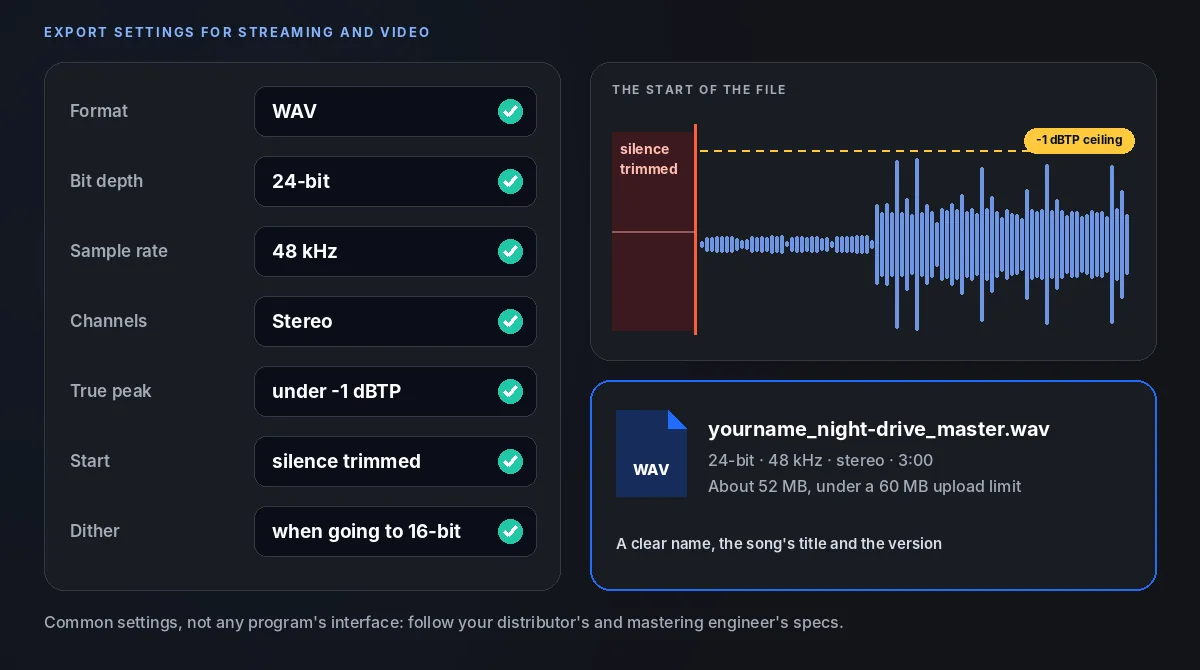
How to export a song
Export settings for a distributor, a mastering engineer, a music video and a demo: file type, bit depth, sample rate, dither, silence, names, tags and each DAW's export menu.
Read the guideAudio cutter
Cut a 15 to 60 second clip from a song that starts and ends on a bar line, add fades and save it as a WAV.
Open the toolAudio normalizer
Normalize a song to -14 LUFS, another loudness or a peak level, with its true peak kept under a ceiling, and save it as a 16 or 24-bit WAV.
Open the toolMP3 to WAV converter
Convert MP3, M4A, AAC, FLAC or OGG files to 16-bit, 24-bit or 32-bit float WAV on your device, several at once.
Open the toolLyrics formatter
Paste lyrics from a chord sheet, a notes app or an LRC file and get clean lines: chords, times and stray spacing out, sections in place.
Open the tool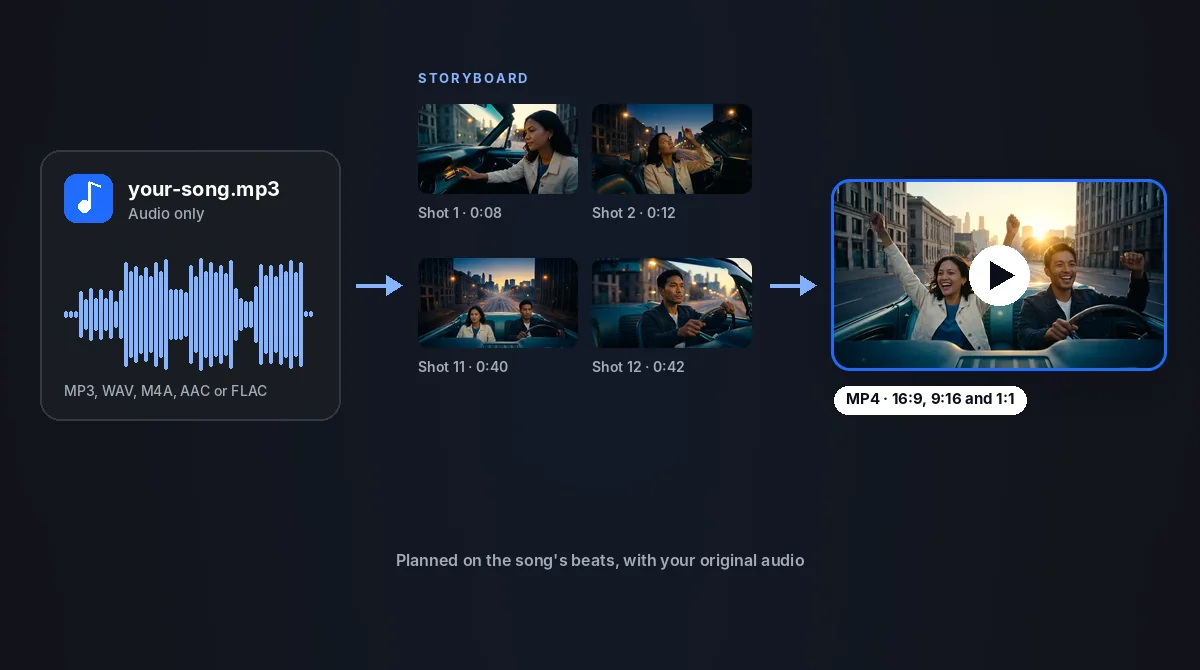
MP3 to video
Convert an MP3 or WAV into an MP4 with AI visuals cut to the song, ready for YouTube.
Learn more
More free tools: loudness and audio
Check and normalize loudness, change the key, make a slowed and reverb or reversed version, join files, convert to WAV, cut a snippet and make waveform art.
Your song deserves a music video
Upload a track and get a free beat-synced storyboard in minutes. Render it when you are ready.
No card needed to start.