Convert MP3, M4A and FLAC files to WAV in your browser
Add one song or a batch of them: MP3, M4A, AAC, FLAC, OGG or WAV. The converter reads each file's length, channels and sample rate and tells you how big the WAV will be, then decodes and writes the files one at a time as 16-bit, 24-bit or 32-bit float WAV, at the file's own sample rate or at 44.1 or 48 kHz, in stereo or mono. Your browser does the decoding, so the songs never leave your device.
Free, no sign-up. Runs in your browser: nothing is uploaded.
A WAV made from an MP3 or AAC file holds what that file kept, no more: it is a format editors and distributors accept, not a better recording. Converted with your browser's own decoder, one file at a time, without dither. To make a music video, Muvora takes MP3, WAV, M4A, AAC and FLAC as they are: no need to convert first.
Song finished? Upload it and Muvora plans the whole video on its beats. The storyboard is free.
Make the videoUpload a new songHow to use the MP3 to WAV converter
- 01
Pick the format
Choose the bit depth, the sample rate and stereo or mono. 16-bit at 44.1 kHz is CD quality, the format many distributors ask for; check what yours wants before you convert.
- 02
Add your files
Drop in or choose up to 20 files at once. Each one lists its length, its channels, its sample rate and roughly how many megabytes it will take up as a WAV.
- 03
Convert them
Press Convert. The files are decoded and written one after another, with a progress bar on each, so only one song is decoded at a time and memory stays low in a long batch.
- 04
Save each WAV
Download each file from its link. The name keeps the song's title and adds the bit depth and rate, so a 16-bit and a 24-bit copy never overwrite each other.
What converting to WAV does, and what it can't
An MP3 or an AAC file (most M4A files) was made by throwing away detail its encoder judged you wouldn't hear. Decoding it brings back the sound the encoder kept, and the WAV stores that exactly, sample for sample. It can't bring back what was thrown away: a 128 kb/s MP3 converted to 24-bit WAV still sounds like a 128 kb/s MP3, in a file more than ten times the size. What you gain is a format every audio editor, video app and distributor accepts, and no further loss when you edit and save again. FLAC is the exception: it is lossless, so FLAC to WAV gives you the very same audio. When you have the original WAV or FLAC master, use that instead of converting the MP3.
- The WAV holds what the source kept
- Nothing is added, nothing more is lost
- Use your lossless master when you have one
Bit depth, sample rate and file size
16-bit audio has about 96 dB between full scale and its noise floor, plenty for a finished song; 24-bit is what studios record and mix at; 32-bit float stores each sample as a decimal number, so it can hold values past full scale. That matters for decoded MP3s: a loud master's peaks often land a little above full scale once it has been through an encoder, and at 16 or 24-bit those samples are clipped (the converter counts them and tells you), while 32-bit float keeps them. Samples are rounded without dither. Leave the sample rate as the file has it unless a form asks for another: 44.1 kHz is the CD rate and 48 kHz the video rate, and picking one resamples only a file recorded at a different rate. At 16-bit, 44.1 kHz stereo a minute takes about 10.1 MB; 24-bit is half as big again, 32-bit float twice the size, mono half.
- 16-bit, 44.1 kHz stereo: about 10.1 MB a minute
- 32-bit float keeps peaks past full scale
- The file's own rate unless you ask for another
Which files open, and what to do when one won't
The converter uses your browser's own audio decoder. MP3, WAV, AAC and M4A, and FLAC open in current Chrome, Edge, Firefox and Safari. OGG files, whether Vorbis or Opus inside, depend on the browser and its version, and so does an M4A holding Apple Lossless rather than AAC. If a file won't open, try it in another browser, or export it again from the app that made it as MP3, FLAC or WAV. Each file can run up to 15 minutes, and files are converted one at a time, so a phone doesn't run out of memory halfway through an album.
- MP3, WAV, AAC, M4A and FLAC in every current browser
- OGG depends on the browser
- Up to 15 minutes a file, 20 files at once
You don't need a WAV to make the video
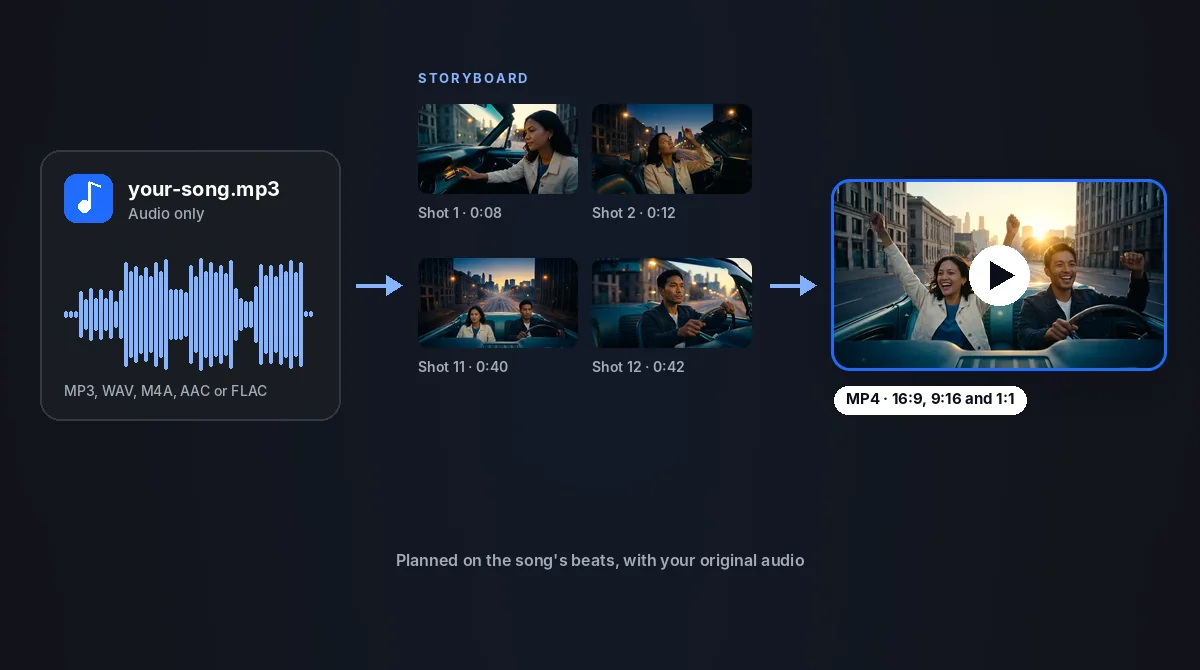
Muvora takes your song as MP3, WAV, M4A, AAC or FLAC, up to 8 minutes and 60 MB, so there's nothing to convert before you upload. Send the best file you have: a WAV or FLAC master gives the cleanest soundtrack, while a WAV made from an MP3 only adds size. A long song as WAV can pass the 60 MB limit, so upload its FLAC or MP3 then. Muvora finds the beats and sections and plans a storyboard with every cut on a downbeat; reading and editing it is free, and you see the price before you render.
Questions, answered
Can't find what you need? Start a free storyboard and see for yourself.
Does converting MP3 to WAV improve the sound?
No. The WAV holds exactly what the MP3 decodes to, so it sounds the same, in a much bigger file. What changes is the format: editors, DAWs and distributors that won't take MP3 will take the WAV, and editing it loses nothing more. If you have the original WAV or FLAC export, use that instead.
Which bit depth and sample rate should I choose?
Many distributors ask for 16-bit at 44.1 kHz, but check your own distributor's upload page. For a DAW session or a video editor, match the project, often 24-bit at 48 kHz. Pick 32-bit float when you want to keep peaks that a decoded MP3 pushes past full scale.
How big is a WAV file?
At 16-bit, 44.1 kHz stereo, about 10.1 MB a minute, so a three-and-a-half-minute song comes to about 35 MB. At 24-bit the same song is about 53 MB, at 32-bit float about 71 MB, and mono halves each figure. The converter shows the size for each file before you convert.
Can I convert M4A or FLAC to WAV here?
Yes, along with AAC, OGG and WAV itself. FLAC is lossless, so FLAC to WAV gives identical audio in a larger file. An M4A usually holds AAC, which is lossy like MP3: the WAV keeps what the AAC encoder kept.
Why won't my file open?
Your browser decodes the file, and not every browser reads every format. OGG Vorbis and Opus, and Apple Lossless inside an M4A, depend on the browser and its version. Try the file in another browser, or export it again as MP3, FLAC or WAV from the app that made it. A damaged file won't open anywhere.
Does the converter add dither?
No: every sample is rounded to the nearest step. For a file that came from an MP3 or AAC, rounding is not the weak link. To turn a 24-bit master into a 16-bit release file, use your mastering tool's dither instead, which keeps quiet fade-outs clean.
Are my songs uploaded anywhere?
No. The files are read and decoded by your browser on your device, the WAV is written in this page's memory, and the download link points to that memory. Nothing is sent to Muvora or anyone else, and closing the page clears it.
Keep exploring
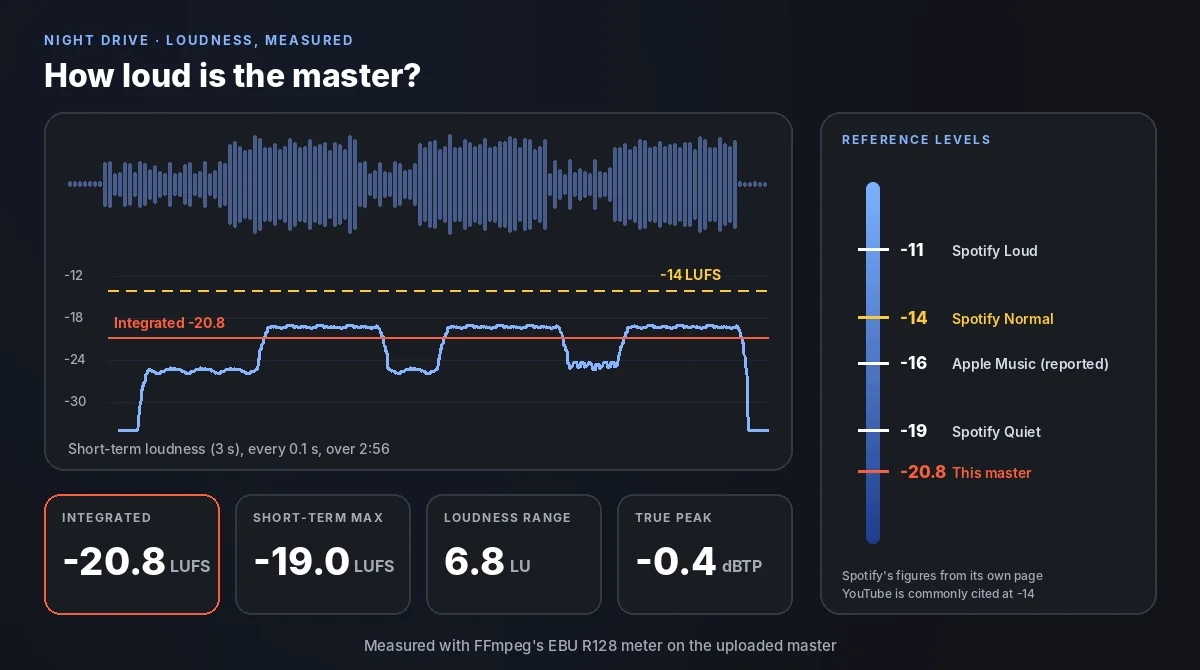
LUFS for streaming
What LUFS means, the level each streaming service plays songs at, and how loud to master with true peak headroom to spare.
Read the guideLUFS meter
Open a song to read its integrated LUFS, true peak and loudness range, and how far Spotify, YouTube and Apple Music turn it down.
Open the toolAudio cutter
Cut a 15 to 60 second clip from a song that starts and ends on a bar line, add fades and save it as a WAV.
Open the tool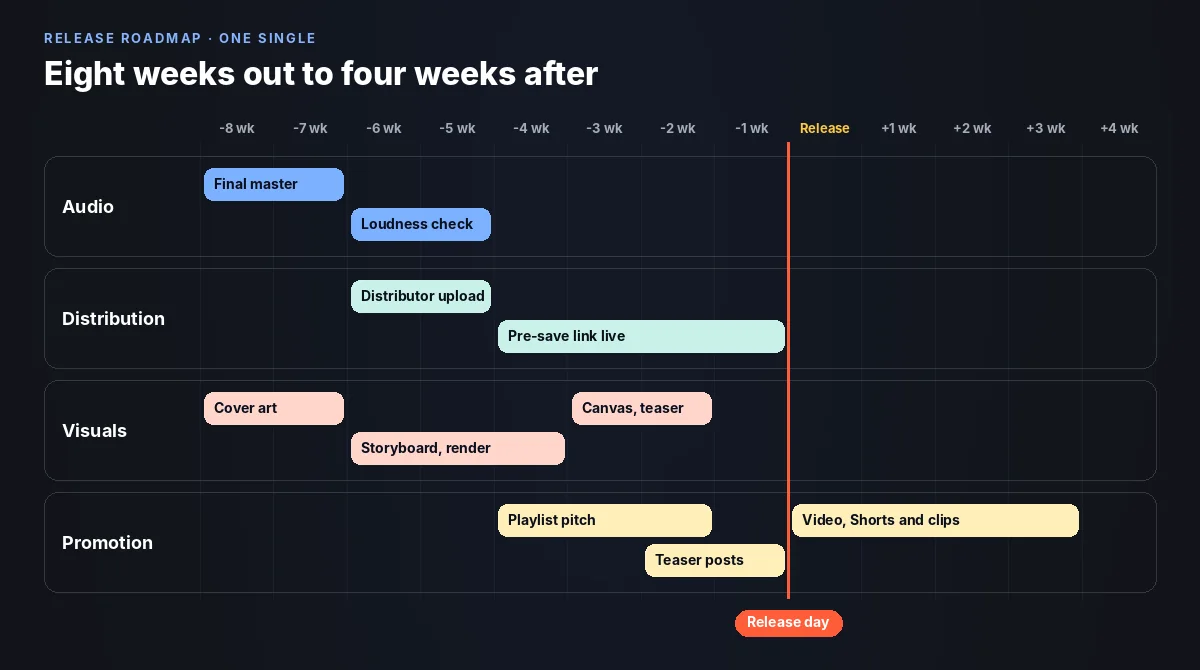
Release music independently
From a finished master to the month after release: loudness, distributors, codes, splits, publishing, art, pitching and visuals.
Read the guideMP3 to video
Convert an MP3 or WAV into an MP4 with AI visuals cut to the song, ready for YouTube.
Learn more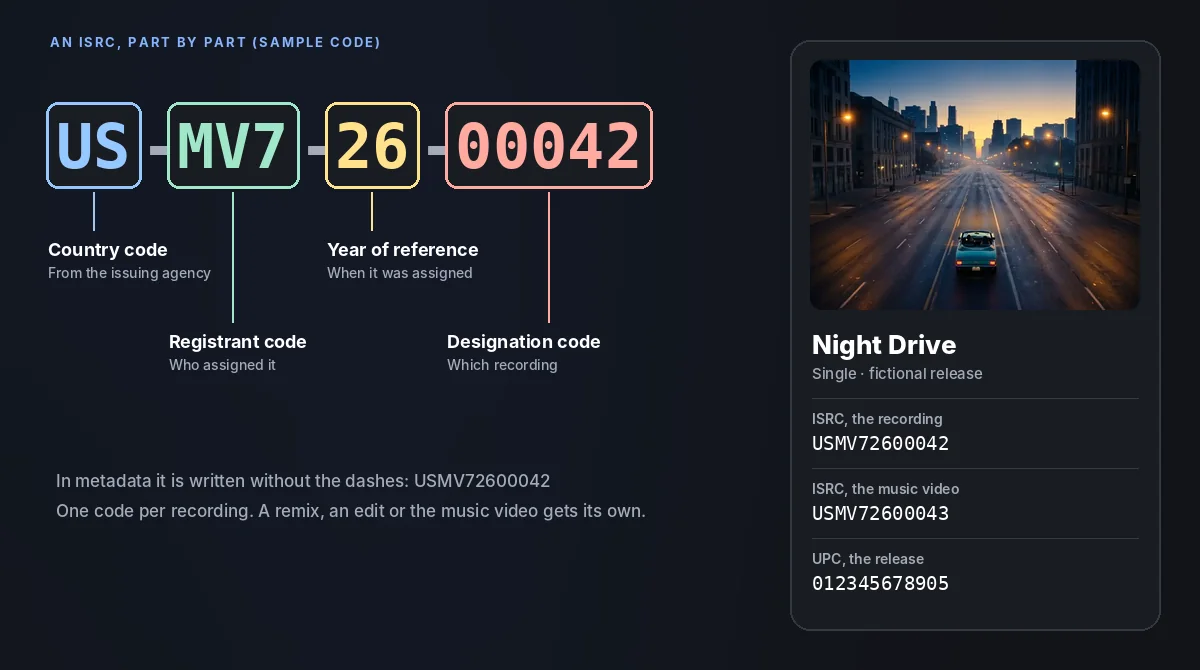
What is an ISRC code?
The 12-character code for a recording: its four parts, ISRC vs ISWC vs UPC, when a remix, an edit or a music video needs its own, and how to get one.
Read the guideAudio normalizer
Normalize a song to -14 LUFS, another loudness or a peak level, with its true peak kept under a ceiling, and save it as a 16 or 24-bit WAV.
Open the toolSlowed and reverb generator
Make a slowed and reverb, sped up or nightcore version of your own song, hear every change as you make it and save a WAV.
Open the toolAudio joiner
Join MP3, WAV, M4A or FLAC files into one WAV in the order you set: back to back, with a gap or with a crossfade.
Open the toolSpectrogram viewer
Open a song and see its frequencies over time, with the note and level under your pointer, a playhead, and a PNG to save.
Open the toolExtract audio from video
Take the soundtrack out of an MP4, MOV, WebM or MKV video and save it as a WAV, all of it or a part, on your device.
Open the toolMP3 tag editor
Change an MP3's title, artist, album, track number, lyrics and cover art on your device, and save a copy whose audio is untouched.
Open the toolSilence remover
Trim the silence from the start and end of a song file, with every cut shown on its levels, and save a WAV at the file's own rate.
Open the tool
More free tools: loudness and audio
Check and normalize loudness, change the key, make a slowed and reverb or reversed version, join files, convert to WAV, cut a snippet and make waveform art.
Your song deserves a music video
Upload a track and get a free beat-synced storyboard in minutes. Render it when you are ready.
No card needed to start.