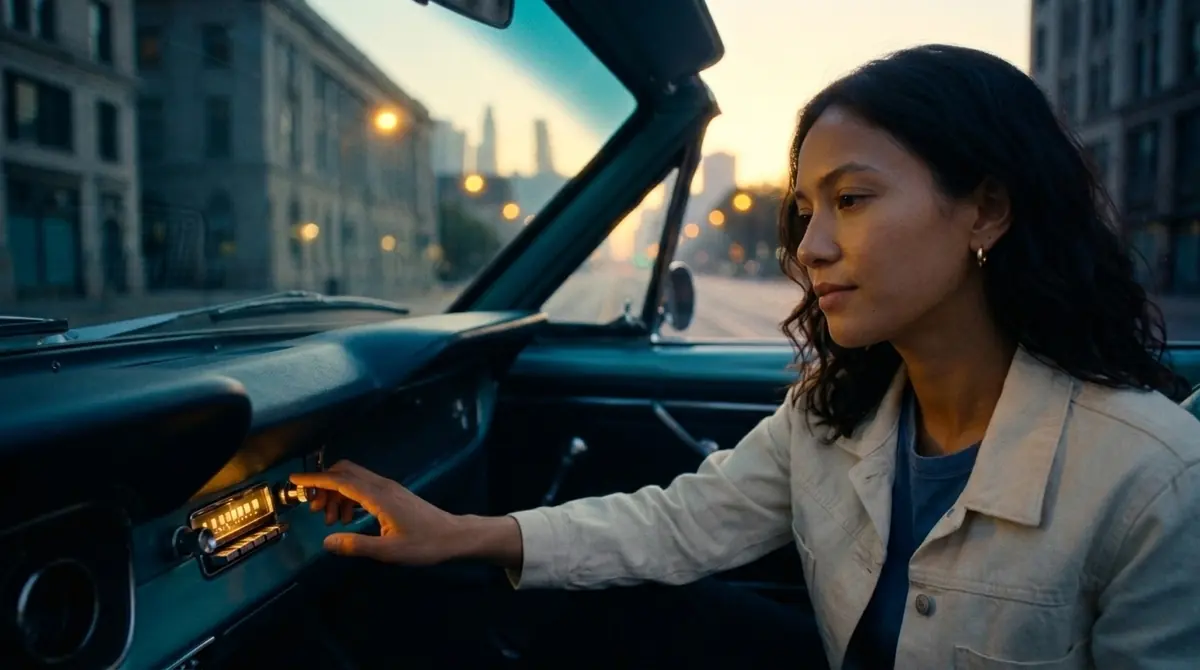
Convert a horizontal video to vertical 9:16
Open a widescreen clip, then crop it to a 9:16 window you slide across the frame, or fit the whole picture over a blurred, darkened copy of itself. Trim it, keep or drop the sound, and save it at 1080 × 1920 or 720 × 1280 for TikTok, Reels and Shorts. The conversion runs in your browser, in real time, so the clip never leaves your device.
Free, no sign-up. Runs in your browser: nothing is uploaded.
Open a horizontal clip to make it 9:16. MP4, MOV or WebM, whatever your browser plays. It stays on your device.
Convert and save
Open a clip, set the framing and the part to keep, then convert it into a 9:16 video file.
It converts in real time, so a 1-minute clip takes 1 minute, up to 5 minutes at a time (the new video is held in the tab's memory until you save it). Keep this tab open and in front: a hidden tab stops drawing, so the recording pauses until you come back. The file type is whatever your browser's recorder writes: MP4 in Safari and wherever Chrome or Edge offers it, WebM in Firefox and other versions. Re-encoding costs a little quality, so start from the best copy of the clip you have.
Song finished? Upload it and Muvora plans the whole video on its beats. The storyboard is free.
Make the videoUpload a new songHow to use the vertical video converter
- 01
Open the clip
Choose a video your browser can play; an MP4 with H.264 opens everywhere. It plays from your device's memory, and nothing is uploaded.
- 02
Choose the framing
Crop to fill and slide the window to keep the subject in, or fit the whole frame over a blurred fill. The 9:16 preview follows every change.
- 03
Trim it and pick a size
Set the start and the end (up to 5 minutes), choose 1080 × 1920 or 720 × 1280, and keep or drop the sound.
- 04
Convert and save
The part you chose plays through once while your browser records the new frame, then it's ready to save as MP4 or WebM, whichever your browser writes.
Crop or fit: which framing suits the shot
A 9:16 window cut from a 16:9 frame keeps its full height and 31.6% of its width, the middle third or whichever third you slide it to. That suits a face, a singer or one subject: it fills the phone screen and loses the edges. Fitting keeps every pixel instead, as a band 1080 × 608 across the middle of a 1080 × 1920 frame, over a blurred, darkened copy of itself that fills the rest. That suits a wide shot where the place matters: a crowd, a skyline, a stage. It's how Muvora's own vertical exports show wide shots, while closer shots are cropped, and the music video aspect ratios guide explains when each works. For other shapes, such as 4:5 or 1:1, the aspect ratio calculator shows what a crop keeps.
- A crop keeps 31.6% of a 16:9 frame
- A fit keeps it all, across the middle
- Slide the crop to follow the subject
How it converts, and its limits
Rather than load a whole video encoder into the page, the converter plays the part you chose and draws each of its frames into a 9:16 canvas, while the browser's own recorder writes that canvas and the clip's sound into a new file. That takes as long as the clip: a minute of video takes a minute, and the tab has to stay open and in front, because a hidden tab stops drawing (the recording pauses until you come back). The file is MP4 with H.264 and AAC in Safari and wherever Chrome or Edge offers it, and WebM elsewhere, the tool says which. It aims for 8 Mbps at 1080 × 1920 and 5 Mbps at 720 × 1280, and any re-encode costs a little quality, so start from your best copy. It converts up to 5 minutes at a time, because the new video stays in the tab's memory, about 60 MB a minute at 1080 × 1920, until you save it.
- Real time, with the tab in front
- MP4 or WebM, as the browser allows
- Up to 5 minutes a clip
Before you post the vertical version
A 9:16 frame isn't all screen: TikTok, Reels and Shorts lay a caption and the account name over the bottom quarter and a column of buttons down the right. Slide the crop so faces sit in the middle, a little above center, and check the frame with the safe zone checker. Then trim to each app's limit: as of November 2026 a Short runs up to 3 minutes, a Reel 3 minutes and a TikTok 10. Run the saved file through the video file checker to see its size, frame rate and sound against each app's specs, or, if you edit in CapCut, set its canvas to 9:16 there as the CapCut music video tutorial shows.
- Keep faces clear of the buttons
- Trim to each app's length limit
- Check the saved file's specs
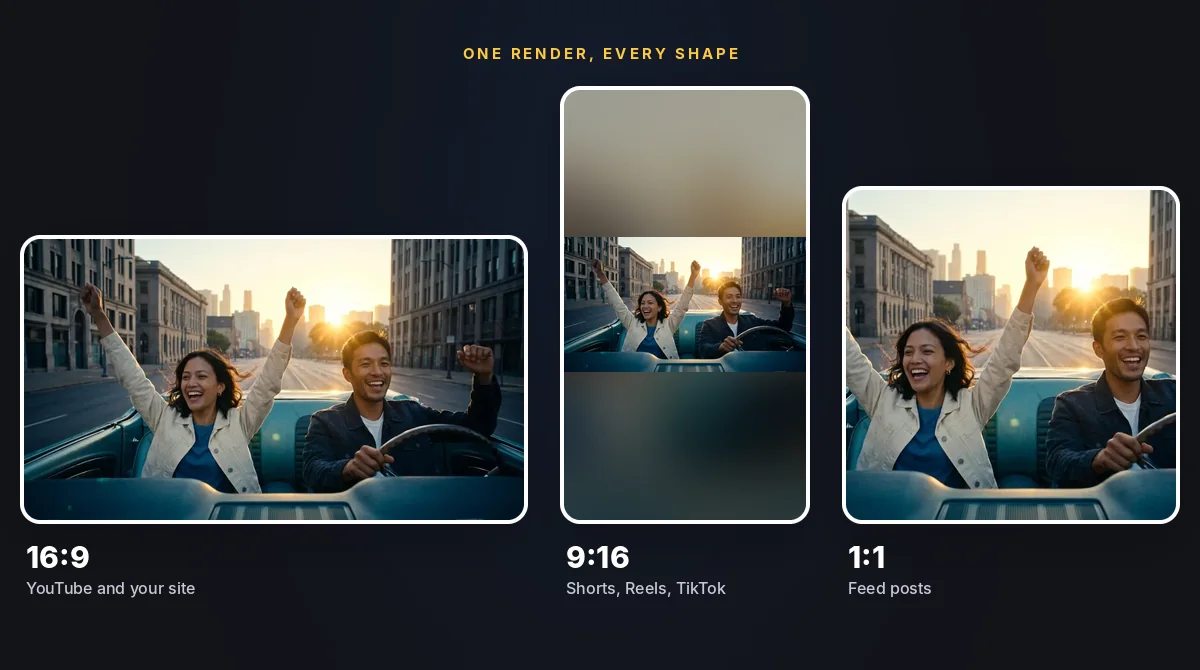
Every shot framed for the phone in the same render
A converter frames the whole clip one way. Muvora frames a music video shot by shot: it renders your song's video once and exports the 9:16 version beside the 16:9 one, close shots and singing shots cropped to the center and wide shots kept whole over a blurred fill, every cut on the beat and your uploaded song as the sound. The square post and an 8-second Canvas loop come from the same render. The storyboard is free to read and edit, and the price shows before you render.
Questions, answered
Can't find what you need? Start a free storyboard and see for yourself.
How do I convert a horizontal video to 9:16?
Open it in the vertical video converter, choose Crop to fill and slide the window over the subject, or choose Fit to keep the whole frame over a blurred fill, then press Convert. It saves a 1080 by 1920 or 720 by 1280 video on your device, and nothing is uploaded.
Should I crop my video or add a blurred background?
Crop when one subject carries the shot, such as a face, a singer or an instrument: it fills the phone screen. Fit over a blurred fill when the whole frame matters, such as a crowd, a stage or a landscape, since a crop would keep less than a third of its width.
Why does converting take as long as the video?
Instead of loading a whole video encoder into the page, the converter plays the clip and lets your browser's own recorder capture the new frame as it goes, in real time. Keep the tab open and in front while it runs; if you switch away, it pauses and carries on when you press Resume.
Will I get an MP4 or a WebM?
Whatever your browser's recorder writes. Safari writes MP4, Chrome and Edge write MP4 where the version and system allow and WebM otherwise, and Firefox writes WebM. The tool shows which you'll get before you start, and lets you choose when both are offered.
Does converting lower the quality?
A little: every re-encode loses some detail, and the converter records at a target of 8 Mbps for 1080 by 1920. Start from the best copy you have rather than a file downloaded from an app, and avoid converting the same clip twice.
Is my video uploaded to convert it?
No. The clip plays from a temporary link to the file on your device, each frame is drawn on a canvas in the page, and your browser's recorder writes the new file in the same tab. Nothing is sent to Muvora or anyone else.
Keep exploring
Music video sizes and ratios
16:9, 9:16, 1:1 or 4:5? The right size, shape and frame rate for every platform you release on.
Read the guideSafe zone checker
Shade the TikTok, Reels or Shorts buttons over your frame, check where a caption stays clear and download an overlay.
Open the toolAspect ratio calculator
Any frame's ratio, a resize that keeps it, and what cropping or fitting to 9:16, 1:1 or 4:5 does.
Open the tool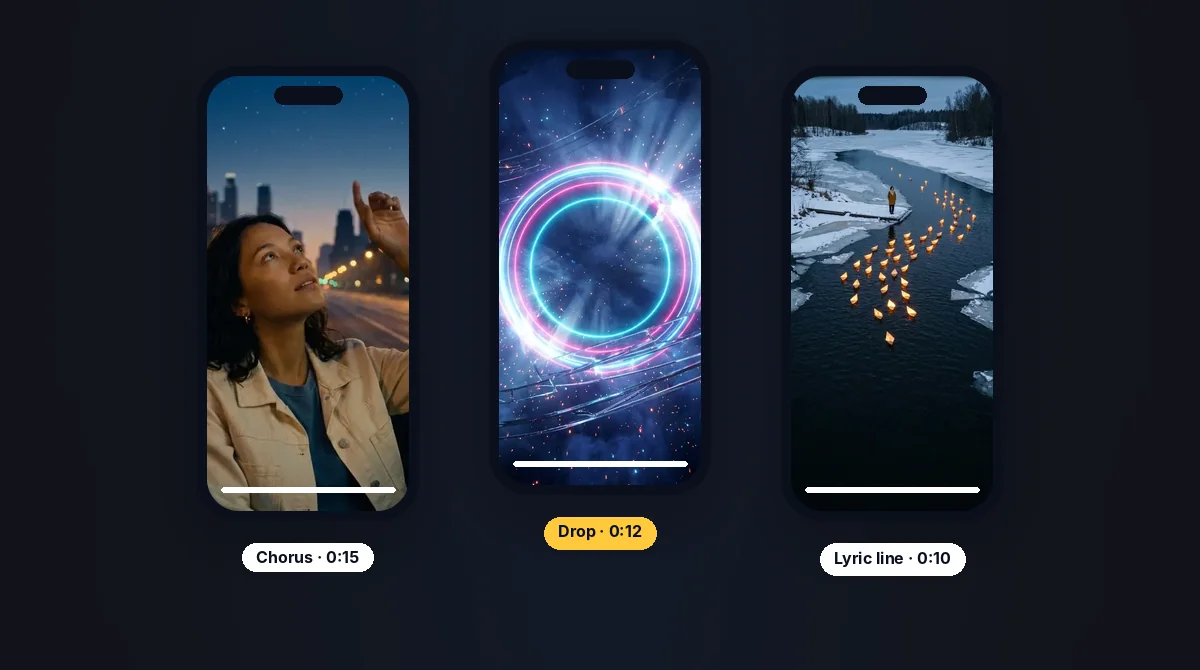
YouTube Shorts
Shorts cut from the same render as your channel's full video, each opening on a beat.
Learn more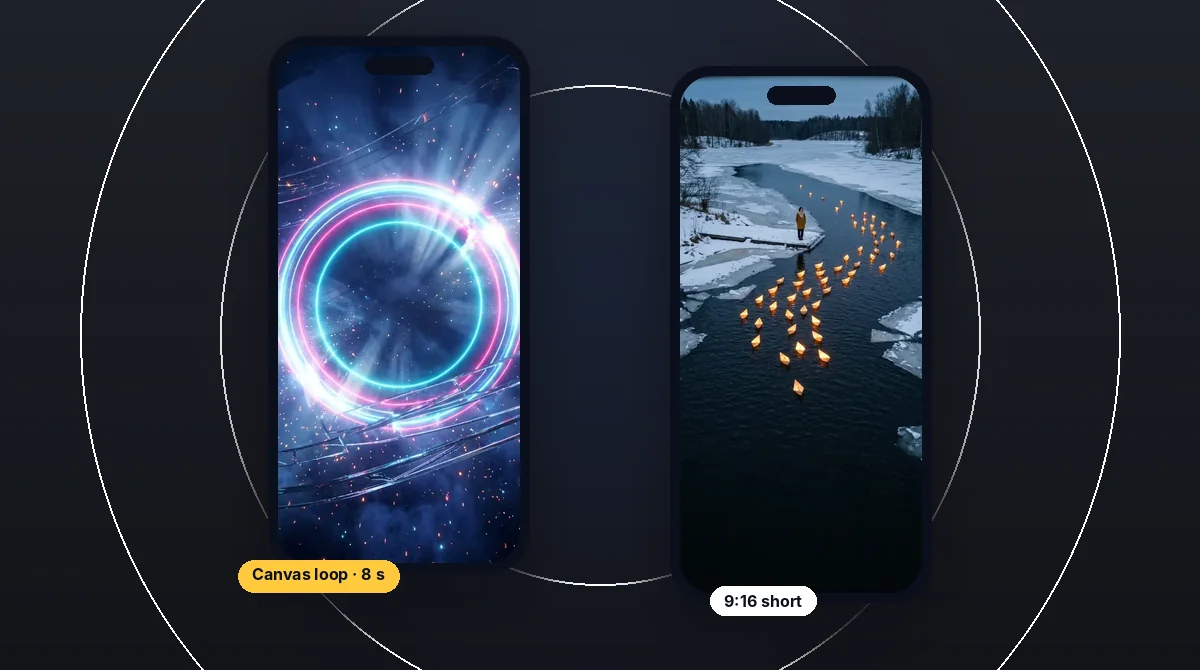
Instagram Reels
Reels drawn tall from the first frame, cut on the beat, with lyrics set above the buttons.
Learn moreVideo file checker
Open a video and see its resolution, frame rate, length, codec, bitrate and sound checked against YouTube, Shorts, TikTok, Reels and Canvas.
Open the toolExtract audio from video
Take the soundtrack out of an MP4, MOV, WebM or MKV video and save it as a WAV, all of it or a part, on your device.
Open the tool
More free tools: artwork and video formats
Cover art, Canvas loops, YouTube thumbnails, a spectrum visualizer, sizes, safe zones and bitrates, a video file's specs, and a vertical cut of any clip.
Your song deserves a music video
Upload a track and get a free beat-synced storyboard in minutes. Render it when you are ready.
No card needed to start.