The short answer
To make a music video from a photo, pick one sharp, front-facing photo of the singer with the whole mouth visible, make sure you have their permission, and upload it with the song. Lip-synced shots belong only where the song is sung, intercut with story shots of the same person. Muvora's Performance style separates the vocals, places the singing shots and draws every scene from that photo.
- The photo does most of the work: one face, facing the camera, mouth fully visible, even light.
- Use your own face or one you have permission to use; a drawn character works too.
- Lip sync goes where the song is sung, never over an intro or an instrumental break.
- Keep the singer in the story shots too, in the same outfit, so the video has a lead.
- Lip-synced seconds cost more than other shots, so how much is sung sets the price.
On this page (8 sections)ShowHide
What one photo can turn into
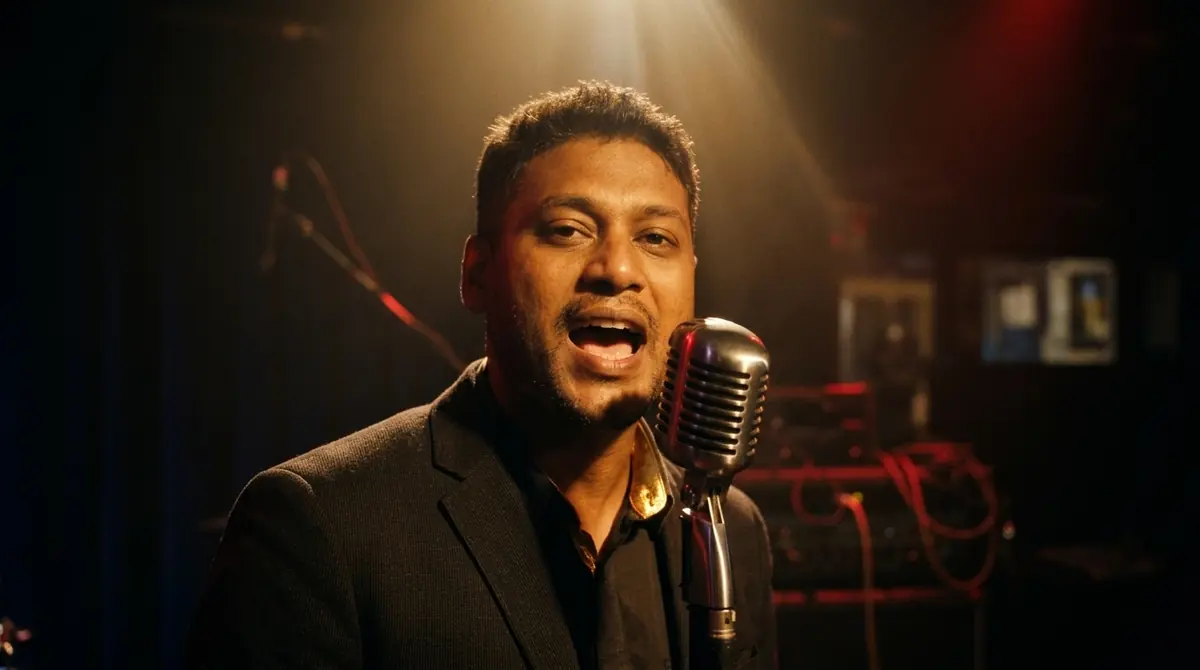
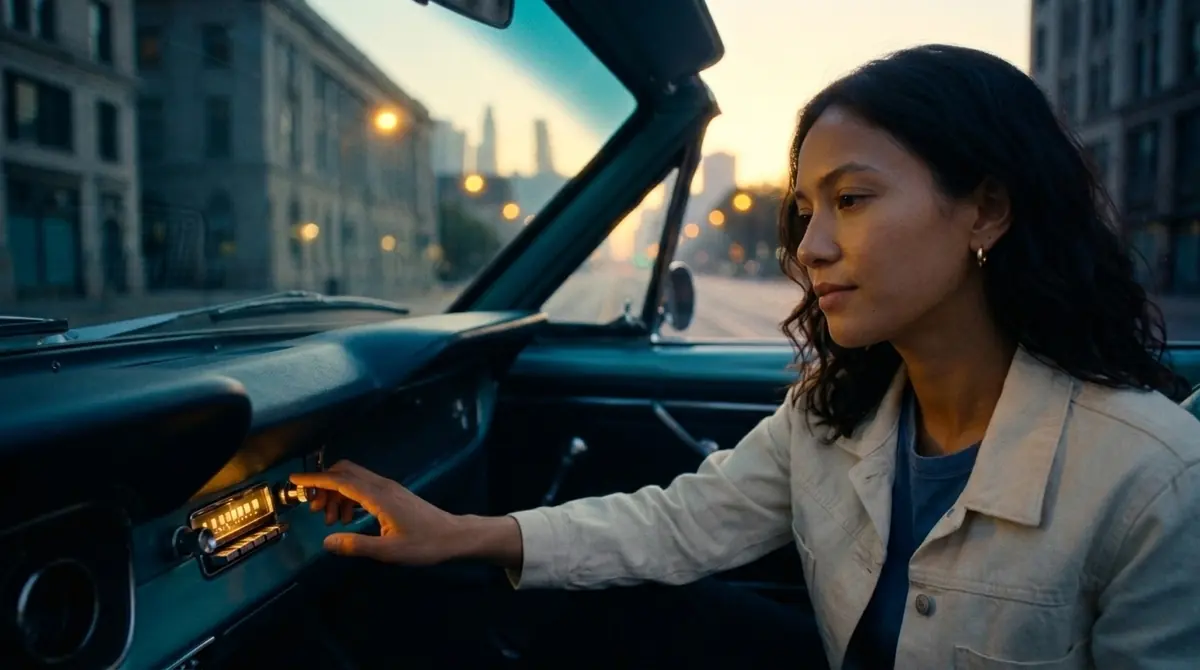
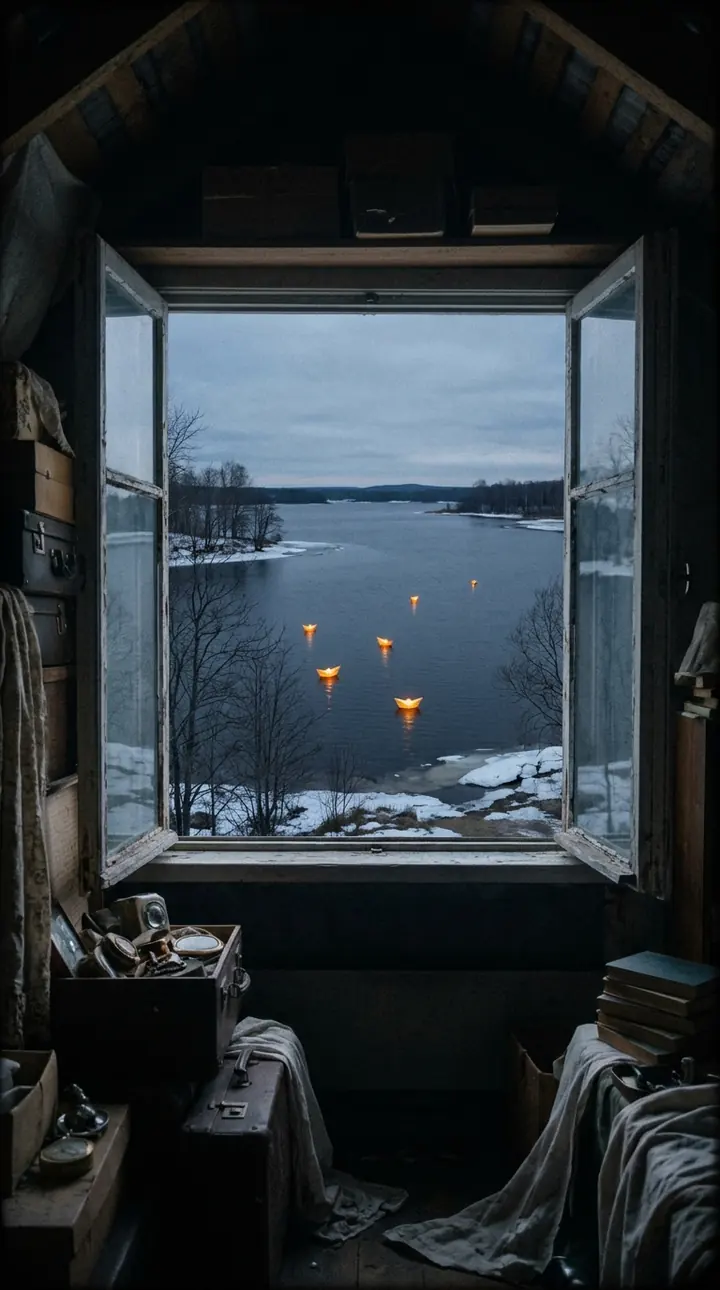
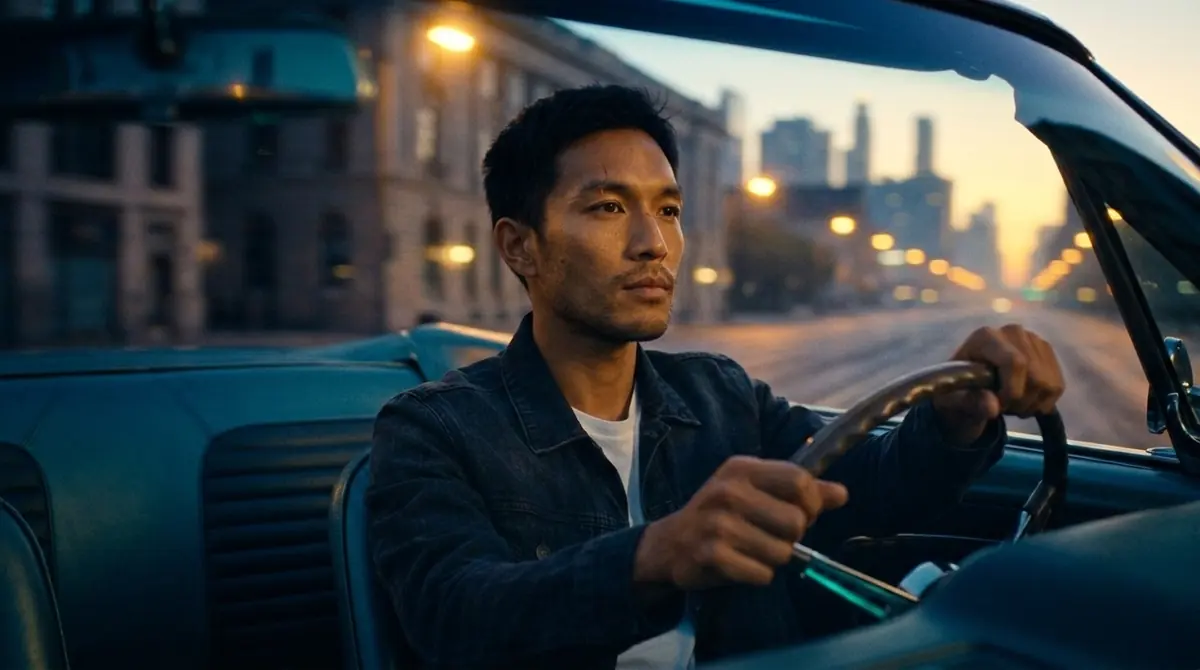
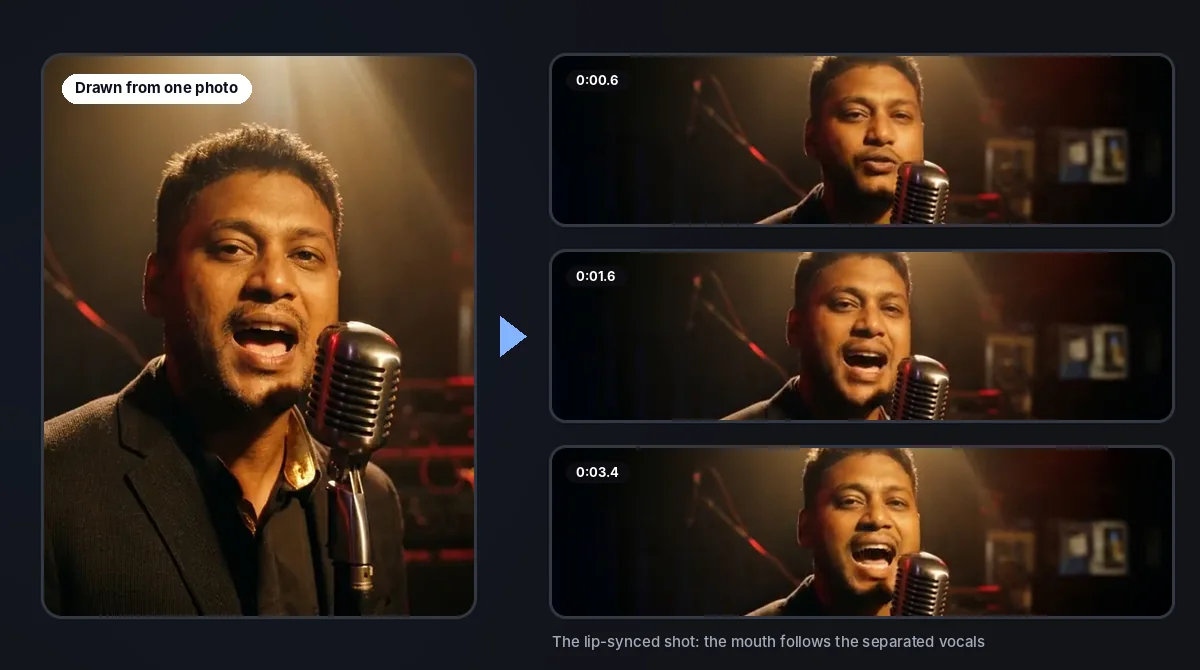
From a single photo, two kinds of shot can be made. Singing shots are the performance: the singer framed chest up, in a scene that suits the song, with their mouth following the vocal word by word. Story shots put the same person into the rest of the video, walking down a street, driving at night or waiting by a window, without singing. A video made only of the first kind feels like a webcam recording; cutting between both is what makes it look directed.
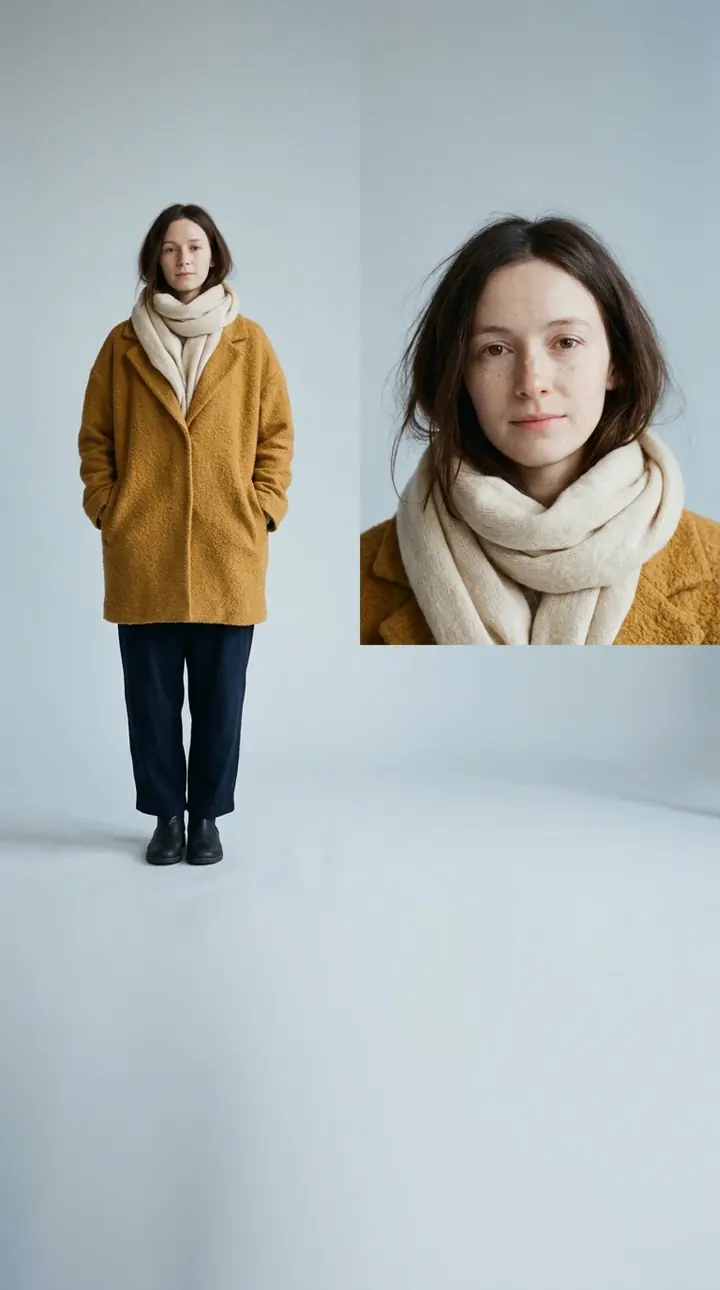
Every shot of the performer starts as a still keyframe drawn from your photo, in that shot's setting and in the outfit chosen for the whole video, and the keyframe is then animated. That's why the photo matters more than anything else you upload: each frame of the singer begins with it. What a photo can't give you is choreography. Singing shots are built around a face from the chest up, so plan wide, full-body moments such as a walk toward the camera as story shots instead.
How to make a music video from a photo, step by step
- 01
Pick the photo
Choose one sharp photo of the singer facing the camera, in even light, with nothing covering the mouth. A plain, recent photo beats a stylish one, because filters, sunglasses and dramatic shadows all make the face harder to follow.
- 02
Use your own face, or get permission
If the photo isn't of you, ask the person first and keep their yes in writing. A drawn or animated character you created is a good alternative when nobody wants to be on screen.
- 03
Upload the song and choose Performance
In Muvora, upload the track (MP3, WAV, M4A or FLAC, up to 8 minutes), paste the lyrics, pick the Performance style, add the photo and tick the box confirming it's you or that you have the person's permission.
- 04
Describe the world around the singer
Use the idea box, which takes up to 600 characters, to say where the video happens and what the story shots should show. Mention the outfit once, down to the jacket and the jewelry, so the performer looks the same in every scene.
- 05
Read the free storyboard
Check where the singing shots fall, rewrite any story shot you want different and look at the style frames to judge the look before you pay anything. Editing the storyboard costs nothing.
- 06
Pick the quality and check the price
Singing shots are priced at the lip-sync rate and every other shot at the quality you choose, and the exact total is shown before you click Generate.
- 07
Render, then review the singing shots
Watch every sung moment with the sound on. If a mouth drifts or a face changes, re-roll that one shot; re-rolls are free up to 10% of the video's length, then cost a small fee that's shown first.
Skip the blank page
Upload your song and Muvora's AI director plans a shot-by-shot storyboard on the beat. Edit every shot for free, and pay only if you render.
Choosing a photo that syncs well
A lip-sync model reads the face in your photo much as a viewer does: it has to find the eyes, the jaw and, above all, the lips. Anything that hides or distorts them shows up later as a mouth that smears, freezes or changes shape from one shot to the next.
| Check | Why it matters | If it fails |
|---|---|---|
| One person in the frame | The model has to know whose mouth to move | Pick a photo of the singer alone |
| Facing the camera | Both corners of the mouth and the jawline need to show | A slight turn is fine; a profile isn't |
| Mouth fully visible | The lips are what move; a mic, hand, hair or mask hides them | Retake it without the obstruction |
| Soft, even light on the face | A hard shadow across the mouth reads as part of its shape | Shoot facing a window in daylight |
| Sharp and large enough | Detail in the lips and eyes carries into every keyframe | At least 512 pixels on the shorter side; larger is better |
| A relaxed expression | Every shot starts from this face, and a shout or a wide grin is hard to sing out of | Lips closed or slightly parted, eyes open |
| No heavy filters | Beauty filters smooth away the features the model follows | Use the original straight from the camera |
In Muvora the photo can be a JPEG, PNG or WebP of up to 7 MB. It's checked when you create the storyboard, and if it doesn't pass you're told what to change. The photo's background barely matters, since the performer is drawn into new scenes, but the face and the hair around it carry into every shot.
- One person, facing the camera
- The whole mouth visible, with no mic, hand, hair or mask over it
- Soft, even light and no hard shadow across the lips
- Sharp, and at least 512 pixels on the shorter side
- A relaxed face, lips closed or slightly parted
- No beauty filter and no sunglasses
- You, or someone who has said yes to this use
Consent: only faces you have the right to use
A lip-synced video makes a person appear to sing words they may never have sung. Done to someone who didn't agree, that can hurt them, mislead your audience and break platform rules. The rule is short: animate your own face, the face of someone who has agreed to this specific use, or a character you made.
- Bandmates and featured artists. Ask every person whose photo you use, even for a single shot, and keep their answer in a message or an email.
- Hired models and actors. Get a release that covers AI-generated video and lip sync, not only still photos.
- Celebrities and public figures. Don't, and don't describe a lookalike either. Muvora checks prompts for real people and refuses to draw them.
- Fans and friends. A great photo of a fan is still their face. Ask, and say what the video is for.
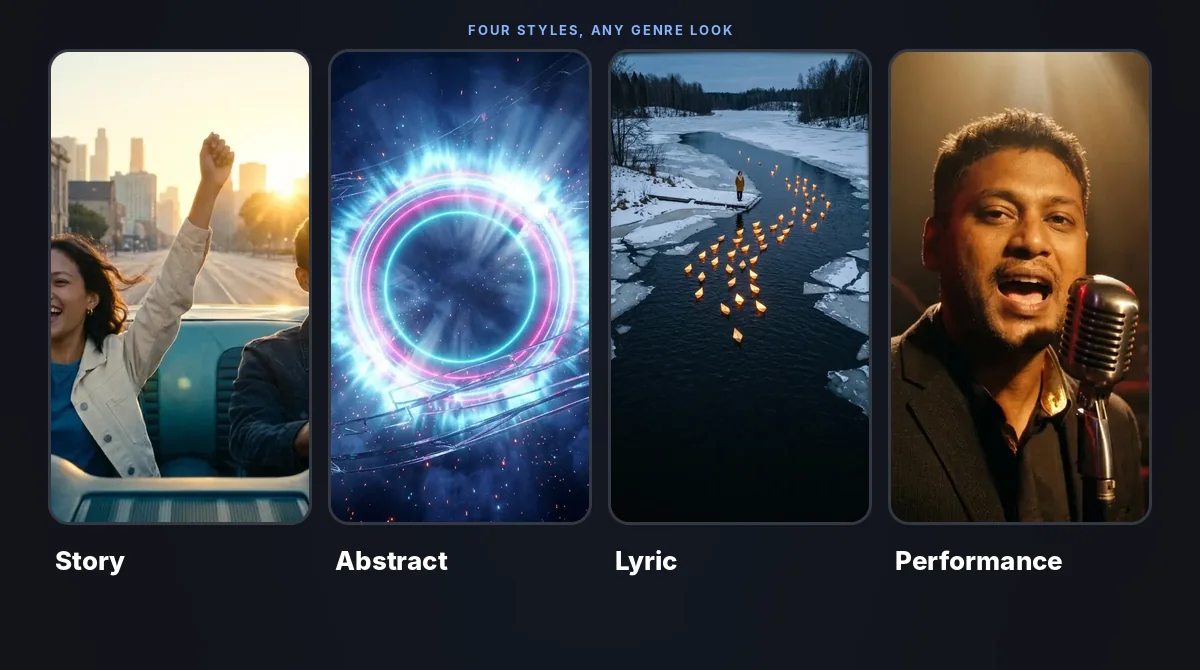
If nobody wants to appear, you don't need a face at all. A story with invented characters, an abstract visualizer or a lyric video can carry a song just as well; the faceless music video maker page shows those routes.
Where the lip sync goes in the song
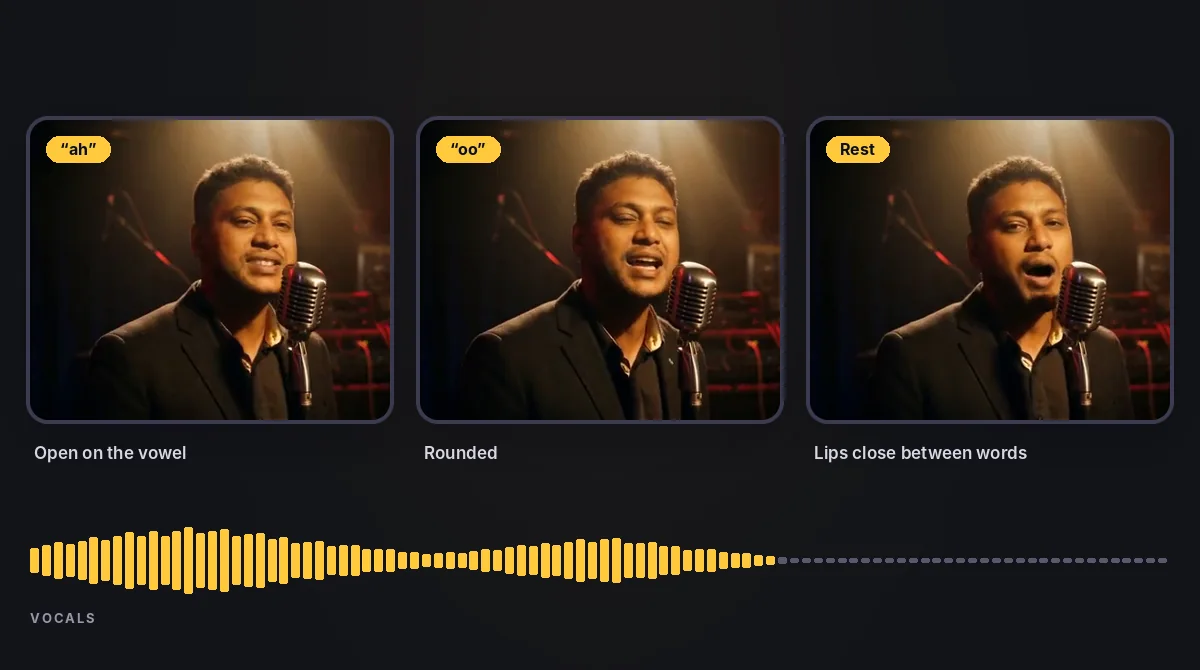
Mouths are the first thing viewers check, and a mouth moving over a guitar solo gives the whole video away. So singing shots should sit exactly where the song is sung and nowhere else. Muvora separates the vocals from your upload, measures how loud they are through the song and, with the timed lyrics, marks the stretches where words are actually sung. Only shots inside those stretches become singing shots.
Bar height: how loud the section is. The strip under them: the shots, each cell one cut. Louder sections get more, shorter shots.
- Choruses carry the most singing. They're the loudest, most sung parts of the song, and where a viewer expects to see the artist.
- Verses build to it. Singing shots come in partway through a sung verse, so the opening of each verse can set the scene first.
- Intros and breaks stay silent. An intro, a solo or a long instrumental stretch gets story shots, so no mouth moves without a voice.
- The mouth rests between words. The vocal each singing shot receives is silenced between the sung words, so the lips close when the singer breathes.
Mixing singing shots with story shots
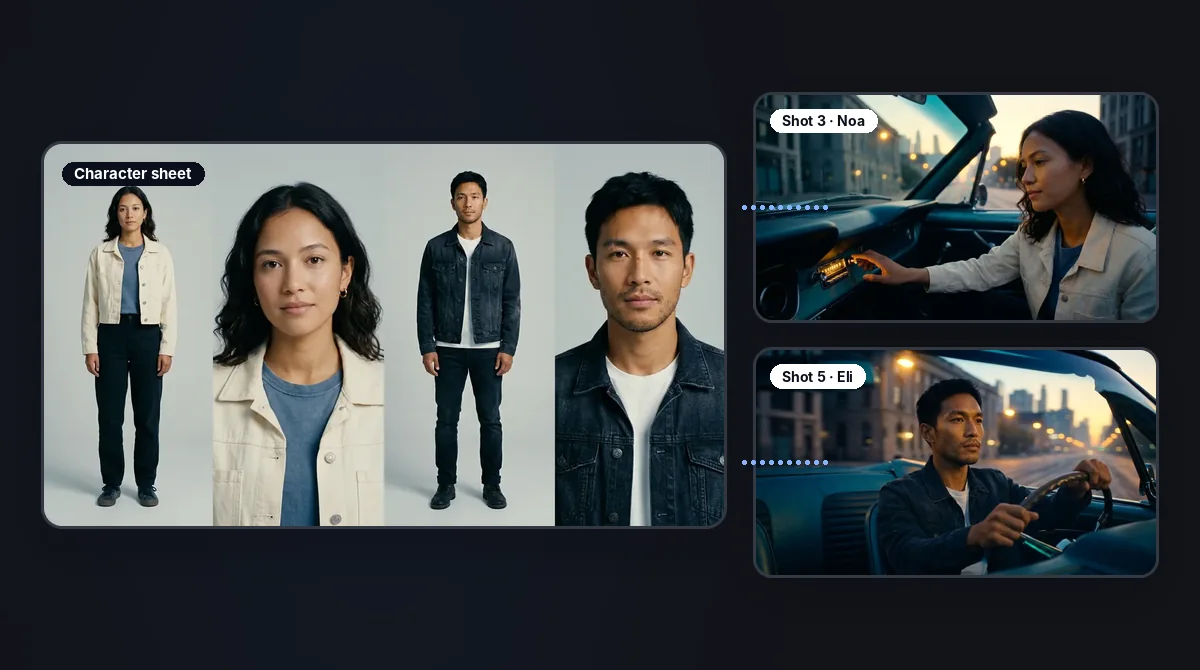
Most professional music videos cut between two threads: the artist performing, and a story or a world around the song. The performance is the hook; the story gives the viewer a reason to keep watching. One photo gives you both, because the same person can appear in shots where they don't sing. In Muvora the performer is the video's lead, so the storyboard puts them into story shots too, and nobody's mouth moves outside a singing shot.
- A walk toward the camera through the place the song is about, landing on a downbeat.
- Hands and details: fingers on a steering wheel, a ring catching light, a notebook of lyrics on a table.
- A wide of the location with the performer small in it, so the viewer knows where they are before the chorus.
- A reaction: the performer listening, turning or looking out of a window between lines.
- A new place for the last chorus, or new light, so the final performance feels bigger than the first.
Decide the outfit once and keep it. The brief Muvora writes describes the performer's look in one place, and each shot of them repeats it, so a jacket doesn't change color between cuts and a chain doesn't change size. For framings that cut well against a singer's close-ups, see music video shot types.
See your singer in the storyboard first
Upload a song and one photo. The storyboard is free, shows which shots are sung, and lets you rewrite every story shot before anything is rendered.
What lip-synced seconds cost
A singing shot is made by a dedicated lip-sync model, so its seconds are priced on their own: 75 credits for each finished second. Every other shot is priced at the quality you pick, at 38 credits a second for Visualizer, 60 for Standard or 110 for Cinematic. The total depends on how much of your song ends up sung, which the storyboard shows before you pay.
| Example | Sung seconds | Other seconds | Credits |
|---|---|---|---|
| A 3-minute song on Visualizer, a third of it sung | 60 | 120 | 60 × 75 + 120 × 38 |
| A 3-minute song on Standard, a third of it sung | 60 | 120 | 60 × 75 + 120 × 60 |
| A 2-minute song on Cinematic, half of it sung | 60 | 60 | 60 × 75 + 60 × 110 |
Visualizer keeps the story shots affordable while the singing shots carry the performance, which makes it a sensible first render for a single. Plans start at US$39 a month, and one-time credit packs from US$12 never expire. You keep the rights to the video and can use it commercially, as long as you have the rights to the song and the photo.
Music video cost calculatorEnter your song's length, pick a quality and set how many seconds are sung to see the credits before you start.What to avoid
- Faces cut out of group shots. A face cropped from a group photo is usually small and soft. Take a new photo of the singer alone.
- Profiles and strong turns. The far side of the mouth is missing, and the model has to invent it.
- A microphone in the photo. It's the classic mistake: it covers the lips, and a shot can add a microphone anyway where the scene calls for one.
- Anyone's face without a clear yes. That includes celebrities, lookalikes and people in old photos who were never asked.
- A whole video of singing. Wall-to-wall lip sync tires the eye and costs the most. Let story shots breathe between the choruses.
- Fast verses left unchecked. Dense, quick lyrics are the hardest test for lip sync, so watch those shots first after the render and re-roll any that slip.
- Swapping the photo halfway. Every shot of the performer is drawn from one photo, so a different photo means a new storyboard.
Turn your photo into the singer
Bring one clear photo and the song. You'll see the singing shots placed on your vocals in a free storyboard; the photo to music video page explains the rest.
Written by the Muvora team. Last updated November 13, 2026. Spotted something out of date? Tell us at [email protected].