The short answer
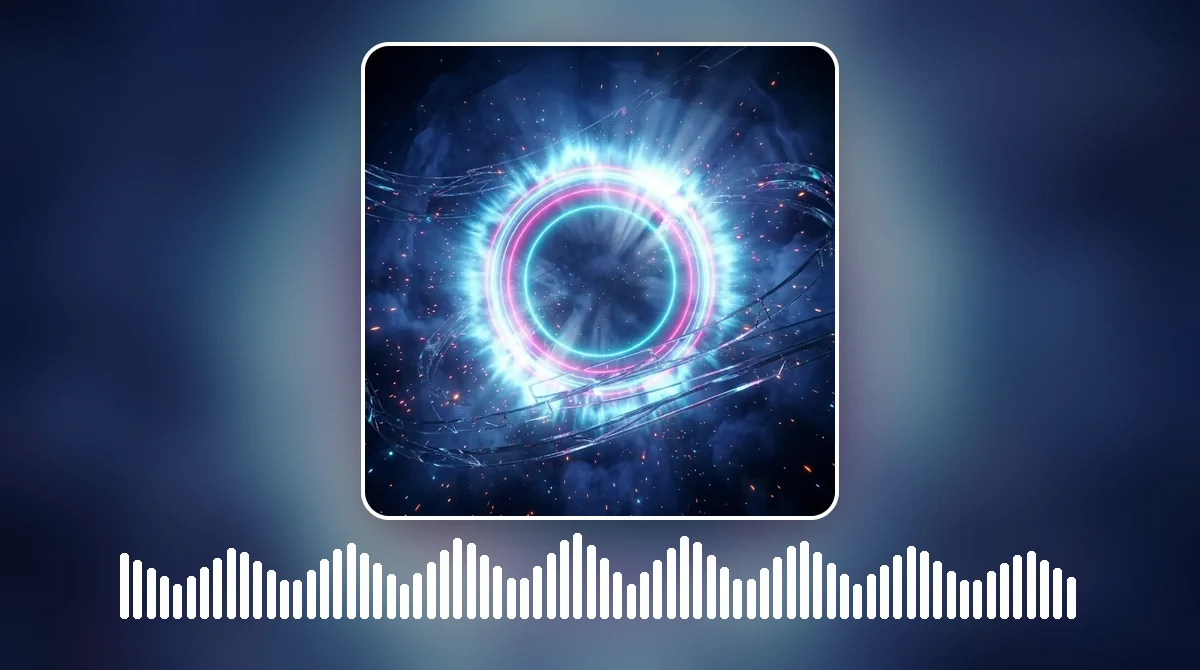
To make a music visualizer, map the song's beats, sections and drops, then build visuals that change with them: cuts on downbeats, a new look at each section and a hit on every drop. Use an audio-reactive effect in a video editor, or an AI tool like Muvora that plans and renders the shots from the song itself. Export 16:9 for YouTube and 9:16 for vertical platforms.
- A visualizer is moving artwork for a song; the good ones follow its structure, not only its volume.
- Change the picture at every section and hit every drop, or a single loop will lose the room.
- Cut on downbeats: at 120 BPM a bar is 2 seconds, so change every 1, 2, 4 or 8 bars.
- Make the 16:9 version for YouTube, then a 9:16 cut and a Canvas loop from the same visuals.
- Free spectrum effects cost nothing but rarely change; an AI visualizer changes with the song.
On this page (8 sections)ShowHide
- 1.What a music visualizer is (and isn't)
- 2.The four kinds of music visualizer
- 3.What keeps a visualizer watchable for a whole song
- 4.How to make a music visualizer in Muvora
- 5.The do-it-yourself routes, honestly
- 6.Specs for YouTube, Shorts, Reels, TikTok and Spotify Canvas
- 7.Visualizer looks by genre
- 8.Common visualizer mistakes
- Questions
What a music visualizer is (and isn't)
A music visualizer is a video whose pictures exist to accompany a song rather than tell its story. There's no plot to follow and usually no artist on screen; the visuals move with the music, set its mood and give a listener something to look at while they listen. On YouTube a visualizer is often the first video a track gets, uploaded on release day, before or instead of a full music video.
It sits between a still image with audio (the cheapest option and the easiest to scroll past) and a full music video (the most work). A lyric video is its close cousin, with the words on screen. The visualizer, lyric video and music video comparison covers when each one is the right call.
Visualizer
Moving artwork that reacts to the song. No story needed.
Lyric video
The words on screen, timed to the vocal, over visuals.
Music video
Shots with a lead, places and a story, cut to the beat.
The four kinds of music visualizer
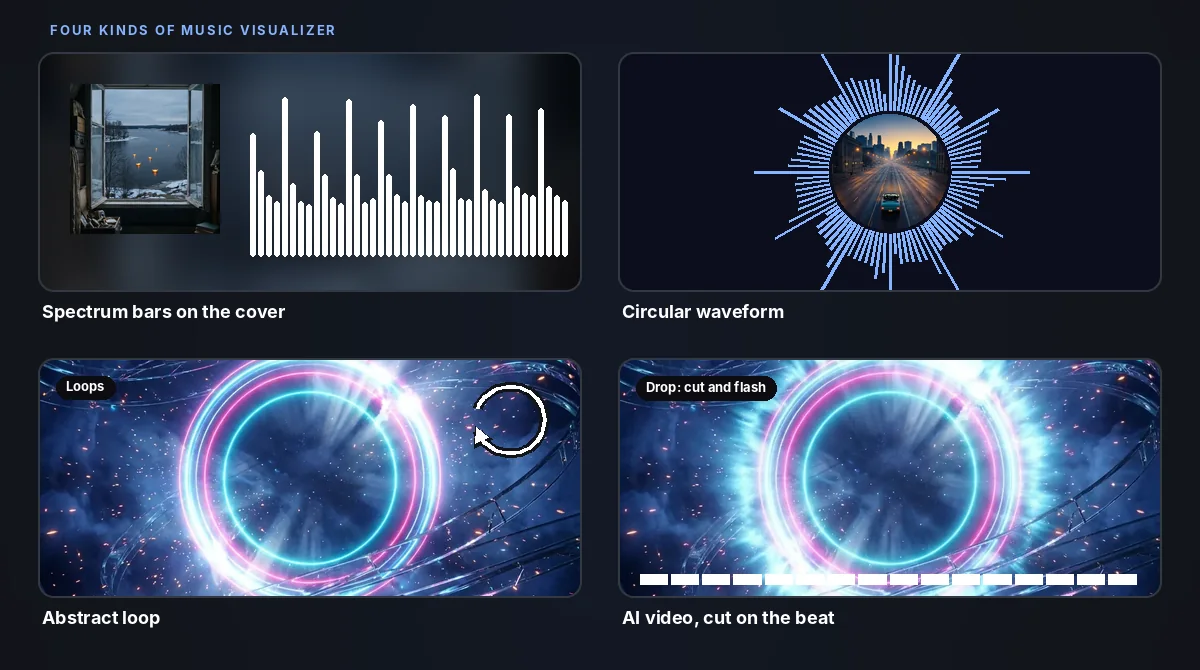
Visualizers range from a bar meter bouncing over a still image to a fully generated video cut like an edit. They differ in two ways that matter: how much they respond to the music, and how long they can hold someone's attention.
| Kind | What you see | What drives it | Holds a whole song? |
|---|---|---|---|
| Waveform or spectrum over a still | Cover art with bars or a line that bounce with the audio | The loudness of each frequency band, frame by frame | Rarely: the picture itself never changes |
| Looping animation | A short animated clip repeated under the song | Nothing: it ignores the music | Rarely: the loop shows itself within a minute |
| Audio-reactive animation | Shapes, particles or footage that pulse, zoom and shift with the sound | Volume, kicks or separated stems mapped to motion | Sometimes: it reacts, but often stays in one scene |
| AI visualizer cut on the beat | Generated shots that change at every cut, section and drop | The song's beats, sections, energy and drops | Yes, when the shots follow the structure |
Each has a place. A spectrum over the cover is fine for a quick upload of an album track. A short loop is perfect as a Spotify Canvas, where a few seconds on repeat is the whole format. For the song you want people to sit through, the picture has to change as the song does, which is what the last two kinds are for.
Skip the blank page
Upload your song and Muvora's AI director plans a shot-by-shot storyboard on the beat. Edit every shot for free, and pay only if you render.
What keeps a visualizer watchable for a whole song
People don't click away from a visualizer because it's simple. They click away because nothing has happened for a while. A three-minute song has a shape (an intro, verses, choruses, maybe a bridge and a drop), and a visualizer that holds attention shows that shape. Four rules do most of the work:
- Cut on the downbeat. A change of picture on the first beat of a bar feels like part of the music. At 120 BPM a bar of 4/4 lasts 2 seconds; at 140 BPM, about 1.7.
- Change at every section. A new color, place or texture when the chorus arrives tells the eye the song has moved on, even if the listener isn't counting bars.
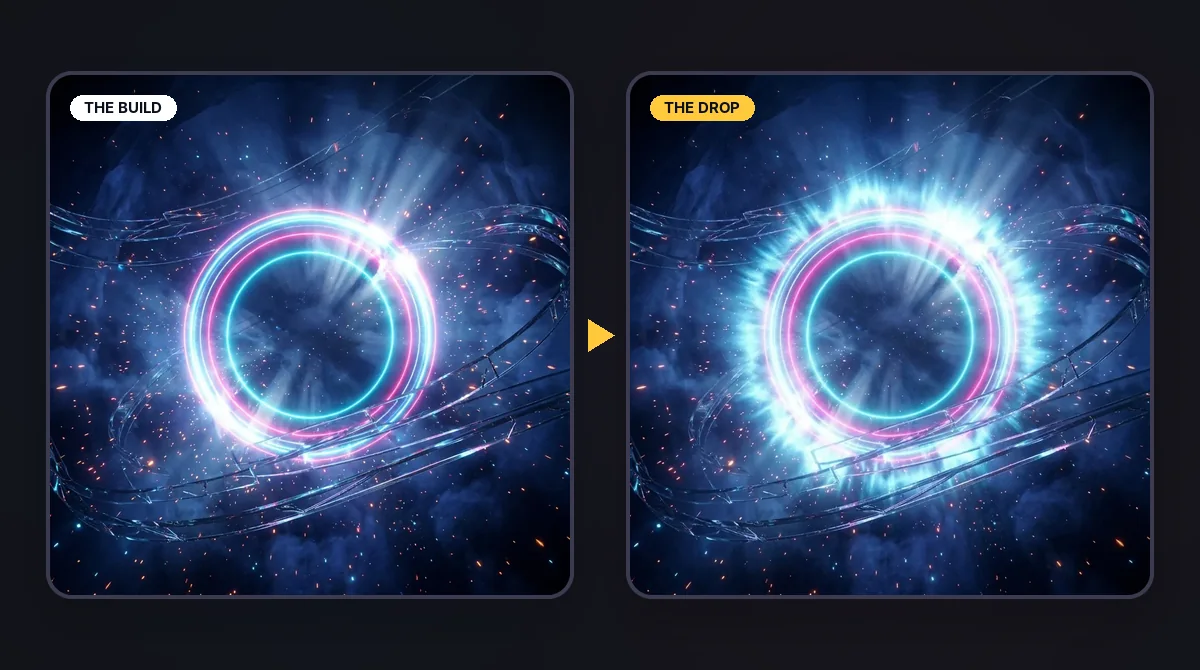
- Hit every drop. The biggest moment in the track deserves the biggest visual moment: a flash, a burst, a sudden change of scale.
- Pace by energy. Hold shots for two to four bars in quiet stretches and a bar or less in the loudest, so the picture breathes with the mix.
Bar 1
Bar 2
Bar 3
Bar 4
How to make a music visualizer in Muvora
Muvora builds visualizers as AI video: every shot is a generated clip, and the cuts come from the song's analysis rather than from a loop. It doesn't draw bar meters or waveforms, and no text or logos are drawn into the pictures, so if you want bars on top, add them in an editor afterwards. Here's the whole process from upload to download.
- 01
Upload the finished track
Upload the master as an MP3, WAV, M4A or FLAC, up to 8 minutes long, and tick the box confirming you have the rights to it. The analysis is free and finds the tempo, every beat and downbeat, the sections, the energy of each beat, the drops and the kicks.
- 02
Choose the Abstract style and a genre look
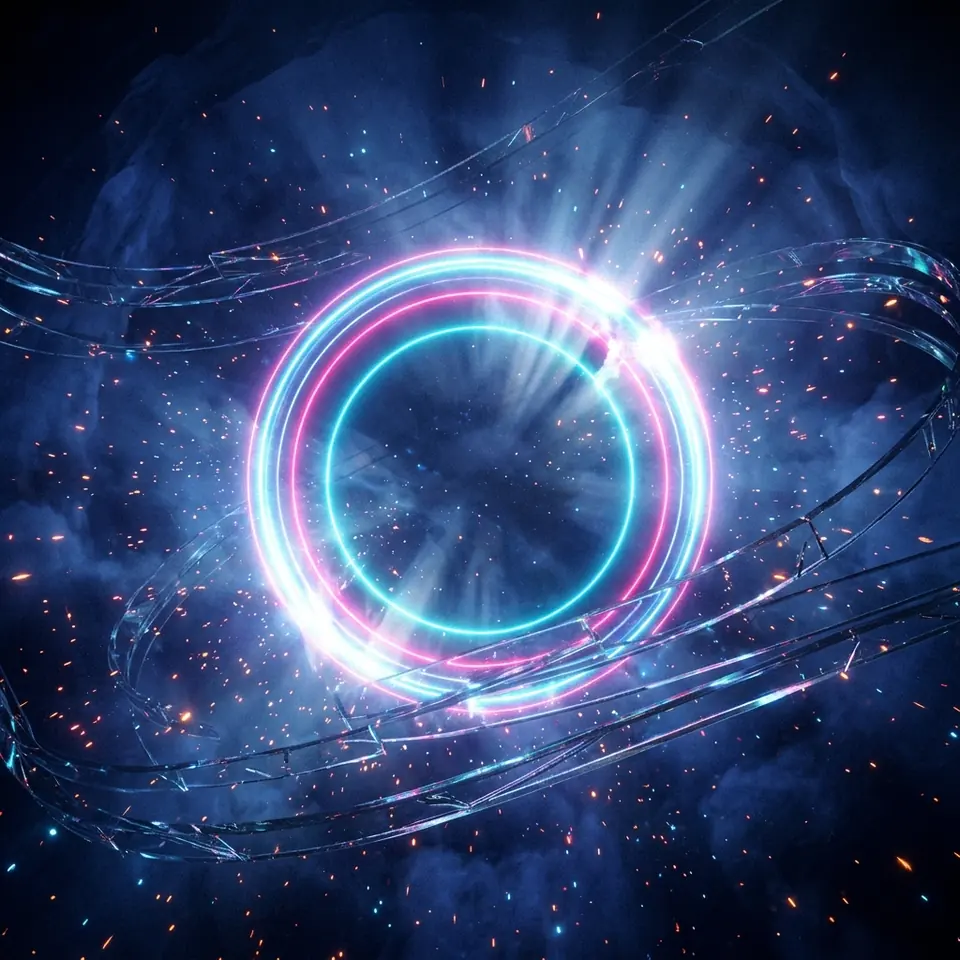
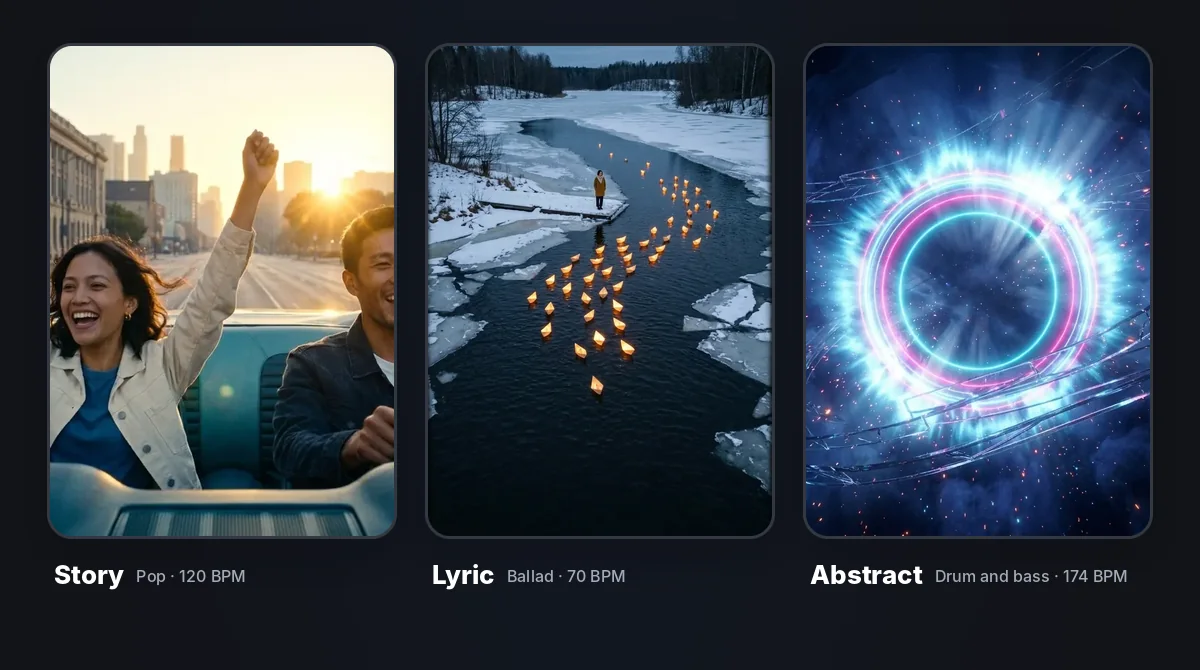
Abstract makes light, shape, texture and motion with no cast. Pick the genre look closest to your track (EDM, hip-hop, pop, rock or lo-fi) and the 16:9 aspect ratio for a YouTube visualizer.
- 03
Describe the world in the idea box
Write two or three sentences about the materials, the colors and what should happen at the drop. “Ink clouds in deep blue water that burst into gold sparks on every drop” gives the AI director far more to work with than “cool visuals”.
- 04
Check the cut plan and the shots
The storyboard places a cut on downbeats, at every section change and at every drop, with longer shots in quiet sections and a bar or less in the loudest. Read each shot, rewrite any prompt you don't like and drag a cut if needed; it snaps to the beat. All of this is free.
- 05
Pick Visualizer quality for the whole song
Visualizer quality is the most affordable way to cover a full track, at 38 credits per finished second, or 6,840 credits for three minutes. Keep Standard or Cinematic for a single where every shot has to carry more detail. The exact price shows before you generate.
- 06
Render, then fix single shots
Generate the video and watch it through. Re-roll any shot that misses, free up to 10% of the video's length, edit its prompt first if it needs a nudge, and make a new version without paying to re-assemble.
- 07
Download every shape
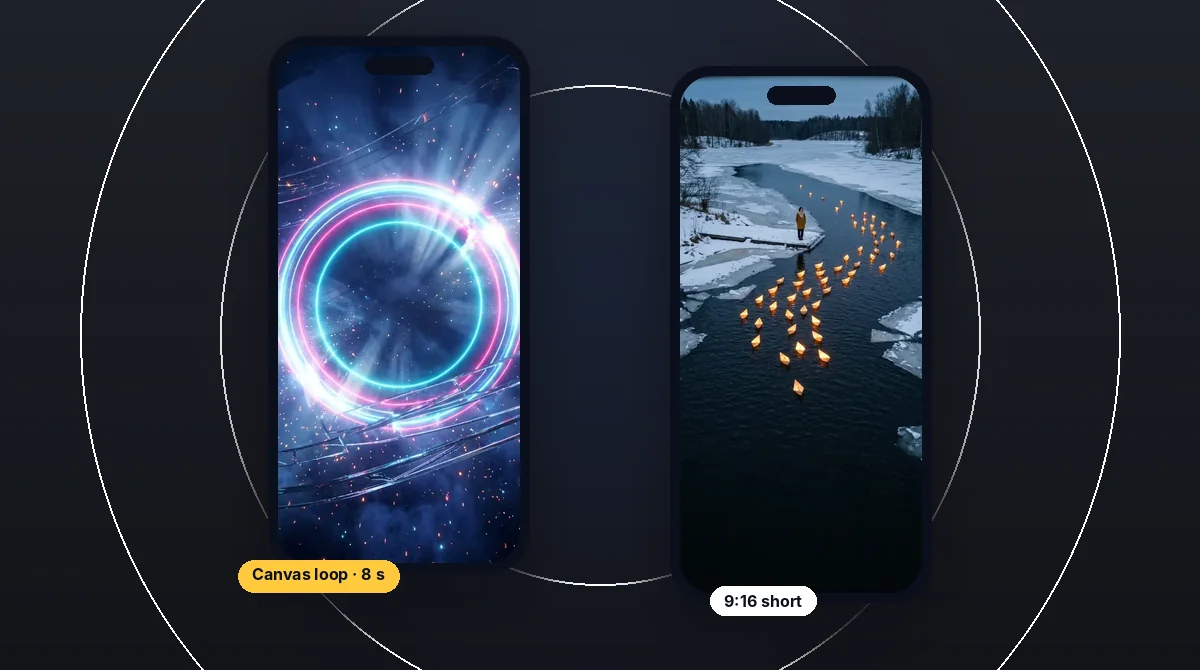
One render gives you the 16:9 video for YouTube, a 9:16 cut for Shorts, Reels and TikTok, a 1:1 cut for the feed and an 8-second vertical Canvas loop with no sound. The soundtrack is your original upload, and the video is exactly as long as the song.
The edit takes care of the timing for you: every cut lands on its planned frame, a short white flash hits each drop, and gentle crossfades appear only between quiet sections. For a visualizer with the words in it, switch on captions and each word lights up as it is sung. The music visualizer page sums up the format, and the album visualizer page covers doing a whole record.
Turn your track into a visualizer
Upload the song and get a free storyboard of abstract shots, cut on every downbeat and timed to every drop. See the price before you render.
The do-it-yourself routes, honestly
You can make a visualizer yourself for nothing, and for a quick upload that's a fine choice. The common limit of these tools is the one in the table above: they react to loudness frame by frame, but they don't know where your chorus starts, so the picture stays the same unless you build every change by hand.
| Route | What you get | Cost | The catch |
|---|---|---|---|
| Shotcut or Kdenlive | Audio waveform and spectrum filters laid over a still or a clip | Free | One look for the whole song unless you cut and restyle it yourself |
| FFmpeg | Waveform, spectrum and frequency displays rendered straight from the audio file | Free | Command line only; styling means tuning filter settings |
| Blender | Any 3D scene driven by the sound, by baking the audio into animation curves | Free | A steep learning curve and long render times |
| After Effects | Audio spectrum and waveform effects, and audio converted to keyframes | Paid subscription | Still manual: you design every section change |
| An AI visualizer such as Muvora | Generated shots cut on the beat, with a change at each section and a flash on each drop | Credits per finished second | Less frame-level control than a project you build by hand |
If you go the manual route, do the planning a generated visualizer would do for you. Mark where each section starts and where the drops land (the free song structure visualizer shows both), then change something at every one of those points: the background, the color of the bars, the scale, the speed. Even a spectrum over a still holds longer when its color shifts at each chorus.
Specs for YouTube, Shorts, Reels, TikTok and Spotify Canvas
Make the main visualizer in 16:9 for YouTube and take the vertical versions from the same visuals. The table lists the shapes and the details worth getting right. Platforms change their limits from time to time, so check their help pages before a big release.
| Where | Shape | Size | Notes |
|---|---|---|---|
| YouTube | 16:9 | 1920x1080 or larger | MP4 with H.264 video and AAC audio; YouTube's recommended upload settings list bitrates by resolution |
| YouTube Shorts | 9:16 | 1080x1920 | Lead with the hook or the drop, not the intro |
| Instagram Reels | 9:16 | 1080x1920 | Keep key shapes away from the bottom, where captions and buttons sit |
| TikTok | 9:16 | 1080x1920 | The first second decides whether people keep watching |
| Spotify Canvas | 9:16 | At least 720 px tall | 3 to 8 seconds, loops, no sound; see the Spotify Canvas guide |
| Feed posts | 1:1 or 4:5 | 1080x1080 or 1080x1350 | A square crop loses the sides of a 16:9 frame |
Muvora exports 16:9, 9:16 and 1:1 plus an 8-second vertical Canvas loop from one render, so you don't rebuild the visualizer for each platform. For other shapes, the aspect ratios guide shows how a frame crops or fits between them.
Visualizer looks by genre
The best visualizer looks the way the music sounds. Use these as starting points: paste one into Muvora's idea box with your song, or hand it to an editor as a brief.
- EDM
Strobe cathedral
Columns of light in a vast dark hall that brighten bar by bar through the build and shatter into sparks on the drop.
Use this idea on my songUse this idea on my song - Drum and bass
Rail at night
Lamps streaking past a speeding train window in time with the breakbeat, the train plunging into a tunnel at each drop.
Use this idea on my songUse this idea on my song - Techno
Concrete and strobe
Slow moves through empty concrete halls lit by one hard strobe, a new room at every section.
Use this idea on my songUse this idea on my song - House
Disco sky
Mirror-ball reflections drifting across a sunset sky that deepens into night as the track builds.
Use this idea on my songUse this idea on my song - Hip-hop
Smoke and chrome
Slow-motion chrome, smoke and streetlight, cut hard on the snare in the hook and lingering in the verses.
Use this idea on my songUse this idea on my song - Lo-fi
Tape and dust
Warm macro shots of a turning cassette, dust in a sunbeam and a houseplant swaying, the colors soft like an old photo.
Use this idea on my songUse this idea on my song - Ambient
Slow geology
Lava cooling, ice cracking, dunes shifting in the wind: changes so slow they feel like breathing, a new material every section.
Use this idea on my songUse this idea on my song - Rock
Amplifier glow
Tube amps, cables and speaker cones in deep red light, shaking harder as the guitars come in.
Use this idea on my songUse this idea on my song - Pop
Color fields
Soft gradients and floating shapes in the single's cover colors, brighter and busier with each chorus.
Use this idea on my songUse this idea on my song
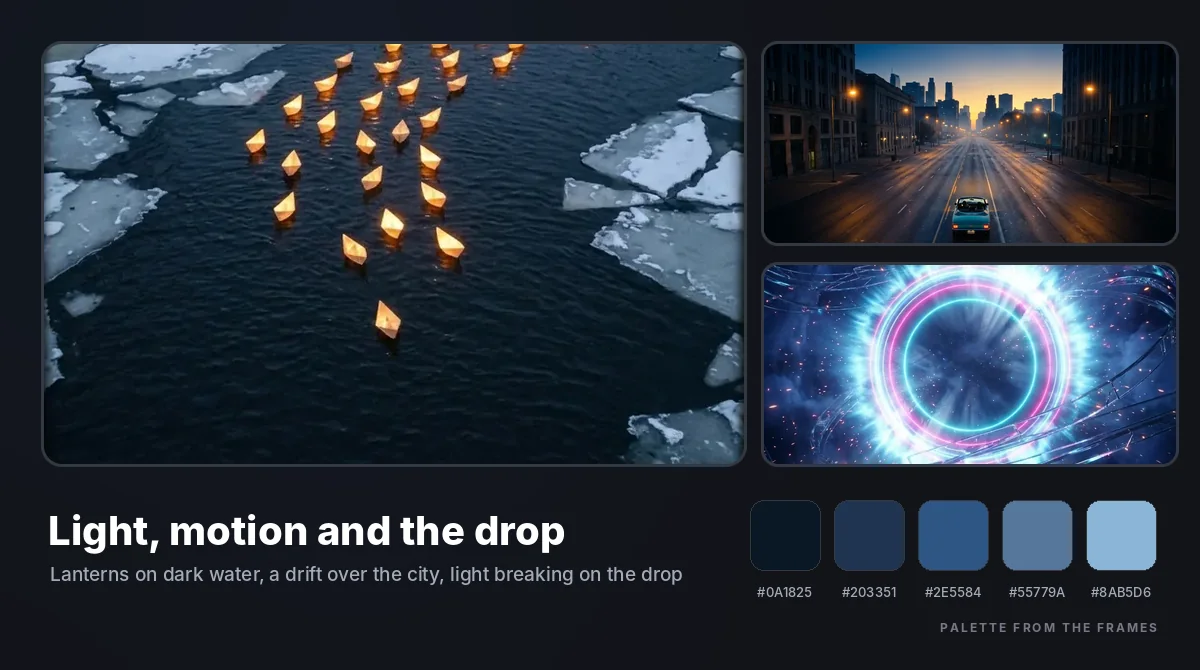
Whatever the look, keep one palette for the whole video and change the place, the scale or the light at each section. Genre pages show how the pace differs: the EDM page cuts hard into drops, the lo-fi page lets shots hold.
Got the look? Storyboard it
Paste one of these looks into the idea box with your song and see every shot planned on the beat before you spend a credit.
Common visualizer mistakes
- One short loop repeated for the whole song
- Bars or shapes that pulse but never change scene
- Changes that land between beats instead of on them
- The same busy look in the verses and the chorus
- A drop with no visual moment of its own
- Text or a logo baked into the picture, which won't crop to vertical
- A 16:9 frame squashed into 9:16 instead of cropped or fitted
Most of these come down to one habit: planning from the song's structure before choosing a look. Get the sections, the drops and the tempo first, and the visualizer has a reason to change every time it does.
Written by the Muvora team. Last updated November 13, 2026. Spotted something out of date? Tell us at [email protected].