The short answer
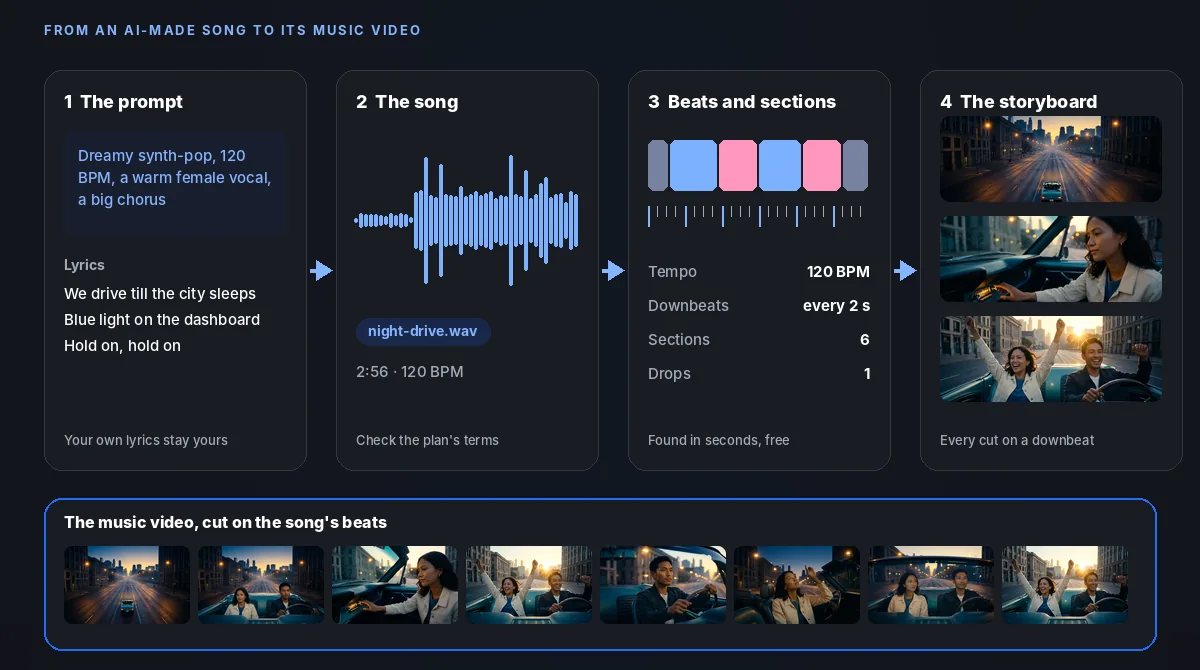
To make a music video for a Suno song, download the highest-quality file your plan offers (a WAV if you can) and keep the lyrics you prompted with. Read your plan's terms on commercial use, then upload the song to an AI music video tool such as Muvora, paste the lyrics, pick a style and a recurring character, test-render the hook, then release the full video.
- Upload the best file you can download; a WAV gives the analysis the cleanest beats.
- Paste the lyrics you prompted with, minus the bracketed section tags.
- Each AI music service's own terms decide commercial use, so read them before you release.
- A song with no artist needs a face: a recurring character, a drawn performer or a signature look.
- Storyboard many songs for free and render only the ones worth releasing.
On this page (8 sections)ShowHide
- 1.Six steps from Suno song to music video
- 2.Get the best file and clean lyrics
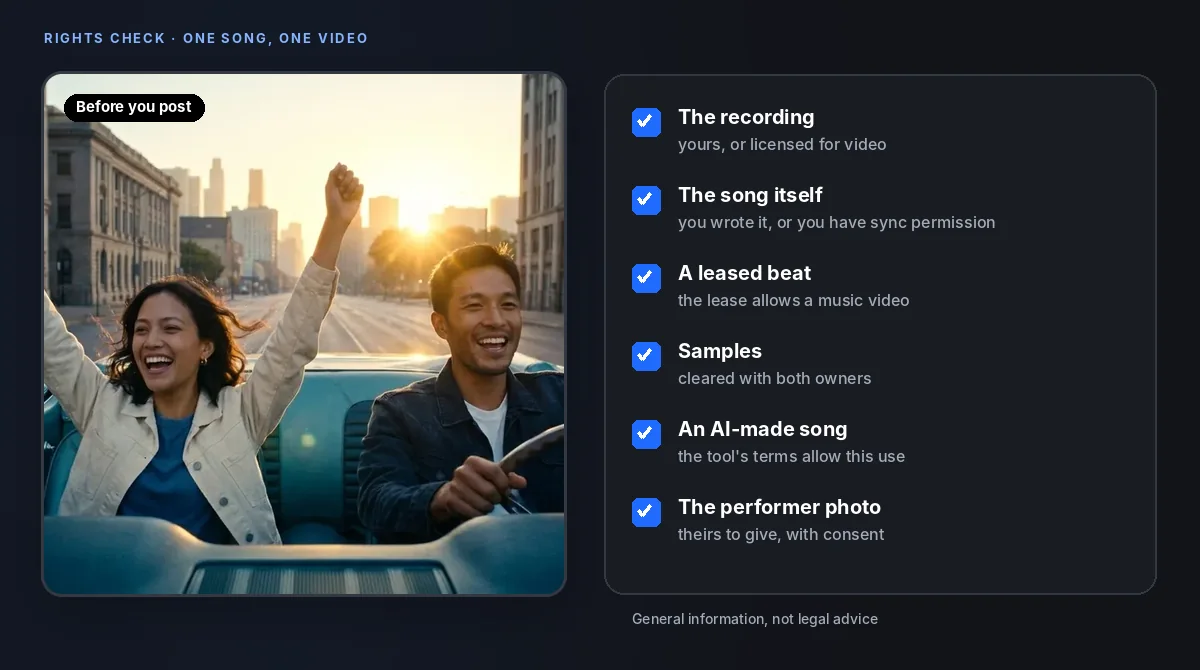
- 3.Check your rights before you release
- 4.Give a song with no artist a face
- 5.Render the hook first
- 6.Tips for songs made with AI
- 7.When the beat grid or the sections look off
- 8.Release it: the full video, the vertical cut and the Canvas
- Questions
Six steps from Suno song to music video
An AI-made song is an ordinary audio file once you download it, so making its video works like it does for any track. What's different is everything around the file: the lyrics live in your prompt history, the rights depend on a service's terms, and there is no artist to put on screen. Gather these before you start:
- The song as a WAV, or the best MP3 your plan offers
- The lyrics exactly as you wrote or generated them
- The service's terms for the plan you made the song on
- A one-line idea, or at least a mood and a genre
- A decision on who or what stands for the song on screen
- A list of where it will be released: YouTube, Shorts, Reels, TikTok, Spotify
- 01
Download the best-quality file
Download the song as a WAV if your plan offers one, otherwise the highest-quality MP3. If you generated several takes, choose the final one now: every cut is timed to this exact file, so switching takes later means a new storyboard.
- 02
Copy the lyrics you prompted with
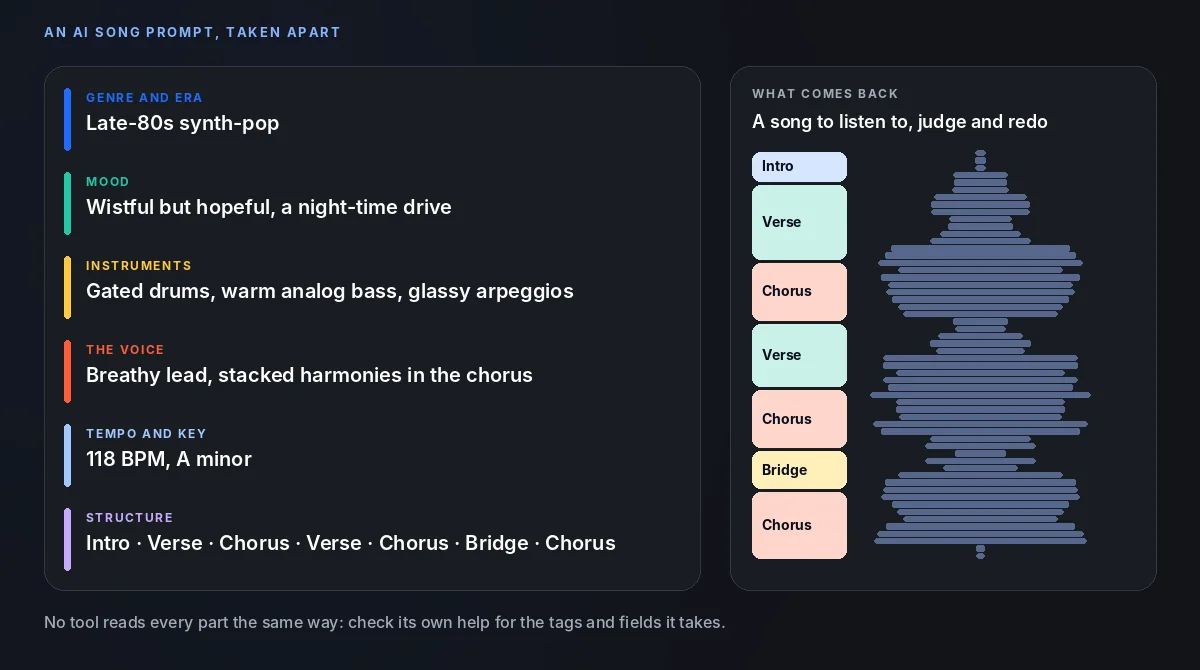
Save the lyrics from your prompt or the song's page, then delete the bracketed structure tags and production notes, since those words aren't sung. Clean lyrics line up with the vocals far better than a transcription of a blurred AI vocal.
- 03
Check your rights before you release
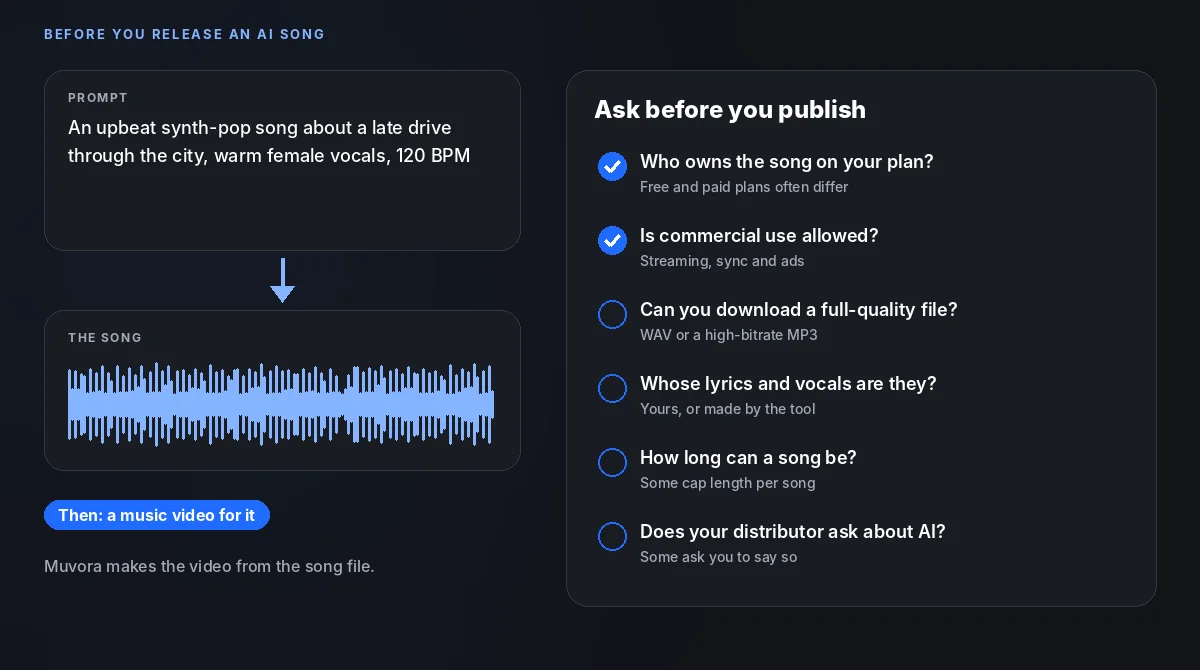
Read the AI music service's terms for the plan you were on when you made the song, and confirm what they allow for commercial use, monetization and distribution. Muvora asks you to confirm you have the rights when you upload.
- 04
Upload to Muvora and paste the lyrics
Upload the file (MP3, WAV, M4A or FLAC, up to 8 minutes) and paste the lyrics. The free analysis finds the tempo, every beat and downbeat, the sections, the energy and the drops, and aligns each lyric word to the vocals.
- 05
Pick a style and give the song a face
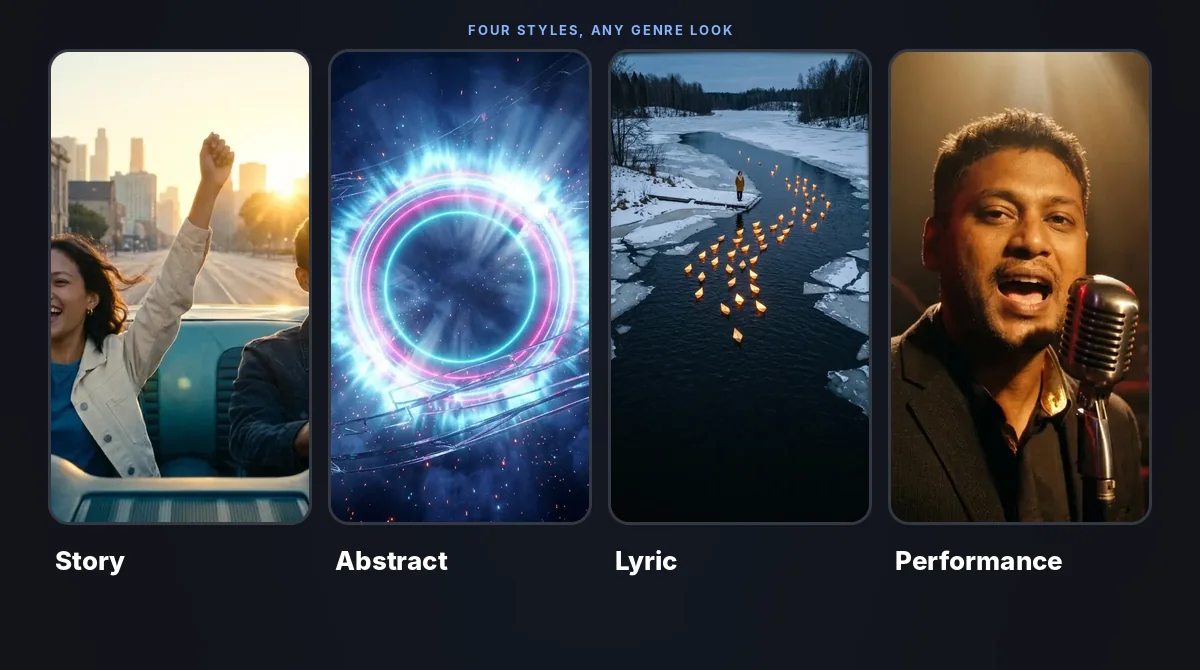
Choose Story, Abstract, Lyric or Performance, a genre look and an aspect ratio, and describe your idea in the idea box. For a song with no artist, describe a recurring character, or use Performance with a drawn character as the singer.
- 06
Test the hook, then release everything
Render a short cut of the hook first to check the look, then render the full song. One render gives you the 16:9 video, the 9:16 and 1:1 cuts and an 8-second Canvas loop for Spotify.
Muvora doesn't import songs by link yet (Suno link imports are planned), so download the file and upload it. The Suno to video page sums up the workflow. Udio is different: it switched off song downloads after its settlement with Universal Music in October 2025, so a Udio song works only if you already saved it as a file; Udio to video explains.
Get the best file and clean lyrics
The analysis reads the audio itself, so the cleaner the file, the more precisely it places the beats. A WAV keeps everything the service generated; an MP3 throws some detail away, which rarely matters for the kick and snare but can smear a busy, cymbal-heavy mix. Whatever you download, don't convert it again on the way: turning an MP3 into a WAV or FLAC makes a bigger file without restoring anything that was lost.
| Format | Quality | When to use it |
|---|---|---|
| WAV | Uncompressed, full detail | Whenever your plan offers it |
| FLAC | Lossless, smaller than WAV | If the file is already FLAC; never convert an MP3 to it |
| MP3 | Compressed, some detail lost | When it's the only download; take the highest bitrate offered |
| M4A | Compressed (AAC) | Fine if it's what you have |
Muvora aligns pasted lyrics to the vocals word by word. Without them it transcribes the vocals instead, and a transcription can mishear a heavily processed or slurred AI vocal. The timing then drives the optional karaoke-style captions, where each word lights up as it's sung. If the words are the point of the video, read how to make a lyric video before you pick a style.
[00:12.40] Hold on to the light
A line time (LRC) shows the line; word times let each word light up as it is sung.
Skip the blank page
Upload your song and Muvora's AI director plans a shot-by-shot storyboard on the beat. Edit every shot for free, and pay only if you render.
Check your rights before you release
This is the step people skip, and the one that matters most once a video starts earning. Each AI music service's own terms decide whether you can use a song commercially: monetize it on YouTube, distribute it to streaming services, use it in an ad. The answer can differ between free and paid plans, and terms change over time, so read the current terms for the plan you used rather than relying on a forum thread or on this guide.
- Commercial use: may you sell, stream or monetize the song?
- Ownership: who owns the song, and is anything asked in return, such as credit or a paid plan?
- Distribution: do your distributor and the platforms have their own rules for AI-generated music?
- Your inputs: if you uploaded audio or used someone else's words in the prompt, do you have the rights to those?
Muvora's side is simple. You confirm with a checkbox that you own the song or have the rights to use it, and that confirmation is stored with the time. You keep the rights to the videos you render and can use them commercially, on YouTube, in ads or as a Canvas, as long as you have the rights to the song and anything else you uploaded.
Give a song with no artist a face
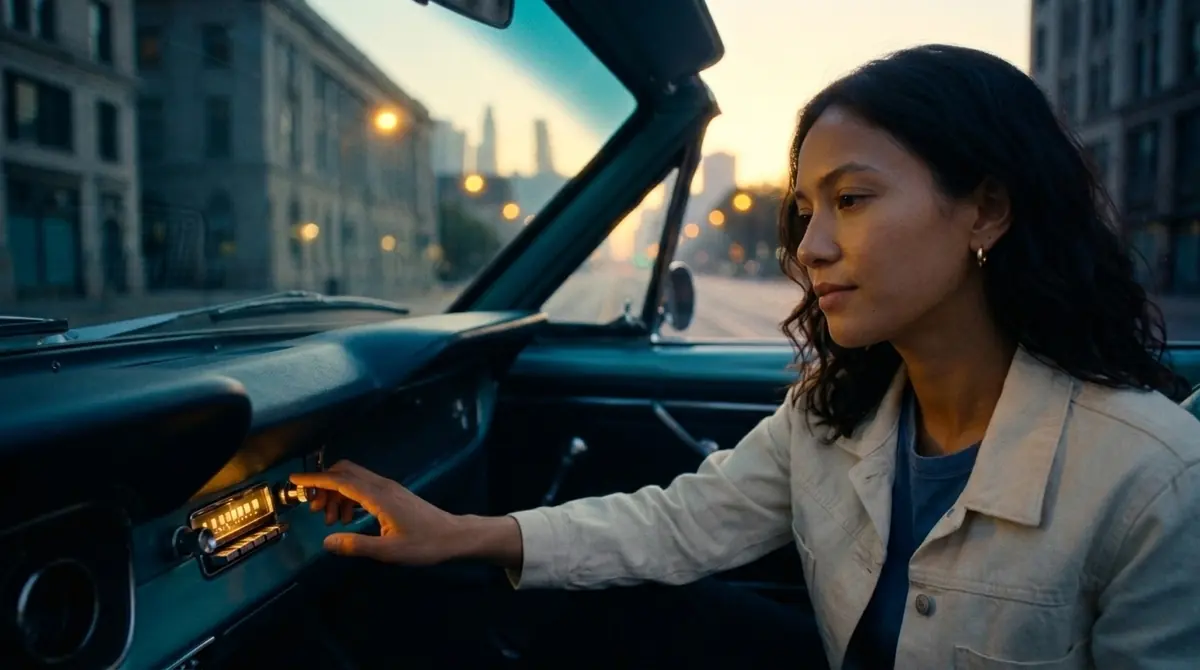
A track without a performer still needs someone, or something, the viewer can follow. The video becomes the song's identity, and if you release many songs, the videos together become the artist. Three approaches work well:
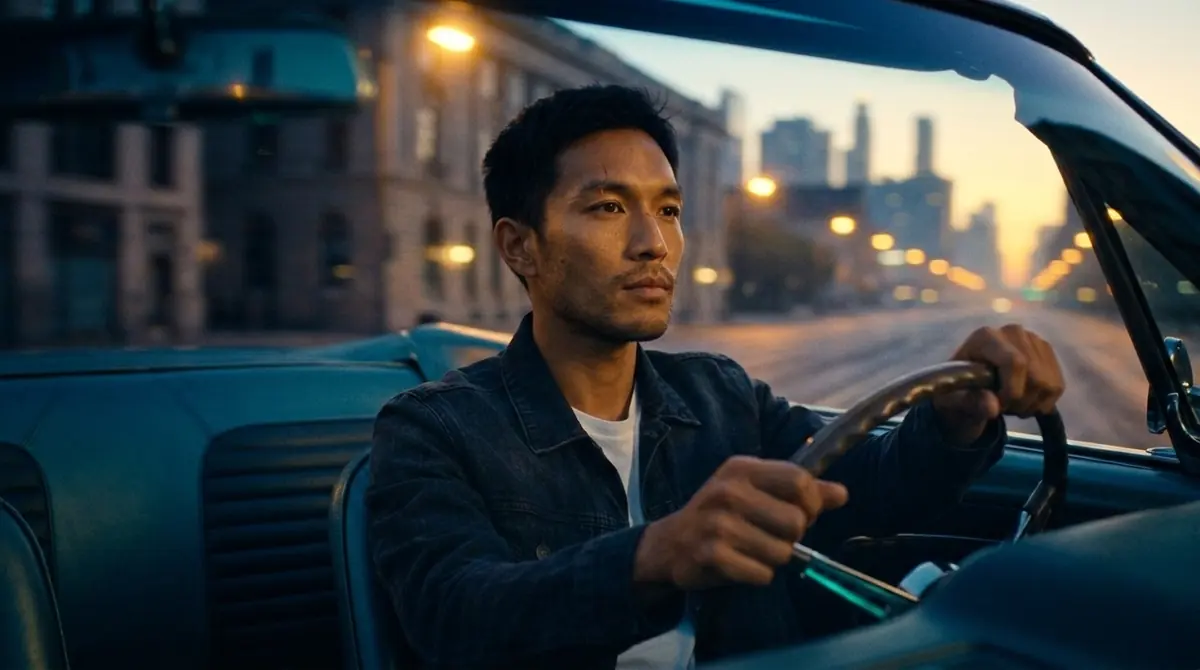
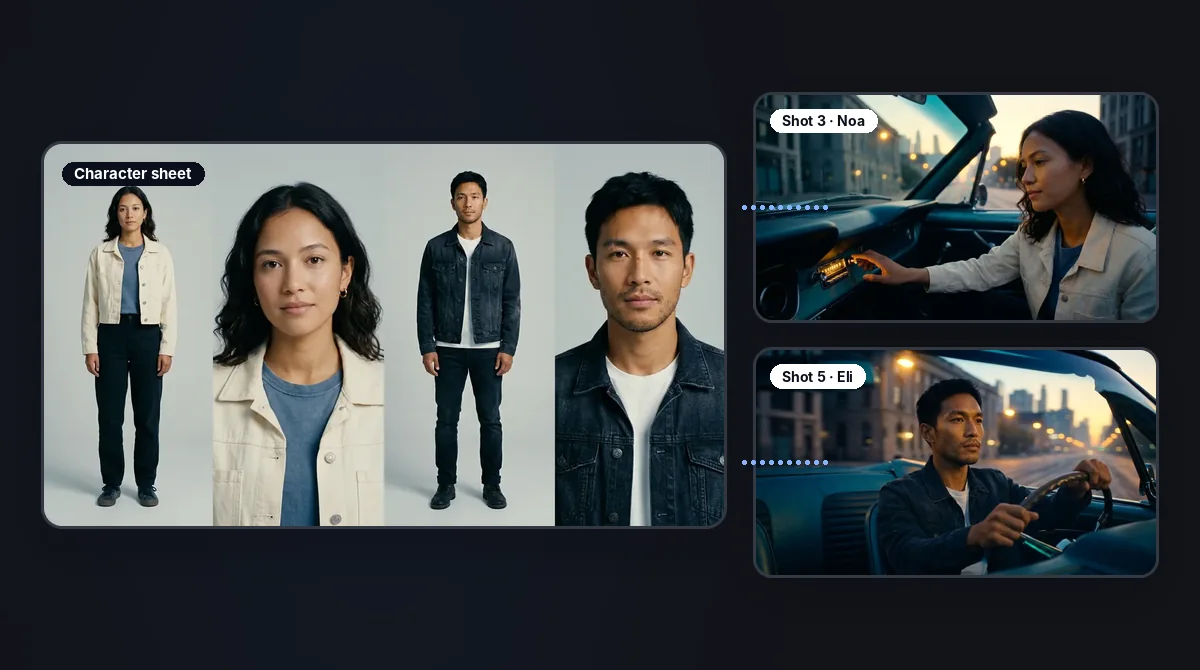
- A recurring character. Describe one lead in fixed words (age, build, hair, two items of clothing) and reuse that description for every song. Muvora's director writes a small cast, each described once, draws a character sheet and checks every keyframe that shows them against it, redrawing one that drifts.
- A drawn performer. In the Performance style you upload one picture of the singer, and it can be an illustrated or animated character you have the rights to. The sung shots lip-sync to the song's vocals, and the character can appear in the other shots as well.
- No one at all. Abstract and lyric videos need no character, and a signature palette and motif can carry the identity instead. Faceless music video ideas has more than twenty-five concepts.
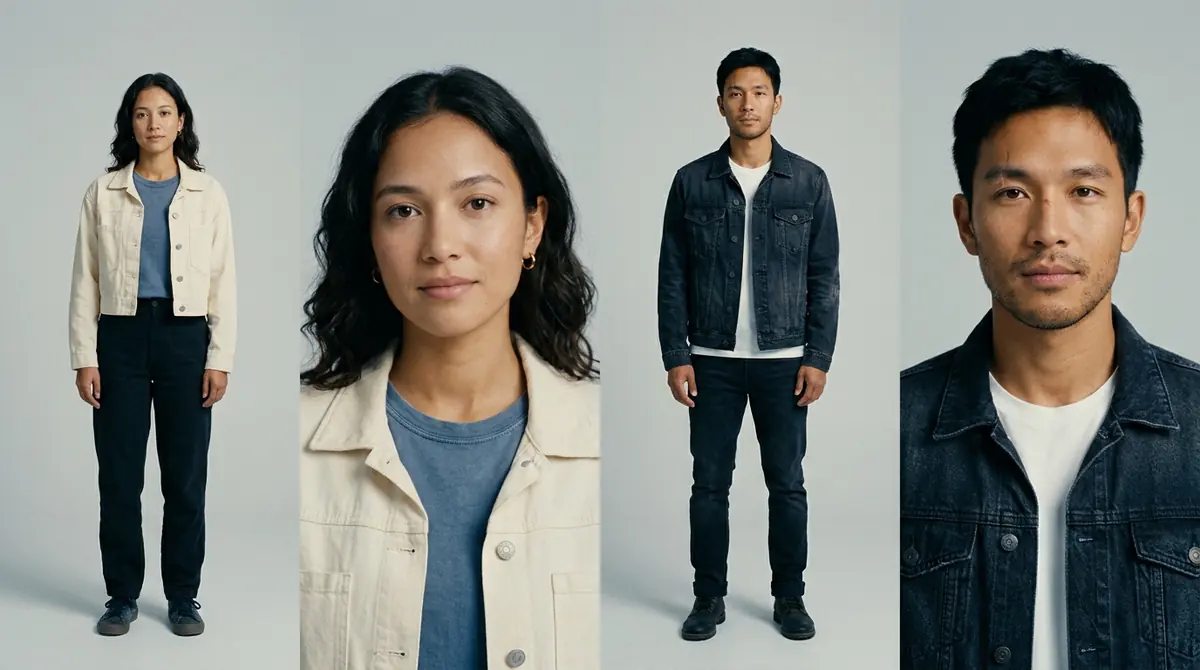
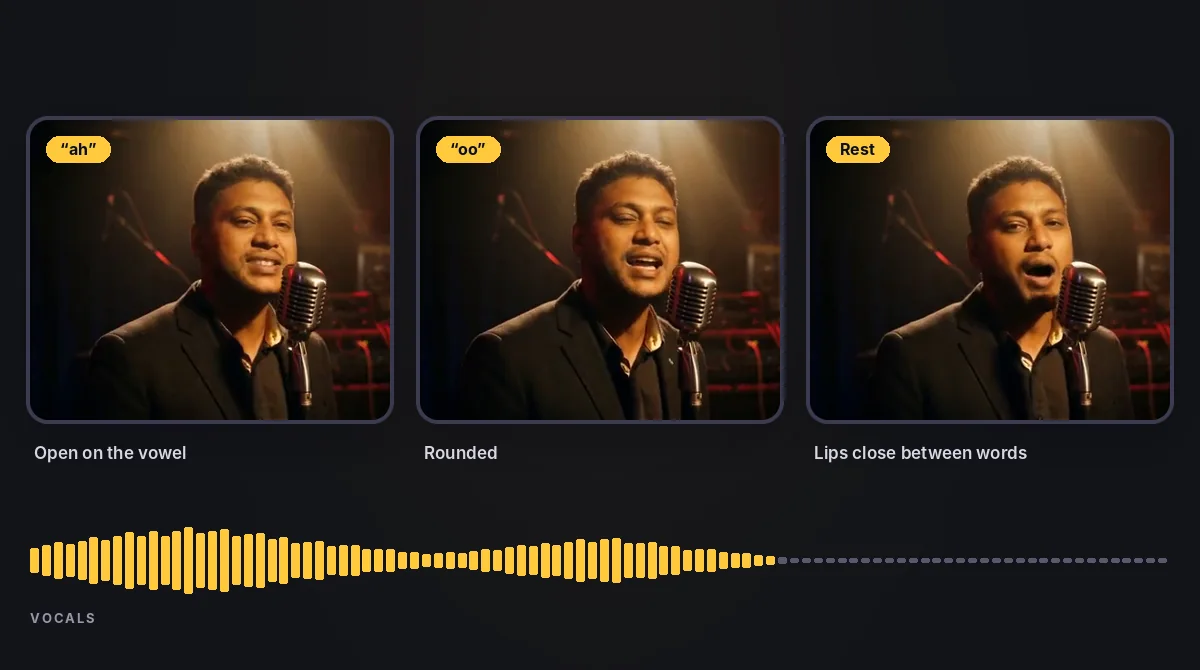
Storyboard your AI song
Upload the file, paste the lyrics and describe your lead. The beat-synced storyboard and its style frames are free, so you can see the song's face before you render.
Render the hook first
AI music tools make it easy to end up with dozens of finished songs, and rendering every one at full length adds up. A cheaper habit is to test the look on the hook. Trim a 15 to 30 second cut around the first chorus in any audio editor, export it and upload it as its own song. It gets a storyboard of its own, planned like a full song's, and since every quality is priced per finished second, its render costs only its own seconds.
| Check | What good looks like | If it misses |
|---|---|---|
| The lead | Recognizably the same in every shot | Make the character description more specific, or re-roll the shot |
| The look | The palette and medium you described | Change the look in the editor and sharpen the style words in your idea |
| The pace | Cuts that feel like the song's rhythm | Split, merge or drag cuts in the full song's storyboard |
| The singing | The mouth moving with the words in sung shots | Try a clearer, front-facing picture of the character |
The test isn't wasted either: its 9:16 cut is a ready-made vertical clip of the hook for Shorts, Reels or TikTok. Once it looks right, upload the full song with the same idea text and the same character description, and render it at the quality the song deserves.
| Quality | Credits per finished second | A 3-minute song | Good for |
|---|---|---|---|
| Visualizer | 38 | 6,840 credits | Most of a catalog: abstract, lyric and mood videos |
| Standard | 60 | 10,800 credits | Singles with a recurring character |
| Cinematic | 110 | 19,800 credits | The song you push hardest, made at up to 1080p |
Tips for songs made with AI
AI-generated songs have habits that human arrangements usually don't, and a few of them show up in the video. None is a reason not to make one, and each has a simple fix.
| Quirk | What you'll notice | What to do |
|---|---|---|
| A long or empty intro | Seconds of ambience or noise before the beat starts | Trim it before uploading, or let the intro hold one slow establishing shot |
| An abrupt ending | The song stops mid-phrase or cuts off in a fade | Trim to the end of a bar, or merge the last shots into one held image |
| An odd structure | A chorus in the first 20 seconds, no bridge, a section repeated three times | Plan around what's there, and give repeated sections new places or light |
| Joins between extensions | A change in feel or tempo where an extended song was stitched together | Check the cuts around the join and drag any that sit off the beat |
| A very dense mix | Vocals, pads and drums loud all the way through | Expect less change in pace; merge shots in verses and split them in choruses |
| Many similar songs | Ten tracks in one style, released weeks apart | Keep one visual identity and vary the place, season or light per song |
Bar height: how loud the section is. The strip under them: the shots, each cell one cut. Louder sections get more, shorter shots.
Above all, don't render every track. Storyboards are free (5 new ones a month on the free plan, each edited as much as you like), so storyboard a batch, see which ideas hold up, and spend credits only on the songs you will actually release and promote. A shot that fails to render is retried, and its credits come back automatically if it still fails.
When the beat grid or the sections look off
Muvora's cut points are decided by code from the analysis, never by the AI: cuts land on downbeats, every section change and every drop is a cut, and loud sections get shorter shots than quiet ones. Songs with a clear, steady beat give the tightest result. When something looks wrong in the storyboard, it is usually one of four things, and each is fixed in the free editor before you render.
- The cuts feel too slow or too fast for the song. Split shots where you want more cuts and merge them where the pace feels hurried. Every cut still lands on the beat.
- A cut sits just off the beat you hear. Drag it; cuts snap to the beat. Look first at section edges and at any join in an extended song.
- A section is labeled differently from what you hear, a chorus read as a verse or a breakdown as an outro. The label is only a name; what matters is that a cut falls at the change. Rewrite the prompts in that stretch for the part it really is.
- The intro or outro is mostly silence. The video is exactly as long as the song, so a long silent tail is a long quiet ending. Trim the file and upload it again if you don't want it.
Bar 1
Bar 2
Bar 3
Bar 4
Release it: the full video, the vertical cut and the Canvas
One render gives you every shape an AI-song release needs: the 16:9 video for YouTube, a 9:16 cut for Shorts, Reels and TikTok, a 1:1 cut for the feed and an 8-second vertical Canvas loop with no sound for Spotify. The soundtrack in each is your original upload, untouched; any sound the video models make is thrown away.
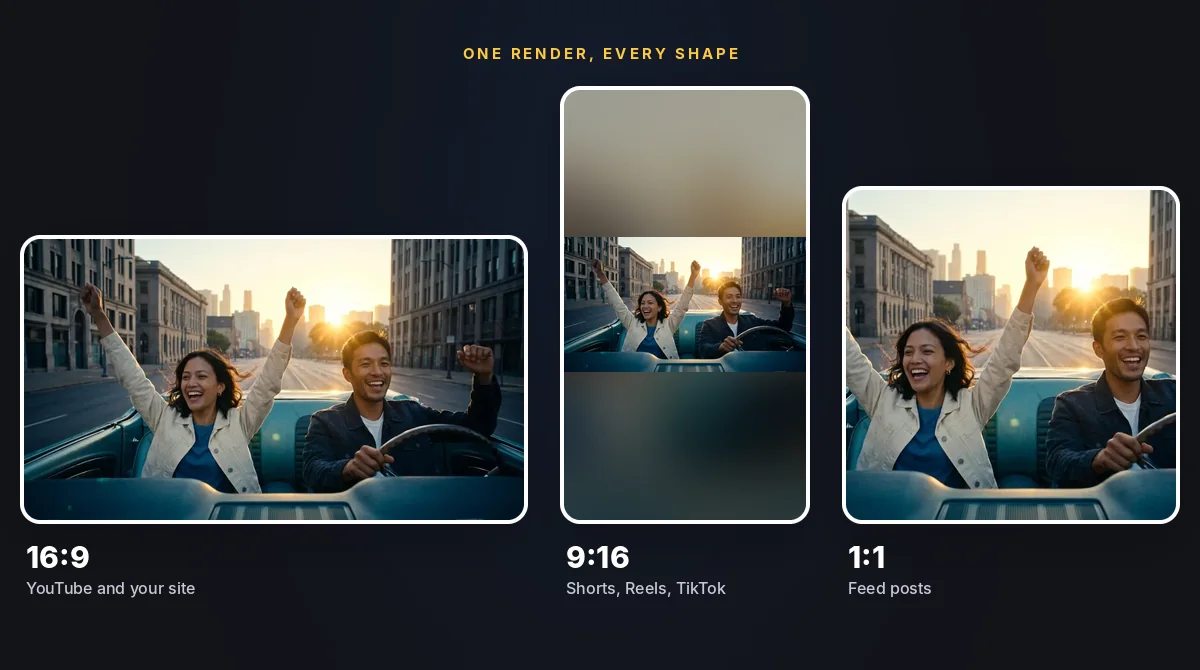
- YouTube: upload the 16:9 video as the song's video, with the lyrics and the credits in the description; uploading a music video to YouTube covers the details.
- Shorts, Reels and TikTok: post the 9:16 cut, or the hook test, on release day and again in the days after.
- Spotify: add the Canvas loop in Spotify for Artists once the song shows up there.
- The next song: reuse the idea text and the character description, so the catalog looks like one artist.
Your AI song deserves a video
Upload the track, paste the lyrics and get a free storyboard with every cut on the beat. Test the hook first, then render the whole song.
Written by the Muvora team. Last updated November 14, 2026. Spotted something out of date? Tell us at [email protected].