Check a video file against each platform's specs
Open a video from your device and see what's inside it: the resolution and shape, the frame rate (and whether it holds steady), the length, the codec, the bitrate and the sound, read from the file's own headers. Then see each item checked against YouTube, Shorts, TikTok, Reels and Spotify Canvas, marked pass, check or fail with what to change. The file is read on your device a slice at a time and never uploaded.
Free, no sign-up. Runs in your browser: nothing is uploaded.
Drop a video here, or choose one
MP4, MOV and M4V headers are read in full, WebM's in part, other formats only as far as your browser's player can. The file is read on your device, a slice at a time, and never uploaded.
Making the video? Muvora renders a music video once and exports the 16:9 video, the 9:16 cut, the square post and the Canvas loop together: H.264 MP4 with your song as AAC audio, at 24 fps, every cut on the beat. Need a horizontal clip turned vertical? Try the vertical video converter.
Make a music video from my songUpload a new songSong finished? Upload it and Muvora plans the whole video on its beats. The storyboard is free.
Make the videoUpload a new songHow to use the video file checker
- 01
Open the video
Choose or drop an MP4, MOV, M4V or WebM. The checker reads it on your device in small slices, so even a large export opens in a moment.
- 02
Read its facts
The picture's size and shape, the frame rate, length, codec and profile, bitrates, color and the audio track, from the file's headers and your browser's player.
- 03
Pick a platform
YouTube, Shorts, TikTok, Reels or Spotify Canvas: every item is marked Pass, Check or Fail, with the reason and the setting to change.
- 04
Fix it and check again
Change what's flagged in your editor's export settings, export again and drop the new file in to see the checks clear.
What the checker reads, and from where
A browser's player knows only a video's size and length. Everything else sits in the file's headers. An MP4 or MOV keeps an index (the moov box) that lists every track with its codec, its clock and how long each frame lasts, and the checker walks the file's boxes to find that index wherever it sits, at the front or after the media, without loading the media itself. The frame rate comes from those frame durations, so 23.976 reads as 23.976, not 24, and a phone clip whose frames wander reads as variable. A file from a browser's recorder or a streaming tool keeps its timing in fragments, which are read too. WebM headers give the codecs, the size and usually the length, but often no frame rate. AVI, MPEG-TS and other formats are named, and only what your browser's player reads of them is checked.
- MP4, MOV and M4V read in full
- WebM's codecs, size and length
- Frame rate from every frame's duration
What each platform asks of the file
YouTube's recommended upload settings name H.264 video in an MP4 with AAC-LC audio, at the rate it was recorded, with about 8 Mbps for 1080p at 24 to 30 fps (the video bitrate calculator works out the file size that gives). A square or vertical video of up to 3 minutes becomes a Short. TikTok's developer guide recommends H.264 in an MP4 and takes 23 to 60 fps. Instagram's Reels page accepts shapes from 1.91:1 to 9:16 and asks for at least 30 fps and 720 pixels. A Spotify Canvas is a 3 to 8-second 9:16 MP4 at least 720 pixels tall, played without sound (the Spotify Canvas checker handles a JPG too). Every figure is as of November 2026, from the same pages as the social media video specs guide, which also covers Facebook, X and Apple Music.
- H.264 and AAC in an MP4 everywhere
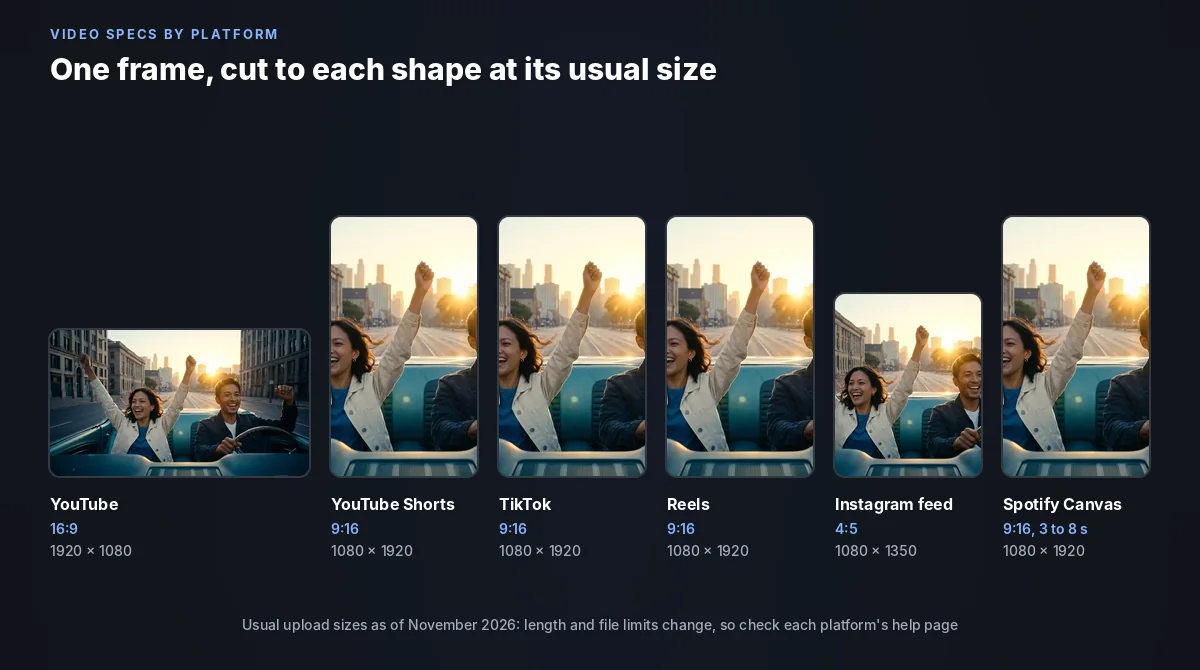
- 9:16 at 1080 × 1920 for the vertical apps
- Limits as of November 2026, each sourced
The flags worth fixing first
Most problems come from a phone or a hurried export. Phones record a variable frame rate and, on iPhones set to High Efficiency, HEVC rather than H.264; both usually upload, but an H.264 export at one steady rate is the version every editor and app handles alike. A 24 fps music video meets YouTube's and TikTok's figures and sits under the 30 fps Instagram's Reels page asks for. An index at the end of the file is common from cameras and some exporters, and an editor's fast start or web optimized option moves it to the front. A widescreen file checked as a Short fails on shape, not quality: reframe it with the vertical video converter, get each shape's pixel size from the aspect ratio calculator, and keep faces clear of each app's buttons with the safe zone checker.
- Variable frame rate from phones
- HEVC where H.264 is the safe export
- A shape made for a different app
Exports cut for these specs from the start
Muvora turns your song into a music video planned on its beats and exports it in the shapes the platforms ask for from one render: a 16:9 video for YouTube, a 9:16 cut for Shorts, TikTok and Reels, a square post and an 8-second Canvas loop. Each is an H.264 MP4 at a steady 24 fps with your uploaded song as AAC audio, at 720p or 1080p, so most checks here pass before you open the file (Instagram's 30 fps figure is the one to convert for). The storyboard is free to read and edit, and the price shows before you render.
Questions, answered
Can't find what you need? Start a free storyboard and see for yourself.
How do I check a video's resolution and frame rate?
Open it in the video file checker. It shows the size the player displays, with any rotation applied, and reads the frame rate from how long each frame lasts in the file's own index, so it can tell 23.976 from 24 and a steady rate from a variable one. Nothing is uploaded.
What video specs do YouTube, TikTok and Instagram Reels want?
As of November 2026, YouTube's recommended settings ask for an MP4 with H.264 video and AAC-LC audio at the frame rate it was made at, ideally 16:9 at 1920 by 1080. TikTok and Reels fill the screen at 9:16, 1080 by 1920; TikTok's guide takes 23 to 60 fps, and Instagram's Reels page asks for at least 30 fps and 720 pixels.
Why does my phone video show a variable frame rate?
Phones change the time between frames as the light and the workload change, so the rate drifts around its target. The apps take it, but some editors handle it badly and the sound can slip out of step, so export at one steady rate (24, 25, 30 or 60 fps) before you edit to the beat or post.
Why can't the checker read my WebM's frame rate?
Many WebM files don't store one: browsers' recorders write each frame's time but no rate in the header. The checker reads headers rather than decoding the video, so it shows the codec, the size and the length and leaves the frame rate to your editor.
Is HEVC (H.265) fine for YouTube, TikTok and Instagram?
YouTube's and TikTok's pages name H.264, and H.264 is the codec every platform here accepts, so the checker marks HEVC as one to check rather than a failure. iPhones record HEVC in their default High Efficiency setting; if an upload is refused or looks wrong, export an H.264 MP4.
Is my video uploaded to check it?
No. The checker reads the file's headers in small slices with your browser's file reader and plays the preview from a temporary link to the file on your device. Nothing is sent to Muvora or anyone else, and a large file never has to load whole.
Keep exploring
Social media video specs
Shape, size, length limit, file size and frame rate for YouTube, Shorts, TikTok, Reels, Facebook, X, Canvas and Apple Music, each sourced.
Read the guideSpotify Canvas checker
Check a video against Canvas's specs before you upload: length, shape, resolution and format.
Open the toolVideo bitrate calculator
Bitrate and length to file size, or a size limit to the bitrate that fits, with YouTube's upload figures built in.
Open the toolAspect ratio calculator
Any frame's ratio, a resize that keeps it, and what cropping or fitting to 9:16, 1:1 or 4:5 does.
Open the toolSafe zone checker
Shade the TikTok, Reels or Shorts buttons over your frame, check where a caption stays clear and download an overlay.
Open the toolVertical video converter
Turn a horizontal clip into a 9:16 video for TikTok, Reels and Shorts: crop with a position you choose, or fit it over a blurred fill.
Open the toolExtract audio from video
Take the soundtrack out of an MP4, MOV, WebM or MKV video and save it as a WAV, all of it or a part, on your device.
Open the tool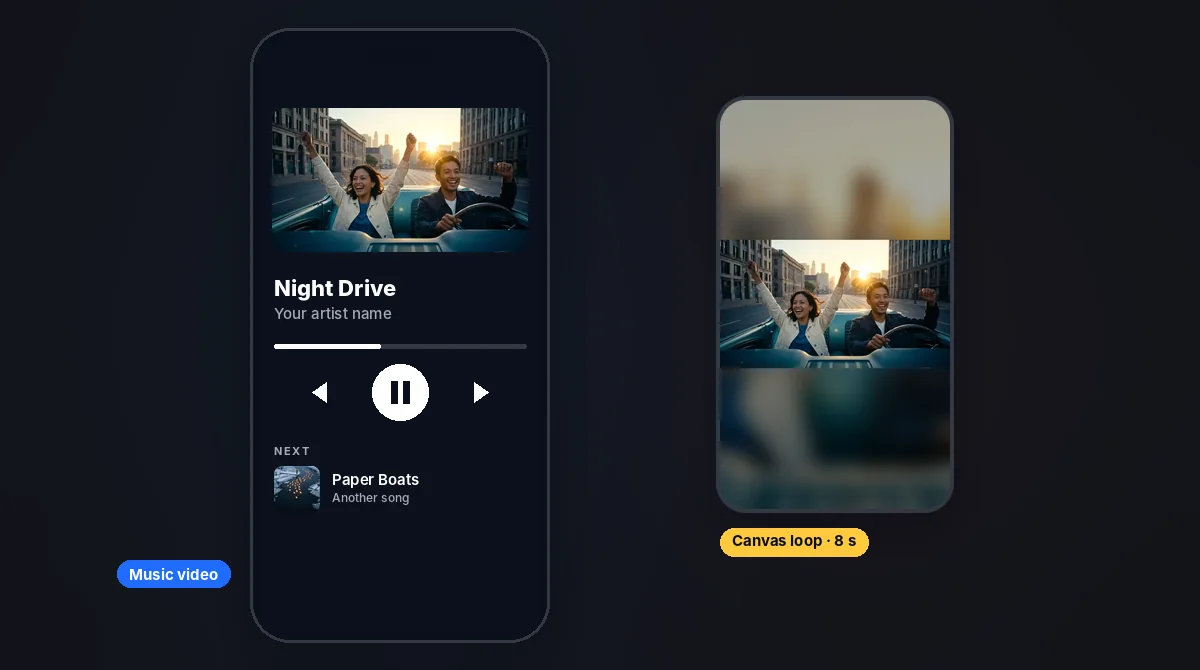
Get your music video on Spotify
The two ways a music video reaches Spotify, who can watch it, the specs, which videos count, pitching one to editors, and what to post while you wait.
Read the guideBPM to frames calculator
Frames per beat and bar at any frame rate, where every cut lands as a frame and as timecode (drop-frame too), and the tempos that fit whole frames.
Open the tool
More free tools: artwork and video formats
Cover art, Canvas loops, YouTube thumbnails, a spectrum visualizer, sizes, safe zones and bitrates, a video file's specs, and a vertical cut of any clip.
Your song deserves a music video
Upload a track and get a free beat-synced storyboard in minutes. Render it when you are ready.
No card needed to start.