The short answer
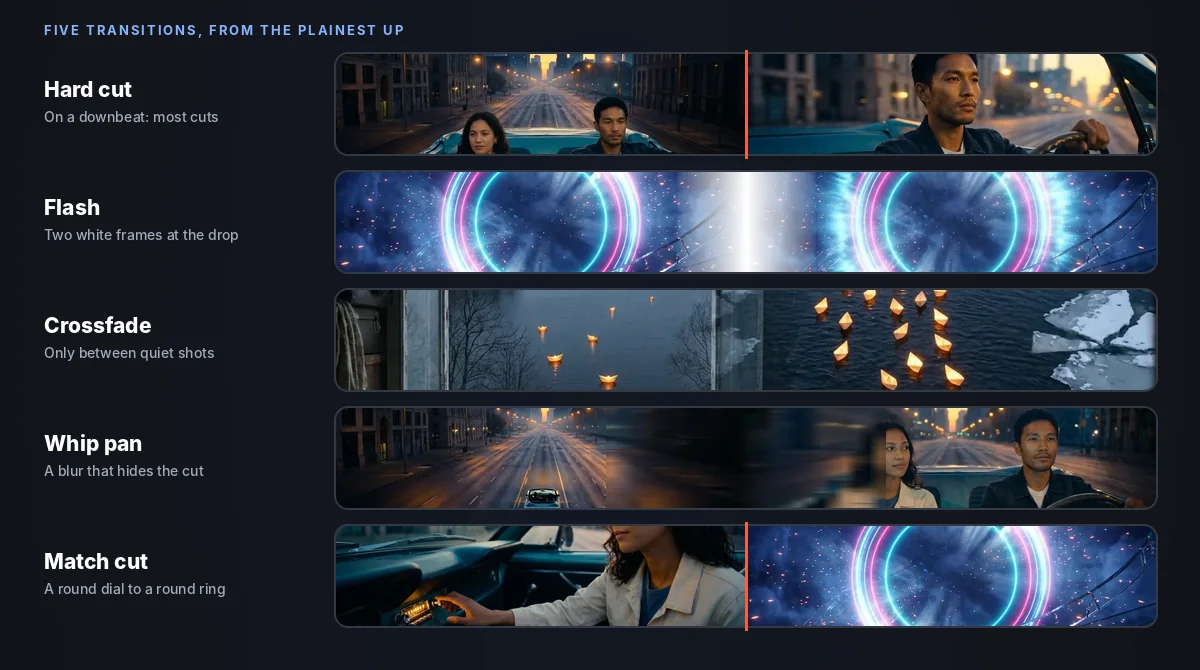
Most music video transitions are hard cuts on the beat, because a cut changes the picture on one frame, exactly where the beat falls. The rest are accents: a flash frame or smash cut on a drop, a whip pan or zoom into a chorus, a match cut linking two places, and a crossfade or dip to black where the song is quiet.
- Cut on the beat by default; every other transition is an accent with a job to do.
- Match the transition to the energy: blends where the song is quiet, flashes and whips at its peaks.
- Measure a transition in beats: at 120 BPM and 24 fps, one beat is 12 frames.
- Muvora's edit cuts on downbeats, flashes white at every drop and crossfades only between quiet sections.
- On an exported video, overlay transitions work as they are; a blend needs a short freeze frame.
On this page (10 sections)ShowHide
- 1.Why most music videos are mostly hard cuts
- 2.Every music video transition in one table
- 3.Time a transition in beats, not seconds
- 4.Match cuts, cuts on action and jump cuts
- 5.J and L cuts when the soundtrack is a song
- 6.Dissolves, dips and flash frames
- 7.Whip pans, zooms, spins, morphs, masks and light leaks
- 8.Transitions and energy, section by section
- 9.What Muvora's edit does by itself
- 10.Add transitions on the beat in any editor, step by step
- Questions
Why most music videos are mostly hard cuts
Watch almost any music video with the sound off and count the shot changes. The great majority are straight cuts: the last frame of one shot, then the first frame of the next, nothing in between. That isn't a lack of imagination. It follows from what a music video is, pictures that seem to be caused by the song.
- A cut has an exact moment. It happens between two frames, so it can land on the kick or the snare. A half-second dissolve spreads the change across 12 frames at 24 fps, which at 120 BPM is a whole beat, and the eye can't tell which beat it belongs to.
- Cuts are invisible by habit. Viewers have watched cuts all their lives and read them as a change of view, not as an effect. Every other transition gets noticed, so each one says something, and a video full of them says nothing in particular.
- Pace comes from the rate of cutting. A chorus feels faster because its shots are shorter. A transition adds time to every change, which slows down exactly the sections that should speed up.
- Effects date. Spins, glitches and light-leak packs go in and out of fashion every few years. A video of clean cuts made a decade ago still looks like a choice.
So a transition earns its place by doing a job a cut can't do: marking a hit, slowing time down, linking two ideas or hiding a jump. The rest of this guide is about those jobs. The cutting itself, finding the downbeats and setting each section's shot lengths, is covered in how to edit a music video to the beat.
Every music video transition in one table
Fifteen transitions cover almost every music video ever cut. The table says what each does to the viewer, when it's the right choice, where it usually sits in a song and how to make it. DaVinci Resolve, Premiere Pro, Final Cut Pro and CapCut all have the tools, under slightly different names.
| Transition | What it does | When to use it | Where in the song | How to do it in an editor |
|---|---|---|---|---|
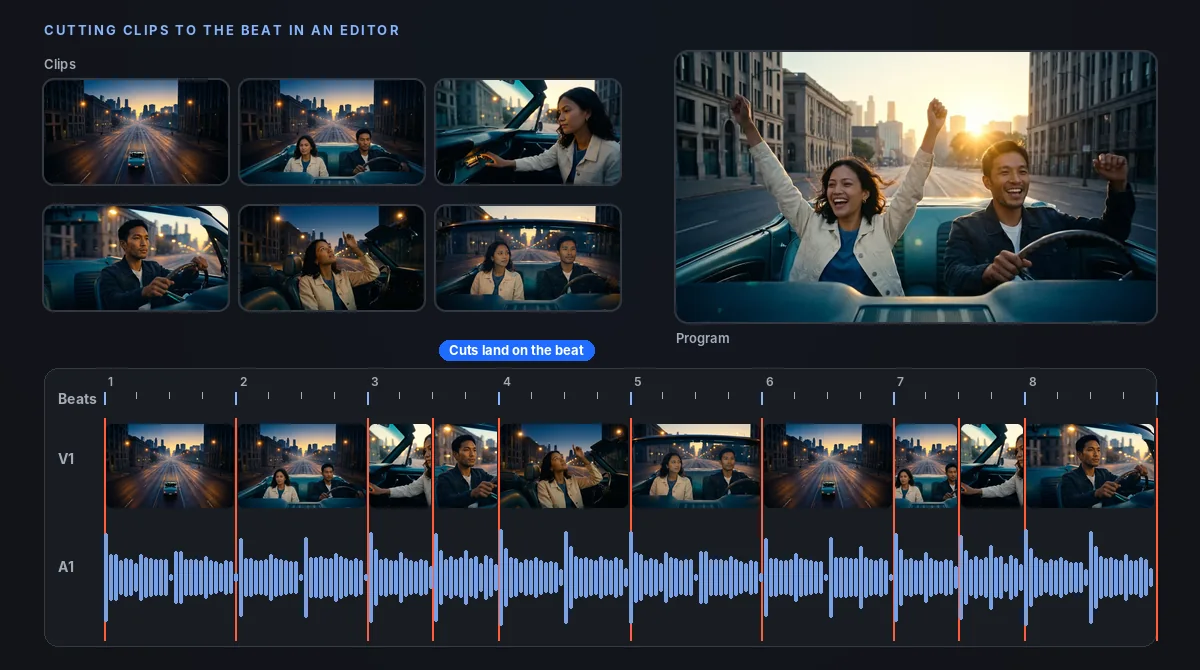
| Hard cut on the beat | Changes the view in one frame, in time with the music | By default, for nearly every shot change | Everywhere, on downbeats; on every beat only in short bursts | Mark the downbeats, turn on snapping and split the clip on the markers |
| Smash cut | Jumps from calm to chaos (or the reverse) with no warning | When the song itself lurches | Into a drop, or the full band crashing in after a sparse intro | A hard cut exactly on the hit, from a still, dim shot to the loudest image you have |
| Jump cut | Skips time inside one framing, so the subject leaps | Restless energy, time passing, a performer who won't stay put | Verses of fast songs; a hook repeated with the singer somewhere new each bar | Lock the camera, record one long take, then remove stretches so each jump lands on a beat |
| Match cut | Joins two shots by a shared shape, motion or position | Linking two places, two times or two people | Section changes, especially into the bridge or the last chorus | Line up the shared element (check with one shot at half opacity over the other), then cut |
| Cut on action | Hides the cut inside a movement that carries across it | Story scenes that need to flow: a door, a turn, a throw | Verses that tell a story | Cut a few frames into the movement and pick up the same movement in the next shot |
| J cut and L cut | Lets a sound start before its picture (J) or carry on after it (L) | Spoken intros, skits and sound effects around the song | Before the first note and after the last | Unlink audio from video and move the audio edit earlier (J) or later (L) than the picture edit |
| Crossfade (dissolve) | Blends one shot into the next: memory, softness, time passing | Slow, quiet passages | Intros, quiet verses, bridges, outros | A cross dissolve on the cut, its length set in beats |
| Dip to black or white | Fades out to a color and back in: a chapter ends | Black for a full stop, white for a dream, a flashback or a realization | Before the bridge, before the last chorus, the very end | A dip-to-color transition, or fade each side into a black or white solid |
| Flash frame | One to three frames of white: an impact, a camera flash | Big hits in the music | Drops and the crash at the top of a chorus | A white solid on the track above for 1 to 3 frames, or an exposure spike on an adjustment layer |
| Whip pan | A streak of blur that throws the viewer into the next shot | Energy, travel, a jump between places | Into a chorus, on a snare, at a drop | Shoot a fast pan at the end of one shot and the start of the next and cut in the blur, or fake it with directional blur and a slide over 4 to 8 frames |
| Zoom transition | Punches in through the end of one shot and out of the start of the next | Rushing forward into a new section | The last beat of a build or pre-chorus | Keyframe the scale up over the outgoing shot's last frames and down from enlarged over the next shot's first, with motion blur |
| Spin transition | Rotates out of one shot and into the next | Giddiness, a party, a sudden turn | The peak of a loud section, once or twice at most | Rotation keyframes with motion blur across the cut, turning the same way on both sides |
| Morph | Melts one shape or face into another | Transformation, surreal or dreamlike ideas | A turn in the story or the bridge, once | A morph tool or AI frame interpolation between two closely aligned frames |
| Mask or wipe | An object or an edge crosses the frame and reveals the next shot | Hiding a cut, moving through a space, a playful reveal | Verses and choruses that travel | Draw or track a mask along the passing object's edge; a wipe is the same with a straight edge |
| Light leak | A wash of warm light over the cut, like film fogging at the end of a roll | Nostalgia, warmth, a home-movie feel | Intros, outros, a memory sequence | A light leak clip on the track above the cut, set to a Screen or Add blend mode |
Notice how few of these belong in the middle of a chorus. That's where the beat is strongest, and where a plain cut serves it best. The other transitions cluster at the edges of sections, where the song itself is changing, and at the very start and end of the video.
Skip the blank page
Upload your song and Muvora's AI director plans a shot-by-shot storyboard on the beat. Edit every shot for free, and pay only if you render.
Time a transition in beats, not seconds
Every transition except the hard cut has a length, and in a music video that length is musical. A beat lasts 60 divided by the tempo in seconds (what BPM means goes further), so at 24 frames a second one beat is 1,440 divided by the BPM in frames: 12 frames at 120 BPM, 18 at 80 BPM, about 8.5 at 170 BPM. Decide how many beats a transition should take, then convert.
| Transition | Length at 24 fps | In beats at 120 BPM | Where the beat goes |
|---|---|---|---|
| Flash frame | 1 to 3 frames | A quarter of a beat or less | The white starts on the hit |
| Whip pan | 4 to 8 frames | A third to two thirds of a beat | The cut, hidden in the blur, on the snare or the downbeat |
| Zoom or spin | 6 to 12 frames | Half a beat to one beat | The cut on the downbeat, the blur on either side |
| Crossfade in a quiet section | 12 to 48 frames | One to four beats | The middle of the dissolve on the downbeat |
| Dip to black or white | 12 to 24 frames each way | One to two beats out, the same back in | The fully black or white frame on the bar line |
| Light leak | 12 to 36 frames | One to three beats | The brightest frame on the cut |
| Morph | 12 to 24 frames | One to two beats | Finished by the next downbeat |
Two rules follow from the table. A blend whose midpoint sits on a downbeat reads as on time, while one that starts on the downbeat peaks after it and reads as late. And the faster the song, the fewer blends fit at all: at 170 BPM a one-beat dissolve lasts about a third of a second and barely registers, while a two-bar dissolve swallows almost three seconds of the chorus.
Bar 1
Bar 2
Bar 3
Bar 4
Match cuts, cuts on action and jump cuts
These three are still cuts, one frame straight to the next, but each uses what is inside the frames to make the join mean something or disappear. All three are planned before anything is filmed or generated, because the thing that connects them has to be in both shots.
- Match cut. Two shots share a shape, a motion or a place in the frame: a spinning record becomes a spinning bicycle wheel, a porthole becomes the full moon, a hand shutting a car door becomes the same hand shutting a front door years later. The shared element links the two worlds, and the cut does the storytelling. Line the shapes up at the same size and position, and cut on a downbeat so the music makes the link too.
- Cut on action. Start a movement in one shot and finish it in the next: she swings a door open in a wide shot, and the close-up begins with the door still moving. The eye follows the motion and skips the cut. Cut two or three frames after the movement starts, and let any small mismatch hide inside it.
- Jump cut. Keep the framing and skip time, so the subject jumps: a singer in a locked-off bedroom shot, on the bed, then on the floor, then at the window, one position per bar. In a film a jump cut looks like a mistake; locked to the beat in a music video, it reads as rhythm. Editors also offer the opposite tool, Premiere Pro's Morph Cut and DaVinci Resolve's Smooth Cut, which try to hide a jump in an interview take, and that's rarely what a music video wants.
To check a match after the fact, save the last frame of one shot and the first frame of the next with the video frame grabber and lay one over the other at half opacity. If the shapes sit in different places, the cut reads as a jump rather than a link, and moving or scaling one of the shots slightly in the editor usually fixes it.
J and L cuts when the soundtrack is a song
In film editing, a J cut lets the next scene's sound start before its picture (on the timeline the audio reaches back under the previous shot, like the bottom of a J), and an L cut lets a scene's sound carry on over the next picture. They are the most common transitions in dialogue scenes. A music video's soundtrack, though, is one continuous song, and nothing should move it: slide the song a few frames and every cut after that point slips off the beat.
So in a music video, J and L cuts live around the song. A spoken intro, a short scene before the first note, rain, traffic or a car door: those sounds can lead into a picture or trail out of one. Let the rain start a bar before the first shot of the street (a J cut), or let a slammed door ring over the first frame of the next scene (an L cut), while the song sits untouched on its own track.
Dissolves, dips and flash frames
These three change the brightness of the picture rather than its position, and each one changes how time feels.
- Crossfade (dissolve). For a moment both shots are on screen at once, so a dissolve says these two belong together: a memory, a passing hour, one place becoming another. It slows the rhythm, which is why it suits intros, quiet verses, bridges and outros and fights a chorus. In a ballad at 70 BPM a dissolve of one or two beats (about 20 to 40 frames) feels natural; in a 128 BPM chorus even half a beat looks like a mistake.
- Dip to black or white. The picture fades out to a color, then back in. Black is a full stop: the end of a chapter, a scene reset, the end of the video. White is brighter in meaning too: a flashback, a dream, a realization, the breath before a final chorus. Put the fully black or white frame on the bar line so the next section starts out of it.
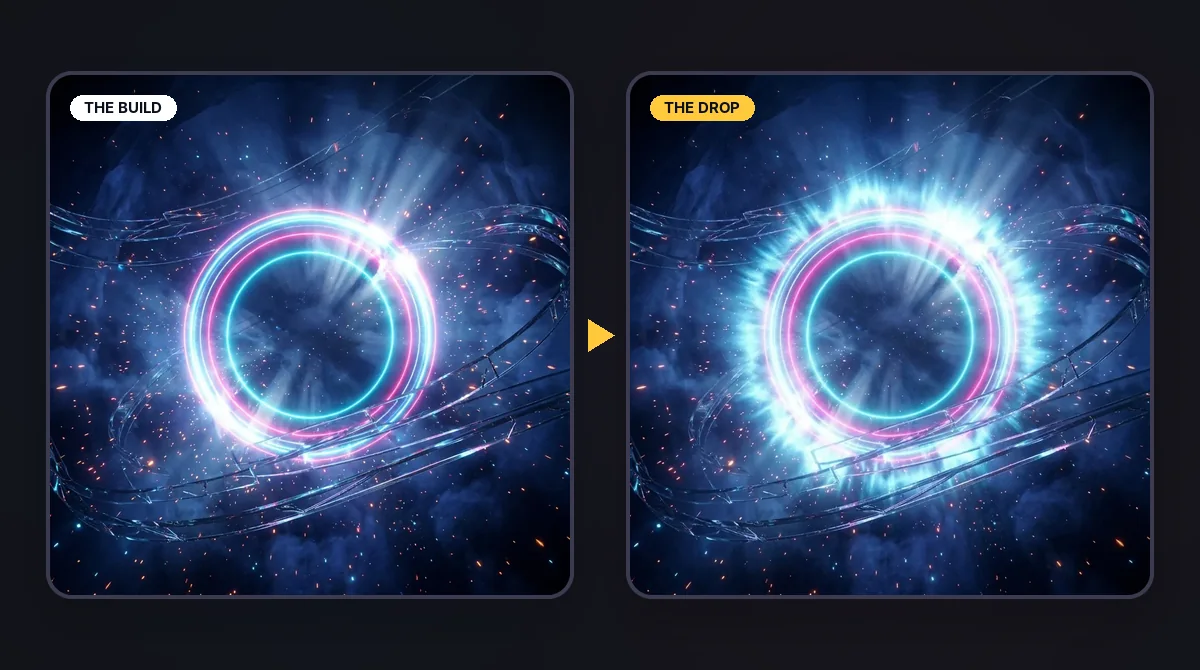
- Flash frame. One to three frames of white, or of the picture blown out, on a hit. It mimics a camera flash or a strobe, and it makes the cut under it feel like an impact. It belongs on drops, the crash at the top of a chorus or a snare that cracks. On every cut it stops meaning anything and becomes flicker.
Whip pans, zooms, spins, morphs, masks and light leaks
Moving transitions push the viewer from one shot into the next. They are the loudest transitions there are, so they belong at the loudest moments, and only a handful of times in a whole video.
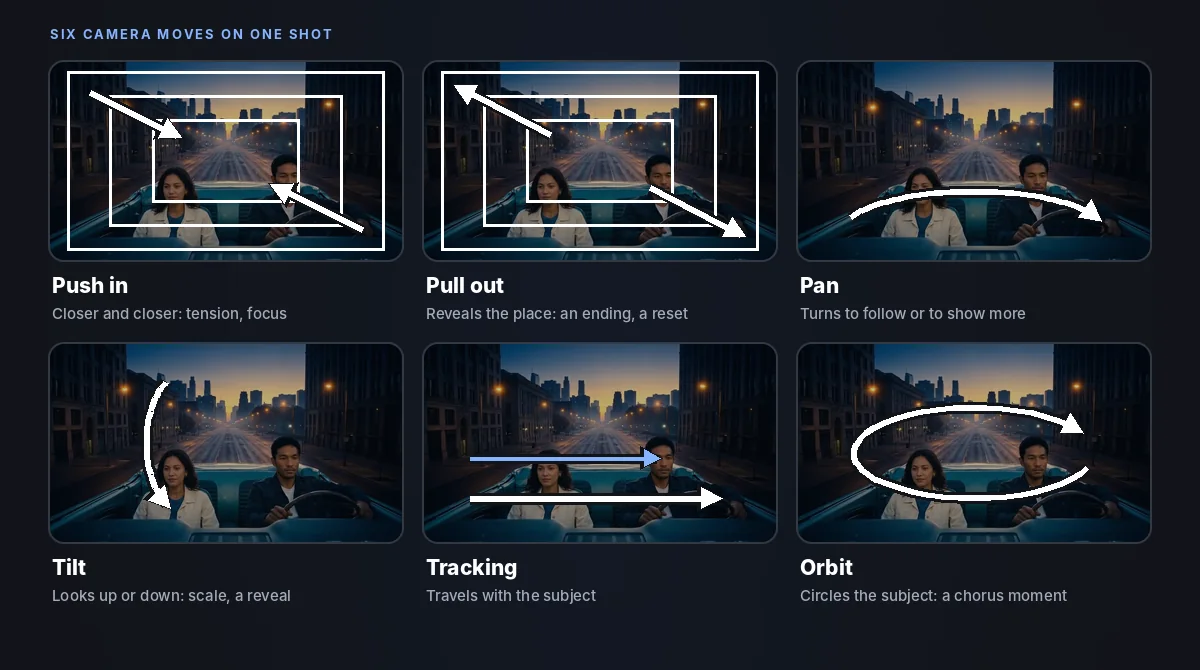
- Whip pan. The camera turns so fast the image streaks, and the cut hides inside the streak. The real version is shot: end the first shot with a fast pan to the right, start the next with a pan in the same direction, and cut in the middle of the blur on a snare or a downbeat. The faked version adds directional blur and a quick slide over 4 to 8 frames. Keep the direction the same on both sides, or the eye feels a bump. Music video camera movements covers the pan itself.
- Zoom transition. The outgoing shot rushes forward (its scale rising with motion blur over its last few frames) and the incoming one starts enlarged and settles. It feels like being pulled into the next section, which is why it suits the last beat of a build or a pre-chorus. One in a video is often enough.
- Spin transition. A rotation with motion blur across the cut. It reads as giddy or dizzy and fits party songs and peaks. It is also the transition most likely to make a video look like a template, so give it a reason.
- Morph. One image melts into another: a face into another face, a flower into a firework. It needs two frames lined up closely, then a morph tool or AI frame interpolation to fill the frames between them. Striking once, tiring twice.
- Mask or wipe. Something crosses the lens (a pillar, a passing body, a bus) and the next shot is revealed behind it. In an editor you draw or track a mask along the object's edge. A plain wipe, a straight edge sweeping across the frame, is the cheap version and looks it, unless a retro look is the point.
- Light leak. An orange or red wash of light floods the frame over a cut, the way old film fogged at the end of a roll. A leak clip on the track above, blended with Screen or Add, does it. It brings warmth and hides a cut gently, but a leak on every cut turns the whole video beige.
None of these rescues a weak shot. If two shots don't belong next to each other, a whip pan only gets the viewer to the problem faster; replace the shot instead.
Transitions and energy, section by section
The song tells you which transition fits. Quiet sections can afford transitions that take time, loud ones need the change to happen on a single frame, and the joins between sections are where the special transitions go.
| Section | Energy | Transitions that fit | Avoid |
|---|---|---|---|
| Intro | Low | A fade in from black, a dissolve or a light leak between slow shots | Fast moving transitions before the song has started moving |
| Verse | Low to medium | Hard cuts on downbeats, cuts on action, match cuts that carry the story | Long dissolves that blur the words |
| Pre-chorus or build | Rising | Shorter shots, then a zoom or a whip on the last beat into the chorus | A dip to black, which stops the rise dead |
| Chorus | High | Hard cuts on downbeats, a flash on its first downbeat, a whip pan on a snare | Dissolves of any length |
| Drop | Highest | A smash cut with a flash frame on the hit | Anything that starts before the drop and smears it |
| Bridge | Changes | A dip to white, a match cut to a new place, a morph used once | Repeating the chorus's tricks |
| Final chorus | Highest | The video's one big move (a spin, a zoom, a whip), then clean cuts | Every effect at once |
| Outro | Falling | Dissolves, a light leak, a long fade to black | Ending on a flash |
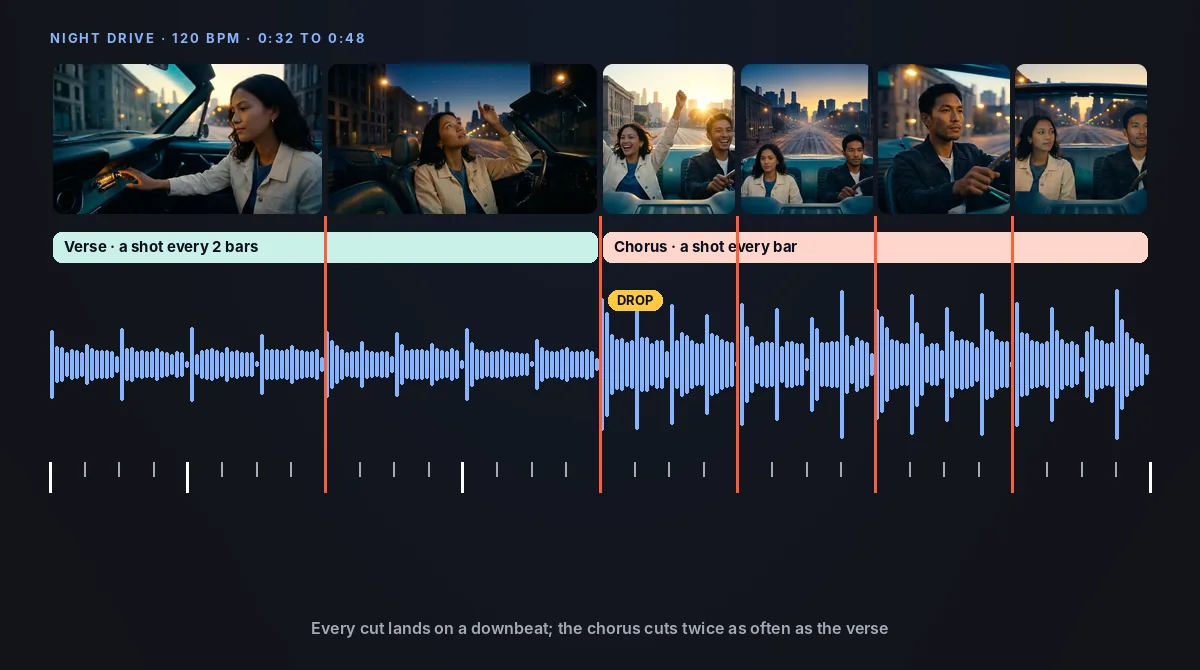
Each block is a shot. Same tempo, same bar grid: only the shot length changes with the energy.
A good test is to describe the video's transitions in one sentence, the way you'd describe its camera. Clean cuts throughout, a flash on each drop and one dip to white before the last chorus is a plan. A different effect at every section change is a template pack. Genre shifts the balance too: an ambient or post-rock piece can live on long dissolves (see instrumental music video ideas), while a punk song wants jump cuts, flash frames and almost nothing else (see punk music video ideas).
- A different transition at every cut makes the video look like a demo reel for an effects pack. Pick two or three kinds and repeat them on purpose.
- A transition that starts on the beat peaks after it and feels late. Center blends on the beat; start flashes on it.
- White frames on every beat strain viewers' eyes and steal the drop's thunder, since the drop should be the biggest flash in the video.
- Nudging the audio to fit a transition puts every later cut off the beat. Move the picture, never the song.
What Muvora's edit does by itself
Muvora cuts a music video the way this guide recommends, with no effects menu to overdo. The cut points come from the shot planner, which reads the song's beats, downbeats, sections and loudness; the AI never decides where a cut goes. The edit then follows three rules:
- Hard cuts, each on its planned frame. Cuts land on downbeats (on single beats only in the loudest bars of slow songs and just after a drop), and every section change and every drop is a cut. The video runs at 24 frames a second, and each cut sits on the frame nearest its time in the song.
- A white flash at every drop. The first two frames after a drop's cut are washed with white, the first brighter than the second.
- Crossfades only where the song is quiet. A crossfade of up to half a second (12 frames), centered on the cut, appears only where both shots and both their sections rank among the quietest third of the song. Never at a drop, and never into or out of a lip-synced singing shot.
No other transition is added: no whip pans between shots, no zooms, spins, morphs, wipes or light leaks. Shots are also steered away from morphing inside themselves, since shapes melting mid-shot is one of AI video's commonest flaws. The one other blend is in the Spotify Canvas export, whose last half second dissolves into its own first frames so the 8-second loop restarts without a visible jump.
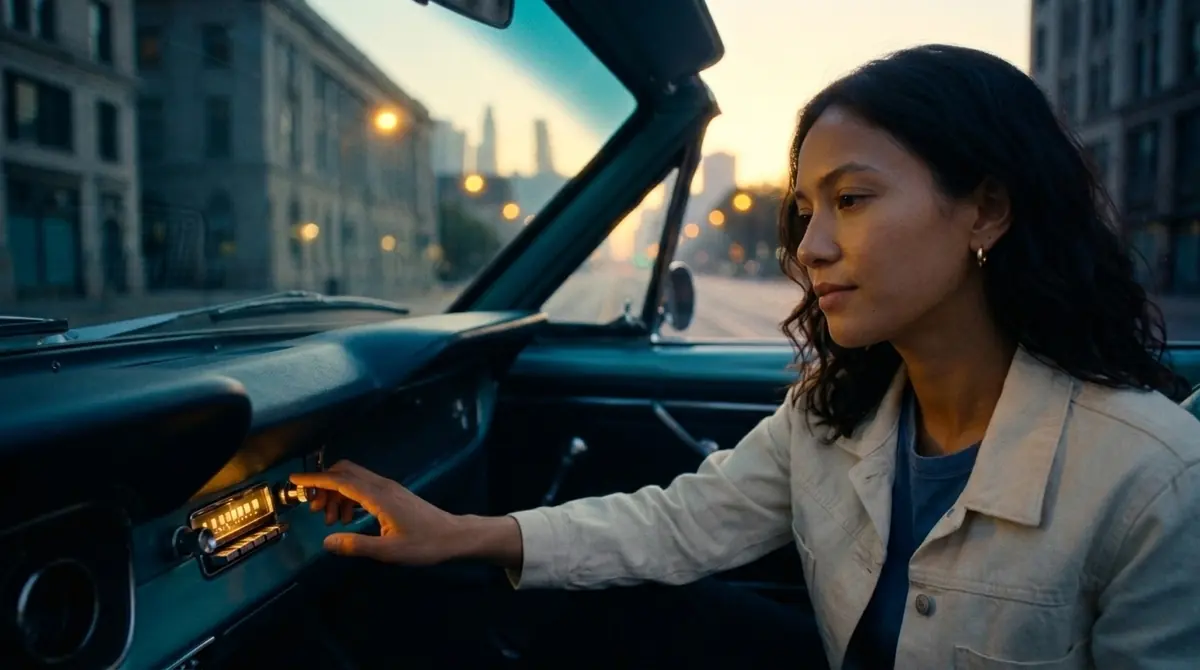
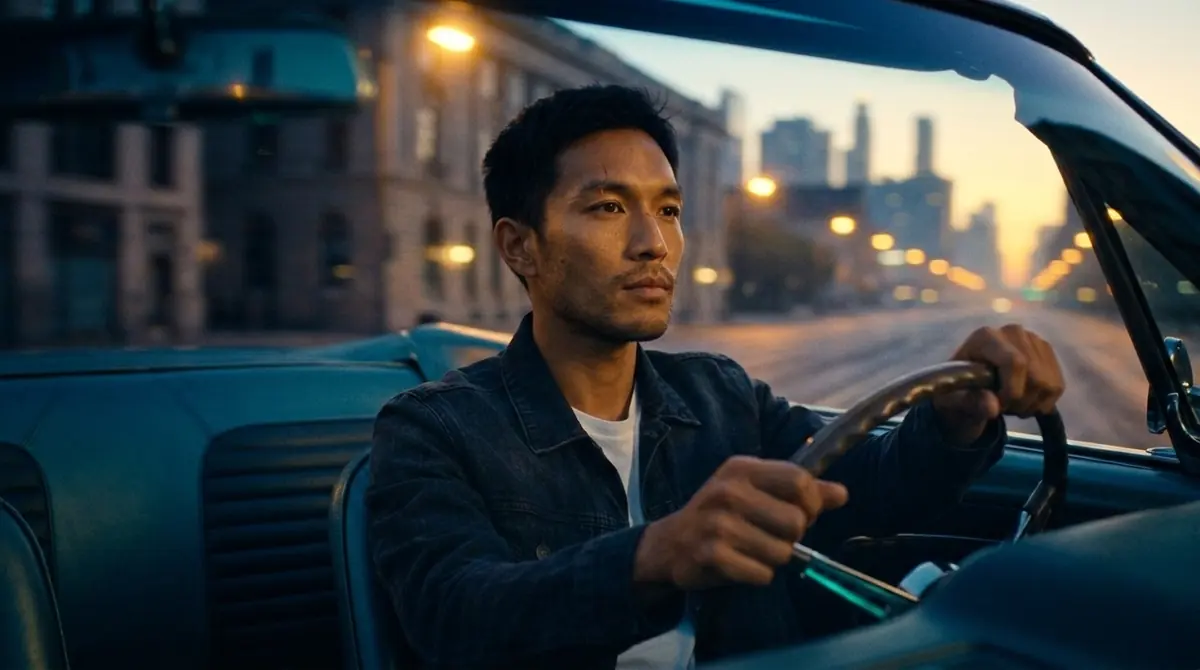
What you control is what's inside the shots. Every shot's framing, camera move and prompts sit in the storyboard, free to change, so you can set up the transitions that happen in the camera: write the same round shape centered in two neighboring shots for a match cut, end one shot on a door swinging open and start the next on the door for a cut on action, or split a shot on the beat and keep its framing while the subject moves for a jump cut. The AI draws toward what's described rather than matching shapes to the pixel, so check those pairs after the render and re-roll a shot that misses on the review page. On the loudest shots, a pan is already asked for as a whip pan inside the shot.
See where your song's cuts and flashes fall
Upload a track and get a free storyboard with every cut on its downbeat, the sections mapped and each drop marked for its flash. Change any shot's framing or camera move, then render when the plan reads right. The beat sync video maker page lists every rule the planner follows.
Add transitions on the beat in any editor, step by step
These steps work for footage you filmed and for a video Muvora exported. The exported MP4 is one finished file with the cuts already made, which changes steps five and six.
- 01
Set the project to the video's frame rate
Create the project at the frame rate of your footage before importing anything. Muvora's exports run at 24 fps, and matching it keeps every cut and transition on a whole frame.
- 02
Lay the video in at zero and lock the song
Place the video at the very start of the timeline, unlink its audio from the picture and lock the audio track, so no trim, slip or transition can push the song out of sync.
- 03
Mark the beat grid
Put a marker on every downbeat, by tapping along or by importing a marker list made from the tempo and the first downbeat, and turn on snapping so cuts and transitions land on the markers.
- 04
Choose the few cuts that get a transition
Go section by section and pick only the joins that need one: the drop, the way into the chorus, the turn into the bridge, the last image. Leave every other cut as it is.
- 05
Make the cut, or find the existing one
On your own footage, cut on the markers. On an exported video, split the clip only at the cuts you chose: scene detection finds them for you (DaVinci Resolve's scene cut detector, Premiere Pro's scene edit detection), or read each shot's start time from the storyboard.
- 06
Add the transition and set its length in beats
Overlay transitions, such as a flash, a light leak, a blur or a zoom or spin made with keyframes, go straight onto the cut. A blend needs two pictures at once, so on an exported file hold the outgoing shot's last frame (or the incoming shot's first) as a freeze for the length of the transition and blend into it.
- 07
Center it on the beat
Put a dissolve's midpoint, a whip pan's blur or a dip's darkest frame on the downbeat, and start flash frames exactly on the hit.
- 08
Watch at full speed, then export to match
Play it through without stopping, nudge anything that feels late, check that nothing flashes more than three times in a second, and export at the original size and frame rate as an H.264 MP4.
Start from a video that's already on the beat
Upload your song and Muvora plans a cut on every downbeat, a flash at each drop and a gentle blend only where the song goes quiet. Keep it as it comes, or download the MP4 and add your own accents in any editor.
Written by the Muvora team. Last updated November 16, 2026. Spotted something out of date? Tell us at [email protected].