The short answer
The best editing app for a music video depends on your device and your footage. As of November 2026, DaVinci Resolve is a full desktop editor that's free to start, Final Cut Pro draws a beat grid on Mac and iPad, Adobe Premiere suits editors already on Adobe, and CapCut and Instagram's Edits suit quick phone edits. With no footage at all, Muvora makes the video from the song.
- Choose by device first: Windows, Mac, Linux, iPad or phone.
- Beat help comes as markers you tap in, detected markers or a grid, or automatic beat cuts.
- Free versions differ: some add a watermark, some cap the resolution, some are complete editors.
- Set the project to the footage's frame rate and lay the song in at zero before the first cut.
- Every fact about another product is as of November 2026 and linked to its source.
On this page (14 sections)ShowHide
- 1.How we compared the editors
- 2.The editing apps at a glance
- 3.Muvora: the video made from the song, ready for any editor
- 4.DaVinci Resolve: a full studio, free to start
- 5.Adobe Premiere: the industry timeline, now on iPhone too
- 6.Final Cut Pro: a beat grid on Mac and iPad
- 7.CapCut: beat cuts on desktop and phone
- 8.Edits: Instagram's free editor for Reels
- 9.Filmora: automatic beat sync for beginners
- 10.iMovie and Shotcut: free and simple
- 11.Canva: beat sync inside a design tool
- 12.Beat markers, beat grids and auto beat sync: what each gives you
- 13.How to choose an editor and set up a music video edit
- 14.Export settings that work for a music video
- Questions
How we compared the editors
We looked at each editor the way an artist with footage, a finished master and a release date would: can it run on what I own, what does it cost to start, how much does it help me cut on the beat, and can it give me a widescreen video and vertical clips from one project. Every fact about another product comes from that company's own pages, help center or announcement, or from the trade press named beside it, and was checked in November 2026. Prices are described in words, because plans, regions and promotions change faster than a guide can.
- Devices. Windows, Mac, Linux, iPad, iPhone, Android or a browser.
- Getting started. Whether there's a free version, and what it holds back: a watermark, a resolution cap or features.
- Help with the beat. Markers you add by hand, beat markers or a beat grid the app detects, or cuts it makes to the beat for you.
- Room to grow. Color grading, effects, audio tools and how far the editor goes when the project gets bigger.
- Best for. The kind of artist and project each editor genuinely suits.
The editing apps at a glance
The table sums up where each editor runs, how to start and what it does with the beat. The sections after it take the editors one at a time, with links to their own pages, then explain the kinds of beat help and how to set up a music video project in any of them.
| App | Runs on | To start | Help with the beat | Best for |
|---|---|---|---|---|
| DaVinci Resolve | Windows, Mac, Linux; an iPad version | A free version; Studio is a paid license | AI Detect Music Beats places beat markers (listed as a Studio feature) | A full editor and color grading suite, free to start |
| Adobe Premiere | Windows and Mac; a separate iPhone app | A seven-day trial, then a subscription; the iPhone app is free | Markers by hand on desktop; Beat Detection markers on iPhone | Editors who work with Adobe's other apps or hand projects on |
| Final Cut Pro | Mac and iPad | A one-time Mac purchase, or the Apple Creator Studio subscription | Beat Detection draws song parts, bars and beats in the timeline | Mac and iPad editors who want a beat grid built in |
| CapCut | Windows, Mac, web, iPhone, Android | A free plan; paid Standard and Pro tiers | Auto Cut slices clips to the beat on desktop and phones | Fast cuts of your own clips for short videos |
| Edits | iPhone and Android; a new Mac version | Free, with an Instagram account | Beat markers when you add music | Reels cut on the phone they were filmed on |
| Filmora | Windows and Mac | A free version that adds a watermark | AI Auto Beat Sync arranges clips to the rhythm | Beginners who want beat sync on a computer |
| iMovie | Mac, iPhone, iPad | Free | None listed; cut by ear against the waveform | A first music video on Apple devices |
| Shotcut | Windows, Mac, Linux | Free and open source | Markers you place by hand, with clips snapping to them | A free editor on any computer, Linux included |
| Canva | Browser, plus desktop and phone apps | A free plan; Canva Pro | Beat Sync turns beats into snap points | Designed videos and matching social posts |
| Muvora (not an editor) | Browser | 5 free storyboards a month | Every cut planned on the downbeats from the song's analysis | A whole music video made from the song, with no footage |
Sources: DaVinci Resolve's product page, its iPad version, version 20 and version 21; Adobe's Premiere page, requirements and iPhone Beat Detection help; Apple's Final Cut Pro page, Creator Studio announcement and Beat Detection help; CapCut's Auto Cut help and plans; TechCrunch and Beebom on Edits; Filmora's site and Auto Beat Sync guide; Apple's iMovie page; Shotcut; Canva's apps and Beat Sync help.
Skip the blank page
Upload your song and Muvora's AI director plans a shot-by-shot storyboard on the beat. Edit every shot for free, and pay only if you render.
Muvora: the video made from the song, ready for any editor
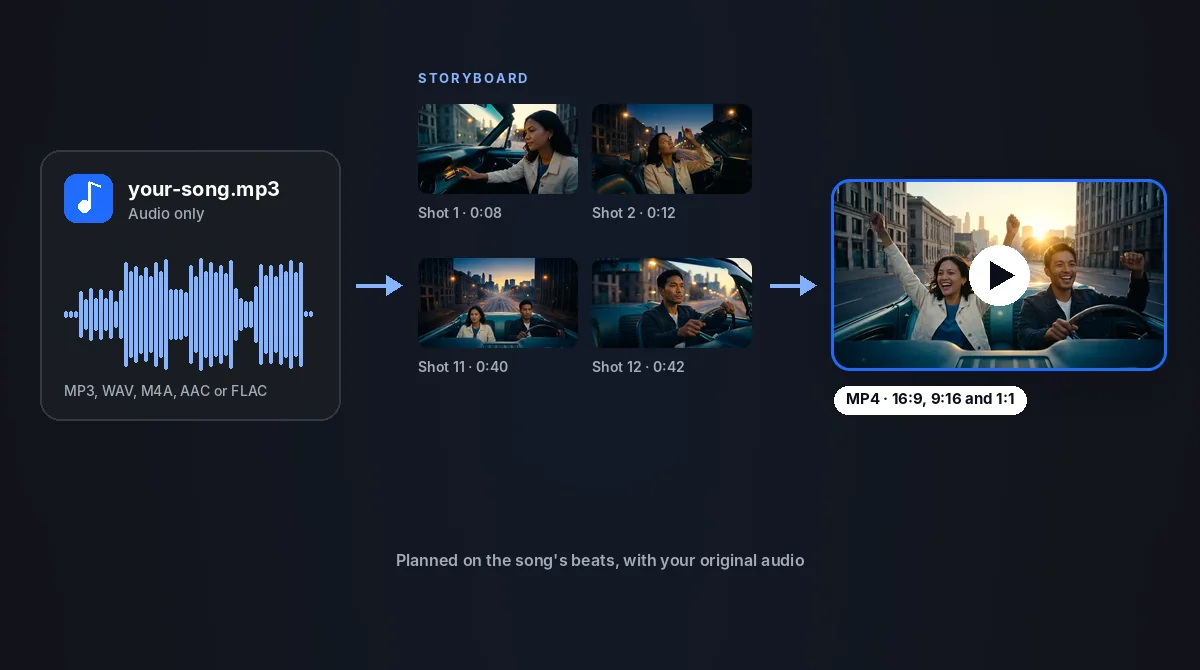
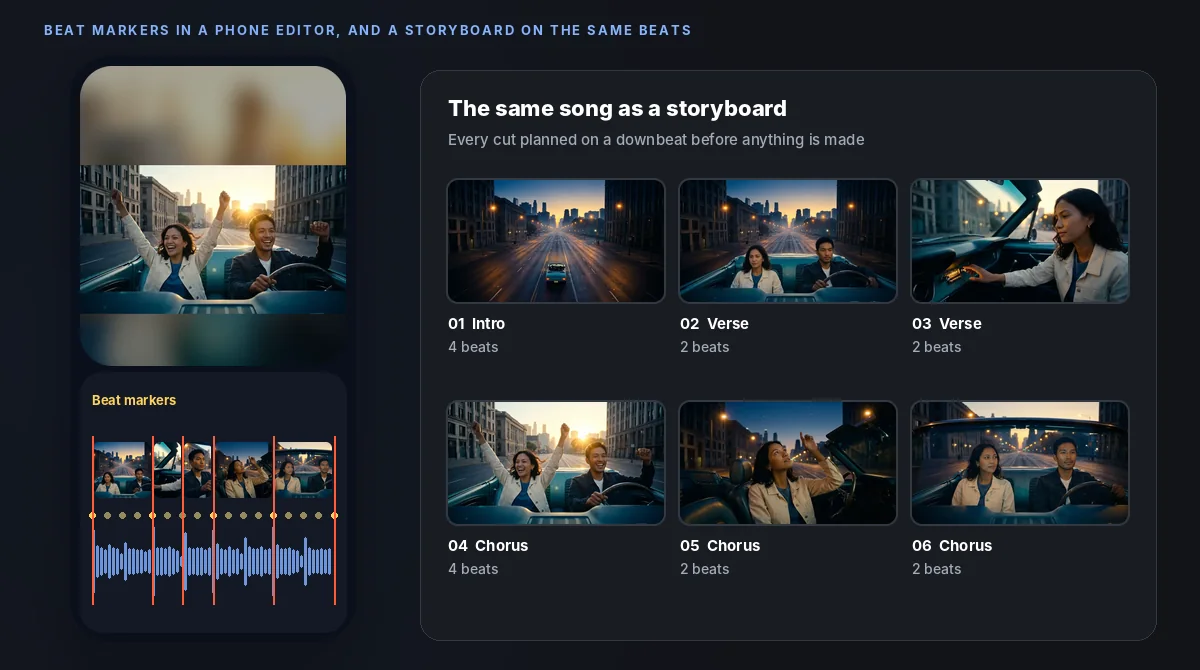
Muvora doesn't edit footage, and it doesn't take uploaded clips. It starts one step earlier, with the song alone. You upload the finished track (MP3, WAV, M4A, AAC or FLAC, up to 8 minutes); a free analysis finds the tempo, every beat and downbeat, the sections and the drops; and an AI director writes a storyboard with a shot for every stretch between cuts. The cuts themselves come from code, not the AI: on downbeats, at every section change and every drop, longer in the quiet parts and quicker in the choruses.
You read and edit the storyboard for free, then pay credits to render, from 38 credits per finished second, with the exact price shown first. What comes back is an ordinary MP4 at 24 frames a second, H.264 video with AAC audio, at 720p or 1080p, with your upload as the soundtrack; a 16:9 render gives 16:9, 9:16 and 1:1 versions plus an 8-second Canvas loop. So it drops straight into any editor on this list: add a title card, intercut a live take you filmed, or cut a teaser for Reels.
- Best for: a song with no footage yet, when you want the whole video planned and cut on the beat for you.
- Strengths: the cuts land on the downbeats without a single marker placed by hand; widescreen, vertical, square and Canvas files from one 16:9 render; a free storyboard to change before any credit is spent; shots re-rolled, swapped or shown as stills on the review page.
- Trade-offs: it can't cut footage you filmed, it has no frame-by-frame timeline, and it adds no titles, bars or grain. For those, take its export into an editor.
Start from a video that's already on the beat
Upload the song and read a shot-by-shot storyboard timed to its downbeats, free. Render it, then finish it in whichever editor you like. The beat sync video maker shows how the cuts are planned.
DaVinci Resolve: a full studio, free to start
DaVinci Resolve, from Blackmagic Design, puts editing, color grading, visual effects and audio post-production in one application, and its main version is free. It runs on Windows, Mac and Linux (Blackmagic's page), and there's an iPad version too (SlashGear). DaVinci Resolve Studio is the paid version, a one-time purchase with the premium features and AI tools (Imaging Resource); PetaPixel's report on version 21 lists more AI features and editing beyond 4K among Studio's extras, which leaves a 4K music video within the free version's reach.
For music, version 20 added AI Detect Music Beats, which analyzes a music clip and places a marker on each beat that clips can snap to (Blackmagic's announcement, via RedShark News). Guides to it, such as DaVinci Resolve Club's, describe it as a Studio feature, so check before you count on it in the free version. Without it, the free beat marker generator turns a tempo into a marker on every beat or bar, as an EDL file Resolve imports.
- Best for: artists who want one free application for the cut, the grade and the sound, and are ready to learn it.
- Plan for: a learning curve steeper than a phone editor's, and a computer powerful enough for the footage you shoot.
Adobe Premiere: the industry timeline, now on iPhone too
Adobe's editor dropped “Pro” from its name with version 26 in January 2026 (PetaPixel), so Premiere Pro is now Adobe Premiere. The desktop app runs on Windows and Mac (Adobe's requirements) and is sold by subscription, alone or in a Creative Cloud plan, with a seven-day free trial (Adobe). Many professional editors work in it, which matters when you'll hand the project to a colorist or an editor later.
On desktop, Adobe's help covers placing markers by hand: press M at the playhead, as the song plays, to mark each beat or downbeat (Adobe help). Its Remix feature reshapes a music track to fit a video's length (Adobe help), which suits background music, not a music video, where the song has to stay whole. The separate Premiere app for iPhone, free since its launch in September 2025 (PetaPixel), has Beat Detection: it shows the song's beats as markers that clips snap to, with a choice of how many beats to mark (Adobe help).
- Best for: editors already working in Adobe's apps, and projects that will pass between several people.
- Plan for: a monthly subscription for the desktop app, and marking the beats yourself on desktop.
Final Cut Pro: a beat grid on Mac and iPad
Final Cut Pro is Apple's professional editor for Mac and iPad. On the Mac it's still sold as a one-time purchase in the Mac App Store, and since January 2026 it's also part of Apple Creator Studio, a subscription with a free trial that bundles it with Logic Pro and Pixelmator Pro (Apple Newsroom).
Its Beat Detection is the most music-video-minded feature on this list. Turned on for a music clip, it draws a grid in the timeline: the song's parts when you're zoomed out, then bars and individual beats as you zoom in, with snapping so edit points lock to the grid. Apple's help notes the grid is most accurate on songs in 4/4, and suggests shortening a song by removing whole song parts so the edit stays musical (Apple help). The same feature is in Final Cut Pro for iPad (Apple help), which also has Montage Maker for assembling a montage from your clips (Apple help).
- Best for: artists on a Mac or an iPad who want to see the song's bars and sections while they cut.
- Plan for: Apple hardware only, and a check of the grid on songs that aren't in 4/4.
CapCut: beat cuts on desktop and phone
CapCut, from ByteDance, runs on Windows and Mac, on the web and on iPhone and Android, and is free to start, with paid Standard and Pro tiers (CapCut help) whose prices, its help says, vary by region, platform and promotion (CapCut help). It's quick and template-friendly, which is why so many artists cut their short vertical clips in it.
Its Auto Cut can slice the clips on your timeline to a song's beat: Beat Sync on desktop, and Music Beat in the phone app, where you pick a song from CapCut's library or your device. CapCut's help says Auto Cut isn't on CapCut Web, and that the feature's name and availability can vary by region. Muvora as a CapCut alternative compares the two in detail.
- Best for: fast edits of clips you filmed, especially vertical ones for Reels, Shorts and TikTok.
- Plan for: tidying the automatic cuts by hand, since a cut on every beat is busier than most verses want.
Edits: Instagram's free editor for Reels
Edits is Instagram's own video editor, released free for iPhone and Android in April 2025: you sign in with your Instagram account, and exports carry no watermark (TechCrunch). It's built for the vertical video Reels uses, and in November 2026 Instagram brought it to the desktop, on Mac first (TechCrunch). It has since gained beat markers too: add a music track and Edits places markers on its beats for you to cut to (Beebom).
- Best for: artists who film on their phone and post mainly to Instagram.
- Plan for: an editor made for vertical clips first; a long widescreen music video sits more comfortably in a full desktop editor.
Filmora: automatic beat sync for beginners
Wondershare Filmora is a desktop editor for Windows and Mac aimed at people new to editing. Its AI Auto Beat Sync analyzes a song and arranges your clips to its rhythm, on Windows (Filmora's guide) and on Mac (Filmora's guide). Its own site says videos exported from the free version carry a Filmora watermark that a paid plan removes (Filmora).
- Best for: a first music video on a computer, when you want the app to do the beat matching.
- Plan for: a paid plan before you publish, so the watermark doesn't end up on your release.
iMovie and Shotcut: free and simple
iMovie is Apple's free editor for Mac, iPhone and iPad (Apple), and a project started on an iPhone can move to an iPad to finish. Its App Store listing describes Magic Movie, which builds a video from an album of clips with titles, transitions and music, and storyboards for common kinds of video (App Store); beat markers aren't among the features Apple lists for it, so you cut by ear against the waveform.
Shotcut is a free, open-source editor for Windows, Mac and Linux (Shotcut). Timeline markers arrived in version 21.10.31: press M while the song plays to drop one on each downbeat (Shotcut's release notes). Since version 21.12 clips snap to markers (release notes), which is all a beat-cut edit really needs.
- iMovie is best for: a first, simple music video on Apple devices, at no cost.
- Shotcut is best for: a free editor that runs anywhere, including Linux, for artists happy to mark the beats themselves.
Canva: beat sync inside a design tool
Canva treats a video as a design, with templates, type and photos, and runs in a browser with apps for Windows, Mac, iPhone and Android (Canva). Its Beat Sync finds a track's beats, on audio up to 10 minutes long, turns them into snap points on the audio track, and offers a Sync now option that lines your pages up with the music for you (Canva help); Canva lists Beat Sync among its Pro features (Canva).
- Best for: lyric cards, designed promos and social posts that match the cover art.
- Plan for: a design-first timeline; long, footage-heavy edits sit better in a full editor.
Beat markers, beat grids and auto beat sync: what each gives you
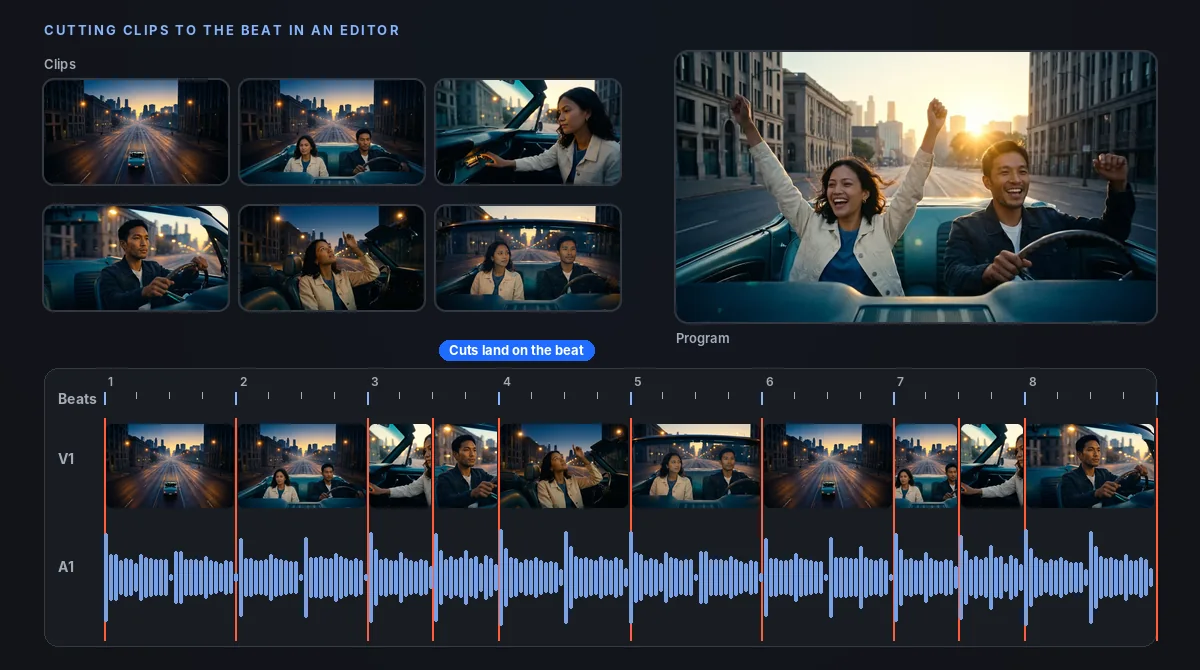
Editors help with the beat in four different ways, and the difference matters more than any other feature for a music video. A marker shows you where a beat is; an automatic beat cut decides for you that a cut belongs there. A song at 120 BPM has a beat every half second, so cutting on every one for three minutes means about 360 cuts. A cut on each downbeat, every bar of 4/4, comes every 2 seconds, and that's already fast for a verse.
| Kind | What you get | Where | Watch for |
|---|---|---|---|
| Markers by hand | You tap a key on each beat or downbeat while the song plays | Premiere on desktop, Shotcut, and nearly every editor | Slow on a long song: tap downbeats only, and check them at the start, middle and end |
| Detected beat markers | The app marks every beat; you choose where to cut | DaVinci Resolve Studio, Premiere on iPhone, Edits, Canva's snap points | Not every beat deserves a cut: pick the downbeats and section changes |
| A beat grid with song parts | Song parts, bars and beats drawn in the timeline | Final Cut Pro on Mac and iPad | Most accurate on songs in 4/4, Apple says |
| Automatic beat cuts | The app cuts your clips to the rhythm for you | CapCut's Auto Cut, Filmora's Auto Beat Sync, Canva's Sync now | Too many cuts for quiet sections: thin them out by hand |
Bar 1
Bar 2
Bar 3
Bar 4
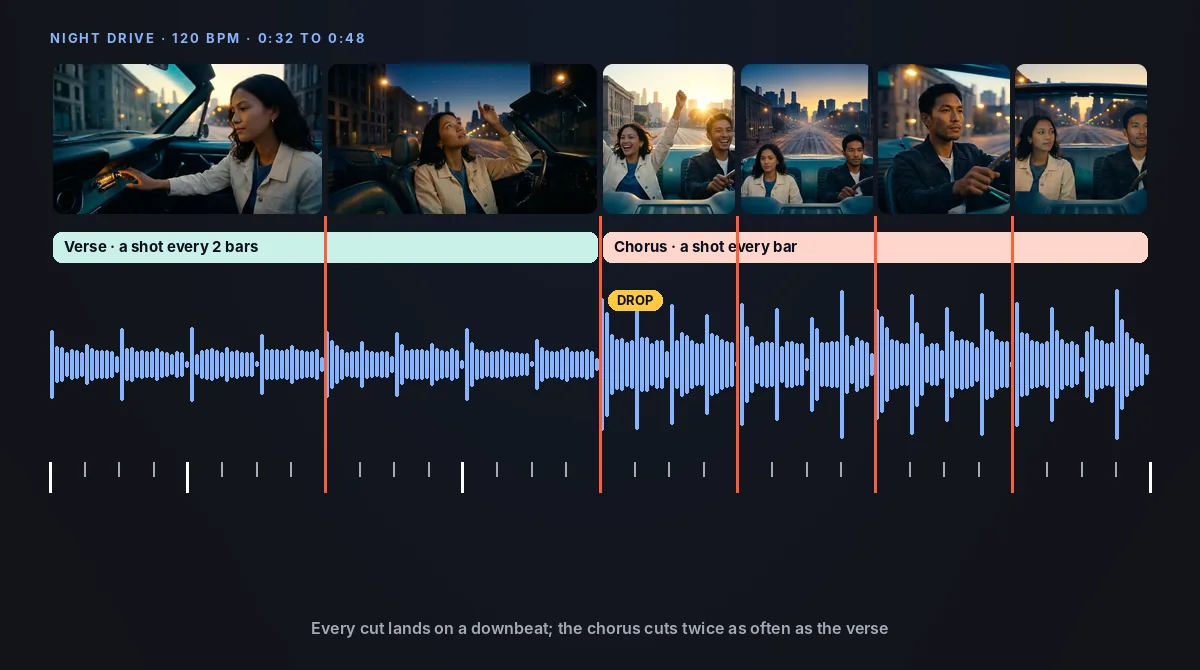
How long each shot should hold, the bar maths in seconds and frames, and techniques beyond the plain cut are in how to edit a music video to the beat. When a cut needs more than a cut, music video transitions covers the flashes, whip pans and match cuts that land on a beat.
How to choose an editor and set up a music video edit
- 01
Decide what you're editing
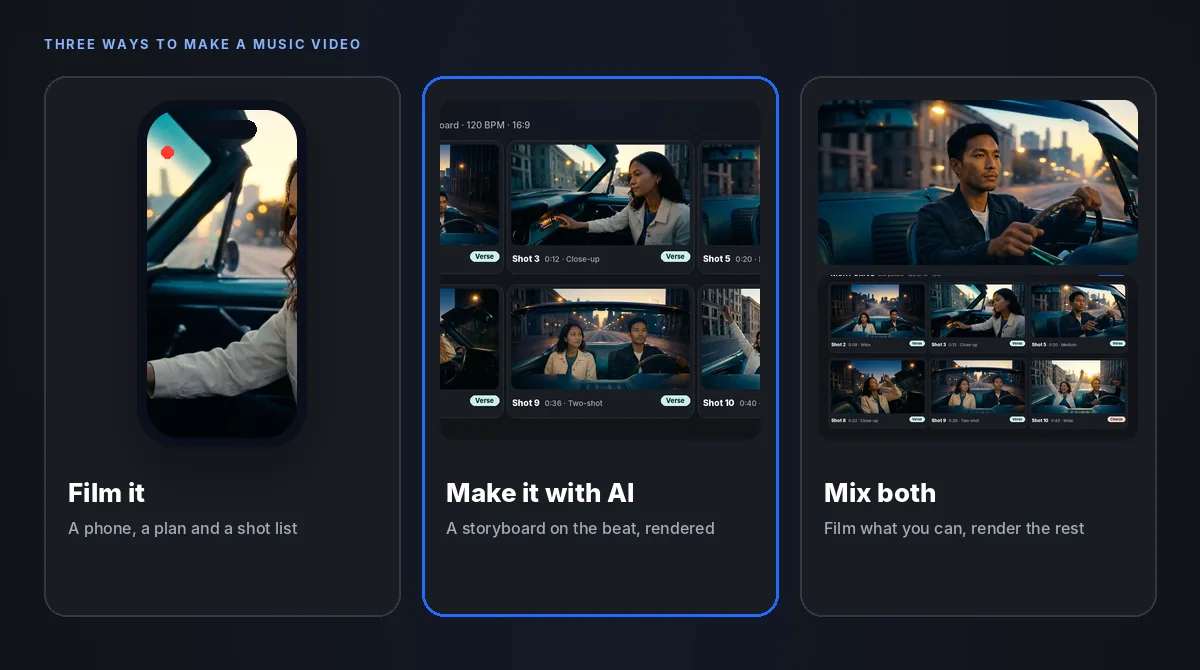
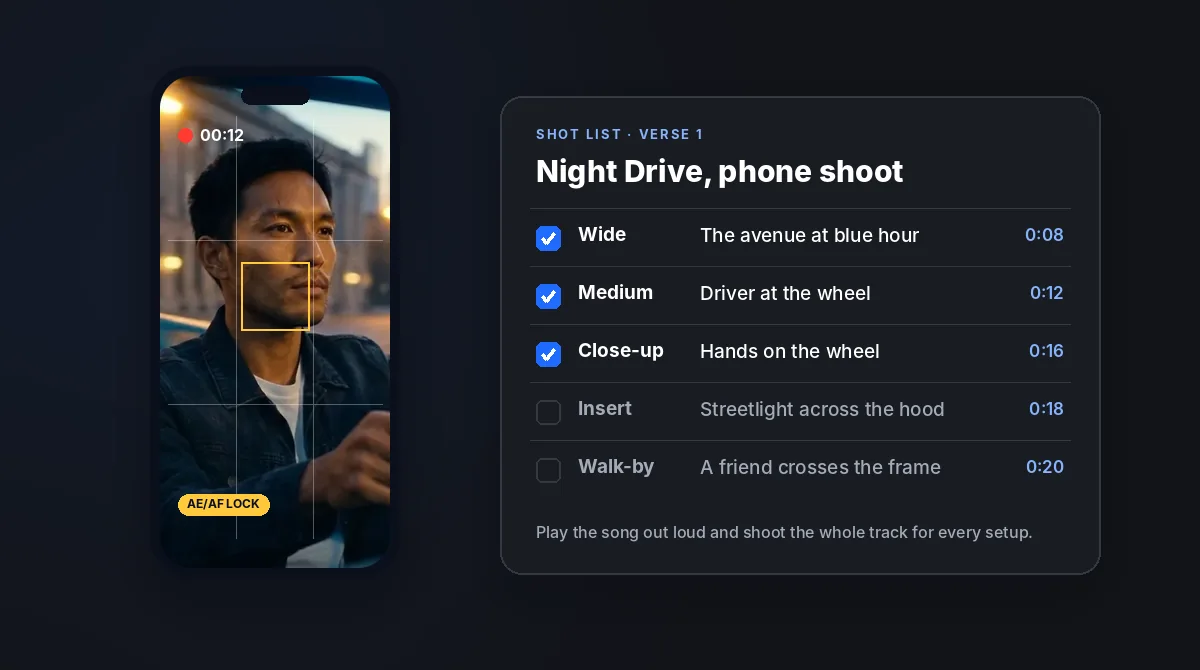
Footage you filmed needs a real editor. A video Muvora generated for the song is already cut on the beat, and needs an editor only for titles, extra clips or teasers. A mix of both needs an editor that handles several video tracks.
- 02
Pick by the device you'll edit on
On a Windows or Linux computer, look at DaVinci Resolve, Shotcut or Filmora; on a Mac or iPad, Final Cut Pro or iMovie as well; on a phone, CapCut, Edits or Premiere for iPhone.
- 03
Check what the free version holds back
Before you commit hours, export a ten-second test from the free version and look for a watermark, a lower resolution or a missing feature you need, such as beat markers.
- 04
Match the project to the footage
Set the project's frame rate and size to the main footage before importing anything: 24 fps for a Muvora export or a film-style shoot, 1920 x 1080 or 3840 x 2160 for widescreen.
- 05
Put the final master in at zero
Place the mastered song on the first frame of the timeline and lock its track, so nothing can slide it out of time. Never edit to a rough mix you'll swap later.
- 06
Mark the downbeats and section changes
Use the editor's beat detection or tap the markers in while the song plays, then check a few against the waveform at the start, the middle and the end.
- 07
Cut, then make every shape you'll post
Cut section by section, watch the whole edit at full speed, then export the widescreen video and a reframed vertical version, rather than a widescreen file squeezed into a tall screen.
Export settings that work for a music video
Every editor here can export an MP4 with H.264 video and AAC audio, the combination YouTube, Instagram, TikTok and almost every player accept. Keep the frame rate you edited at, export from the final master's audio rather than a re-encoded copy, and make the vertical version its own export with the subject reframed for a tall screen.
| Setting | Widescreen (YouTube) | Vertical (Reels, Shorts, TikTok) |
|---|---|---|
| Shape and size | 16:9 at 1920 x 1080, or 3840 x 2160 | 9:16 at 1080 x 1920 |
| Frame rate | The project's rate, unchanged (24, 25 or 30 fps) | The same as the widescreen version |
| Video | H.264 in an MP4 file | H.264 in an MP4 file |
| Audio | AAC from the final master | AAC from the final master |
| Bitrate | High enough for the resolution: work it out per size | High enough that dark scenes don't turn blocky |
Each platform's sizes, lengths and limits are in social media video specs, and the safe zone checker shows where each app's buttons cover a vertical frame. If the widescreen version should look like a film, how to make a music video look cinematic covers letterbox bars, grading and the 24 fps look.
Get the video first, then finish it anywhere
Muvora makes the whole video from your song, cut on the downbeats; one widescreen render gives you the vertical and square versions too. Read the storyboard and see the price free before you decide.
Written by the Muvora team. Last updated November 16, 2026. Spotted something out of date? Tell us at [email protected].