The short answer
Make a music video thumbnail from a real frame of the video: a face or one clear subject from its strongest moment, usually the chorus, with strong contrast. Export it as a 16:9 JPG or PNG, 1280 x 720 or larger and under 2 MB, with a verified YouTube channel. Add the artist and title in large type, or no words at all, and check it at phone size.
- Use a 16:9 image at least 640 pixels wide; 1280 x 720 under 2 MB works wherever you upload it.
- Pick one face or one subject from the chorus, with a clear light-dark contrast, over a busy wide shot.
- Keep words to the artist and the title, or none, and keep them out of the bottom-right corner.
- Grab the frame from the finished video at full resolution, one frame at a time, not from a paused screen.
- Make three candidates and let YouTube's own test pick by watch time.
On this page (8 sections)ShowHide
- 1.YouTube thumbnail size and file rules
- 2.What makes a music video thumbnail worth tapping
- 3.How to make a music video thumbnail, step by step
- 4.The anatomy of a thumbnail, corner by corner
- 5.Taking the thumbnail from a Muvora video
- 6.Words, color and a look across the release
- 7.Testing two or three thumbnails
- 8.Music video thumbnail checklist
- Questions
YouTube thumbnail size and file rules
A YouTube thumbnail is a 16:9 picture shown everywhere the video is: the home feed, search results, the column of suggestions beside another video, a link shared in a chat. Its rules come from YouTube's help page on custom thumbnails. For years that page gave the same figures, and the version quoted in searches in November 2026 raises the recommended size; the safe choice meets both.
| Rule | What YouTube has said | What to do |
|---|---|---|
| Shape | 16:9 | Crop every thumbnail to 16:9, even when the frame comes from a vertical cut |
| Size | 3840 x 2160 recommended (1280 x 720 for years before) | Export 1920 x 1080 from a 1080p video, or larger if you have it; 1280 x 720 still works |
| Minimum width | 640 pixels | Never start from a frame narrower than 640 |
| File type | Formats such as JPG or PNG (GIF was listed before) | JPG for a photo-like frame; PNG when it has flat color and crisp type |
| File size | 2 MB from a phone, 50 MB from a computer | Stay under 2 MB and it uploads from anywhere |
| Who can upload one | A verified account | Verify your channel before release day |
Custom thumbnails need a verified account. YouTube's feature access page explains that verifying a phone number unlocks its intermediate features, and that you can see where your channel stands in YouTube Studio under Settings, then Channel, then Feature eligibility. Until then YouTube offers a few frames it picks from the video, which rarely land on the moment you'd choose.
What makes a music video thumbnail worth tapping
A thumbnail has to read in the time it takes to scroll past it, at a size where fine detail disappears. Music videos have an advantage here: the video is already full of designed pictures, so the job is choosing one, not inventing one. These are the things that separate the frames people tap from the frames they scroll past.
- A face, or one clear subject. People look at faces first, and an expression (a laugh, a stare into the lens, eyes closed mid-note) says what the song feels like. With no person in the video, one object or place does the same job: a car under one streetlight, a ring of light, a boat on dark water.
- Contrast you can see from across a room. A lit face on a dark ground, or a dark figure against a bright sky. Two subjects in similar tones melt into one gray shape when the picture is small.
- Few words, or none. The title already sits beside the picture. If you add words, make them the artist and the song, two to four words, large enough to read at a glance.
- The artist's identity. The same face, type or color across every release teaches fans to spot your videos in a feed before they read anything.
- Readable small. Most views come from phones, where a suggestion can be a few centimeters wide. A wide shot full of detail turns into texture; a close-up survives.
- An honest promise. The frame should be a real moment from the video, so the people who tap find what they were shown and keep watching.
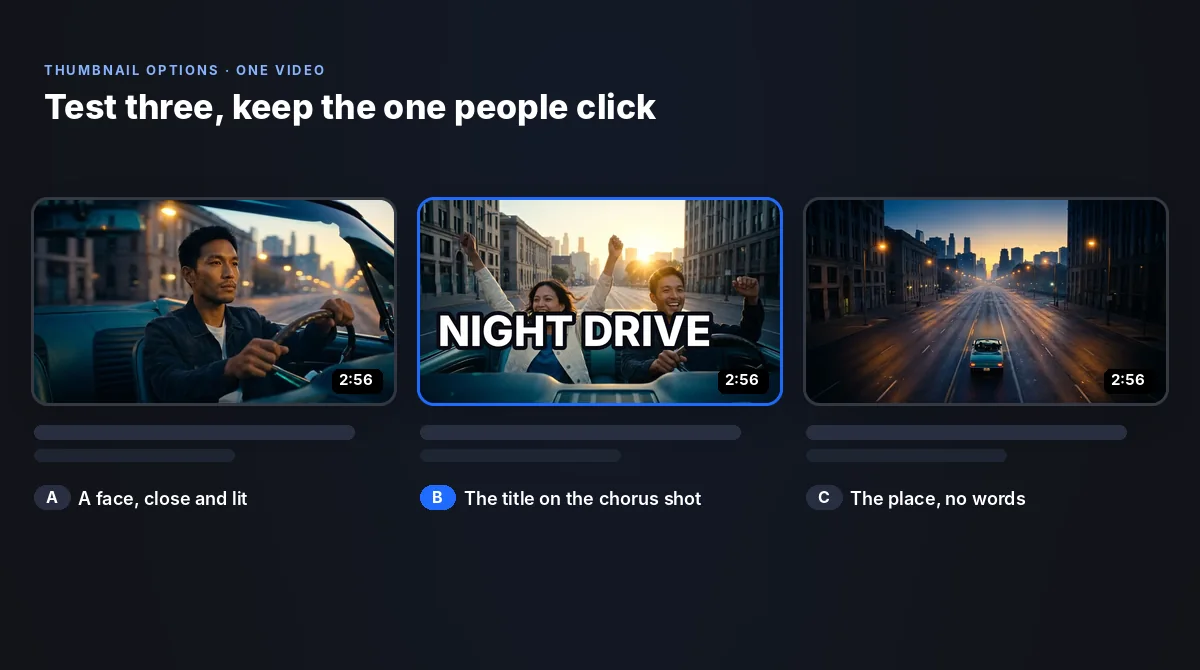
Genre conventions help too. Hip-hop and R&B thumbnails lean on the artist's face and wardrobe, close and centered; electronic tracks often use one bold abstract shape or a single color field; rock and indie can carry a grainier, wider frame as long as one figure stands out. Whatever the genre, the strongest frame usually comes from the chorus, where the video spends its biggest image.
Skip the blank page
Upload your song and Muvora's AI director plans a shot-by-shot storyboard on the beat. Edit every shot for free, and pay only if you render.
How to make a music video thumbnail, step by step
- 01
Choose the moment
Watch the video through the chorus and note three or four moments with one clear subject: a close-up of the lead, an expression, the hero image the video builds to.
- 02
Grab the frame at full resolution
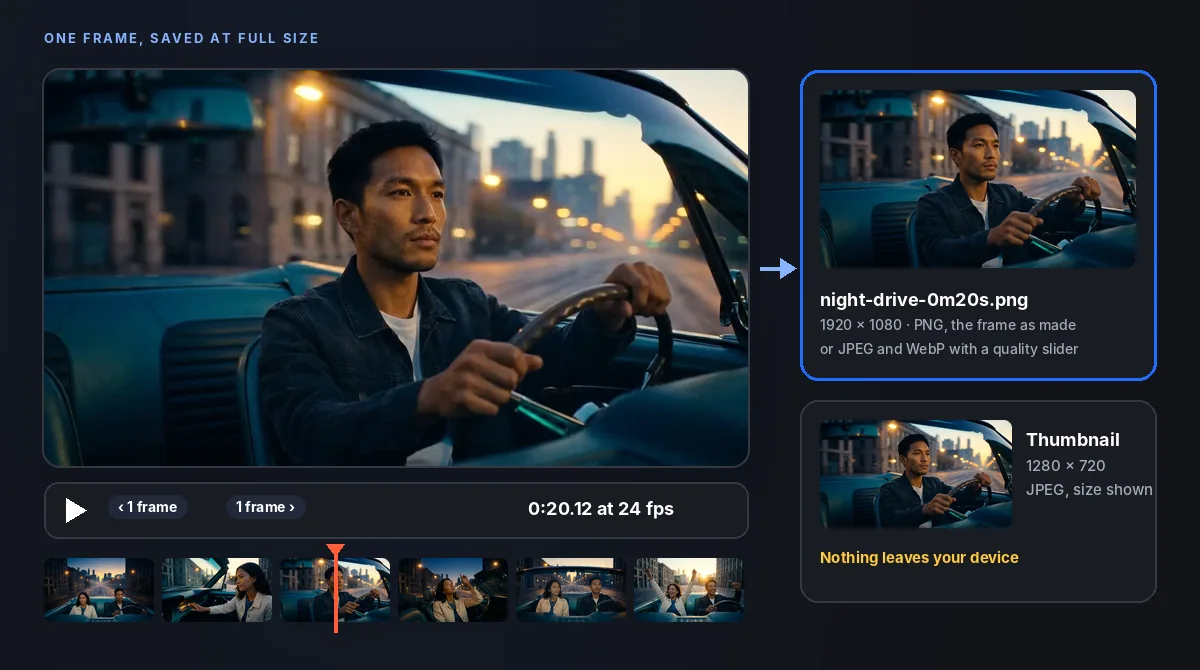
Open the finished MP4 in a frame grabber and step one frame at a time around each moment, since eyes, hair and hands look different from one frame to the next. Save the best one as a PNG.
- 03
Crop to 16:9 and place the subject
Put the face or subject on a third of the frame, leave room on the other side for any words, and keep the bottom-right corner free, since YouTube covers it with the video's length.
- 04
Set the light and the color
Lift the subject's brightness and contrast a little and darken or simplify the background, so the subject still stands out at a tenth of the size. Keep skin tones natural.
- 05
Add the words, or decide on none
If the picture needs words, set the artist and the title in one bold typeface, in two to four large words, with an outline or a dark band behind them if the frame is busy.
- 06
Export it
Save a 16:9 JPG at 1280 x 720, or 1920 x 1080 from a 1080p video, at a quality that keeps the file under 2 MB. Keep a layered copy so the next release can reuse the layout.
- 07
Check it small
Shrink it to 320 x 180 and to 160 x 90, look at it on your phone in a light and a dark theme, and change whatever stops reading. Then upload it in YouTube Studio with the video.
Grabbing the frame from the file beats a screenshot of a paused player: a screenshot captures your screen's resolution, the player's controls and whatever scaling the browser did, while a frame grab keeps every pixel the video has. From a 1080p export that's a 1920 x 1080 still, enough to crop a little and still deliver 1280 x 720.
Need a video with frames like these?
Upload your song and Muvora writes a storyboard shot by shot on the beat, with the chorus built around one big image. Edit any shot for free and see the style frames before you pay to render.
The anatomy of a thumbnail, corner by corner
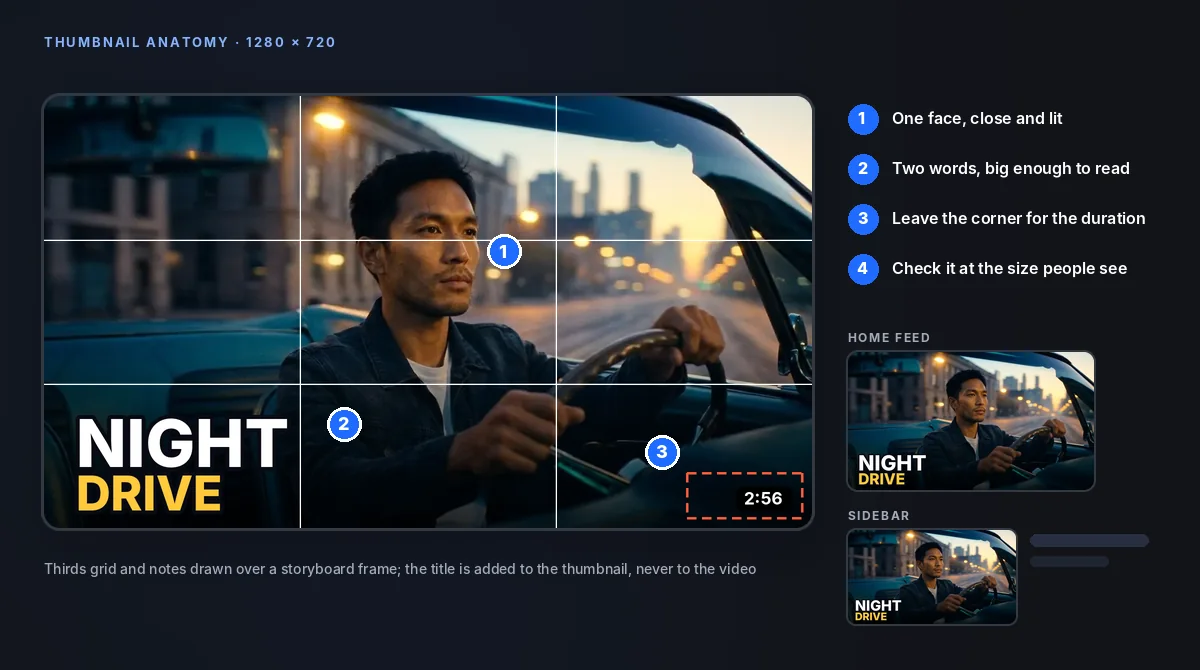
Think of the frame as three columns and three rows. The subject's eyes sit on the top third line, so the face reads first; words go in the opposite column, where they don't cross the face. The bottom-right corner belongs to YouTube, which prints the video's length there, so nothing important goes in it. On a computer, small icons appear across the top right when someone points at a thumbnail, another reason to keep the top edge simple.
| Part | Where | Why |
|---|---|---|
| The face or subject | On a vertical third, eyes on the top third line | The eye lands there first, and it leaves room beside it |
| The artist and title | The opposite third, upper or middle | Clear of the face and of the corner badge |
| The duration badge | Bottom right, added by YouTube | Anything under it is hidden |
| The background | Darker, simpler or softer than the subject | Separation is what survives at small sizes |
| The edges | Nothing that matters right against them | YouTube shows thumbnails with rounded corners, which shave the very edges |
Taking the thumbnail from a Muvora video
A video made with Muvora is easy to take thumbnails from, because every shot was designed as a picture first: the AI director writes each one with a framing, a light source and an action, and each clip is animated from a keyframe drawn for that shot. There are no keyframe downloads, so take the thumbnail from the exported MP4. The 16:9 export at 1080p gives 1920 x 1080 frames; the vertical and square cuts work for other platforms' covers.
- Plan it in the storyboard. Before you render, rewrite one chorus shot as the thumbnail: a close-up of the lead, one strong light in the scene, an expression that fits the song. The chorus hero style frame shows the look before you pay.
- Use the performer. In a Performance video the singer appears from one photo you upload, lip-synced in the sung shots, and their face is the strongest thumbnail most videos have.
- Pick between lyric lines. Karaoke-style captions are burned into the picture when you turn them on, so choose a frame where no line is on screen, or add your own words to the thumbnail.
- Keep the words for the thumbnail. Muvora's pictures have no lettering or logos drawn into them, so the artist name and the title go on in your image editor, where you control the type.
If no frame works, re-roll the shot you want on the review page and make a new version: re-rolls are free up to 10% of the video's length, and re-assembling a version costs nothing.
Plan the thumbnail shot before you render
Upload the song, rewrite one chorus shot as a close-up with a strong light, and check it in the style frames. One render gives the 16:9 video for YouTube, a vertical cut and a square one.
Words, color and a look across the release
A music video thumbnail can carry no words at all and still work, because the title beside it names the artist and the song. Words earn their place when the picture alone could be anyone's: a new artist, an abstract video, a lyric video that looks like the music video. Keep them short, set them in one heavy typeface at a size that fills a third of the frame's height, and give them an outline, a soft shadow or a dark band so they read over any part of the picture.
Take the accent color from the video itself, from a neon sign, a car or the sky in the chorus shot, so the thumbnail and the video feel like one thing. Then keep the system for the whole release: the same typeface, the same corner for the words and the same treatment on the music video, the lyric video and the visualizer. Fans scrolling past a third upload from the same single should know it's yours before they read it.
| Video | Picture | Words |
|---|---|---|
| Music video | The lead's face or the chorus's hero image | None, or the artist and title |
| Lyric video | A calmer frame from the same video | The title, so it's told apart from the music video |
| Visualizer or audio upload | The cover art, or the song's waveform as a graphic | The title, if the cover doesn't carry it |
| Live or acoustic version | A frame of the performance | The title and the word live or acoustic |
For a visualizer with no footage to grab from, the waveform generator draws the song's waveform as a 1920 x 1080 graphic in your colors. When a frame comes from a vertical or square cut, the aspect ratio calculator shows how much of it a 16:9 crop keeps, and whether to fit it over a blurred fill instead. Matching the thumbnail to the cover helps too: the album cover size guide covers that picture.
Testing two or three thumbnails
Your favorite frame and the one people click aren't always the same, so let viewers decide. YouTube's help page on A/B testing titles and thumbnails describes uploading up to three versions for a video; YouTube shows them to different viewers and, at the end of the test, keeps the one that earned the most watch time, which it weighs above click-through rate. The test runs in YouTube Studio on long videos, not on Shorts.
- Test different ideas, not small edits. A face against the hero image against a frame with the title teaches you something; three crops of the same face don't.
- Change one thing at a time across releases. Words or none, close or wide, warm or cold: keep what wins as the starting point for the next single.
- Let it run. Early results swing with a handful of views; wait until YouTube ends the test before you call it.
Watch time is the measure because a thumbnail that wins clicks and loses viewers in the first seconds isn't helping the video. The guide to getting more views on a music video covers the numbers to read afterwards, and how to upload a music video to YouTube puts the thumbnail in order with the title, description, chapters and premiere.
Music video thumbnail checklist
- A real frame from the video, grabbed from the MP4 at full resolution
- One face or one subject, on a third of the frame
- Clear light-dark contrast between the subject and the background
- Words limited to the artist and the title, or none, set large
- Nothing important in the bottom-right corner or right at the edges
- 16:9, 1280 x 720 or larger, JPG or PNG, under 2 MB
- Readable at 160 x 90 and on a phone in light and dark themes
- The same type, color and placement as the release's other thumbnails
- Channel verified so custom thumbnails are available
- Two other candidates ready to test
Written by the Muvora team. Last updated November 18, 2026. Spotted something out of date? Tell us at [email protected].