The short answer
To make an album cover, start from one image that captures the song, make it on a square canvas of at least 3000 x 3000 pixels, add only the artist name and title in type that reads at thumbnail size, and export an sRGB JPG or PNG. Use only photos, art and fonts you have the rights to, then check the file before your distributor does.
- Make a perfect square of at least 3000 x 3000 pixels, saved as an sRGB JPG or PNG.
- The only text allowed is the artist name and the title, spelled as in the release's details.
- Every photo, illustration and font needs a license that covers commercial artwork; keep the proof.
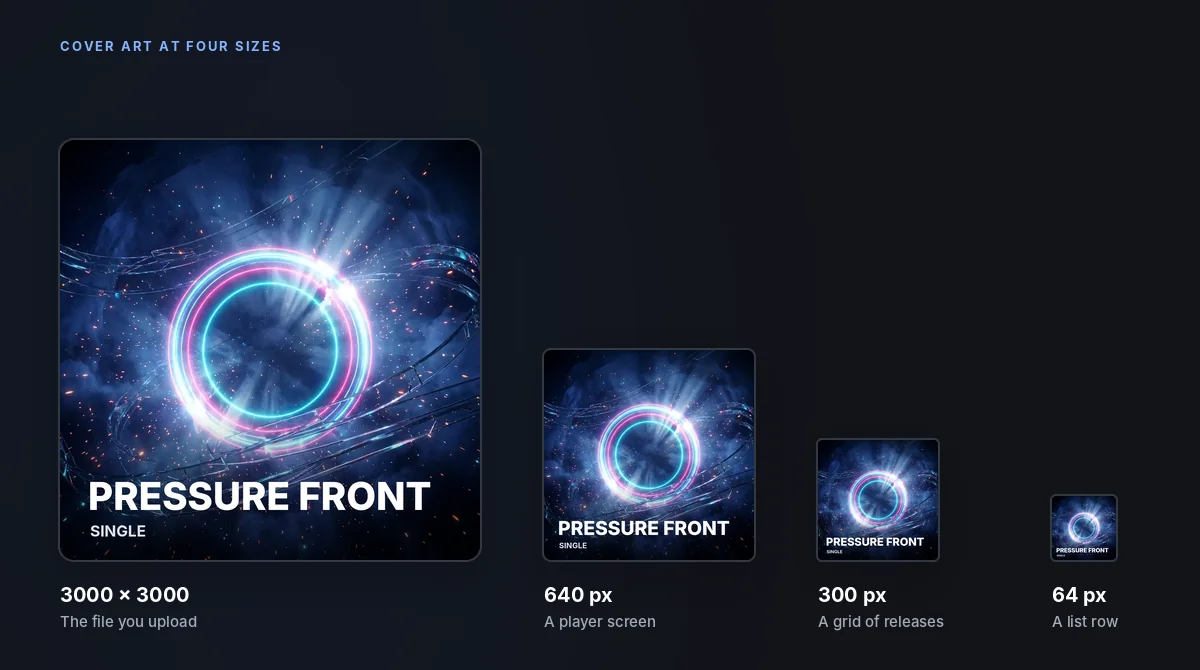
- Shrink it to 64 pixels before you upload: one subject, strong contrast and big type survive.
- Tell your distributor when AI made a large part of the artwork; Apple Music now asks for a tag.
On this page (10 sections)ShowHide
- 1.The specs to design for
- 2.What a cover may and may not show
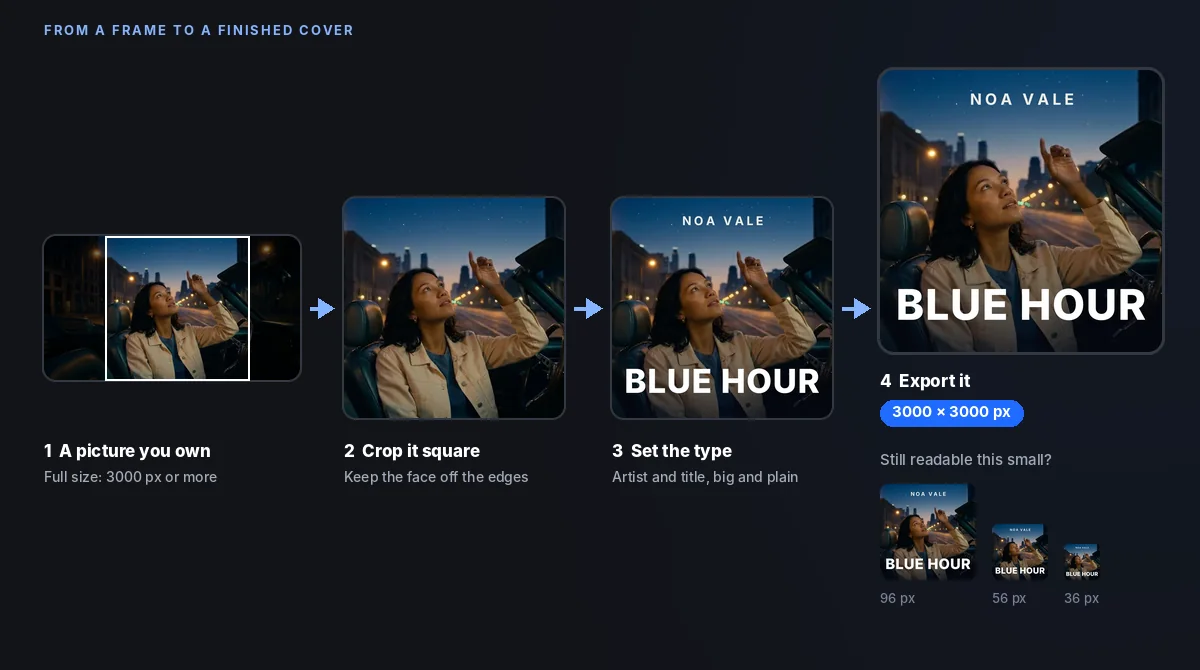
- 3.How to make an album cover, step by step
- 4.Choosing the picture
- 5.Type that reads at thumbnail size
- 6.Rights to the picture: photos, stock and AI images
- 7.Font licenses: which fonts can go on a cover
- 8.Make it and check it in your browser
- 9.Using a frame from your music video
- 10.Give the song a video in the cover's look
- Questions
The specs to design for
Set up the canvas the stores need before the first sketch, because a cover started too small can't be rescued later. The store-by-store figures, distributor by distributor, are in album cover size. These are the settings that pass everywhere, checked against the stores' own pages in November 2026.
| Setting | Use | Why |
|---|---|---|
| Shape | A perfect square | Every store shows covers as 1:1 squares |
| Size | Design at 4000 x 4000, deliver 3000 x 3000 | Apple Music for Artists asks for 4000 or more; most distributors recommend 3000 and some accept nothing larger |
| File | JPG at top quality for photos, PNG for flat color and type | Both are widely accepted; check your distributor's list |
| Color | RGB in sRGB, 8 bits per channel | Spotify asks for sRGB at 24 bits per pixel; print files in CMYK get refused |
| Orientation | Rotate the pixels, not a tag | Spotify doesn't support orientation metadata, so a phone photo that relies on one can arrive sideways |
| Sharpness | Made at full size, never enlarged | Spotify says not to upscale, and Apple refuses blurry or pixelated art |
Spotify's cover art requirements also ask for the highest resolution you have and say it doesn't support embedded color profiles, so convert the image to sRGB when you export rather than tagging a wider profile. Apple's cover art guidelines add one useful exception to the sharpness rule: a tilted or cropped image is refused unless the tilt or the crop is clearly intended.
What a cover may and may not show
Stores read a cover as part of the release's details, so most of their rules are about not misleading the listener. Apple publishes the fullest list, on its cover art page for artists, and distributors such as DistroKid, TuneCore and CD Baby pass on much the same rules before they deliver to any store. As of November 2026, Apple's list rules out:
- Any text but the essentials. Only the artist name and the release or song title, exactly as released: no social handles, emails, websites or mentions of other stores.
- Dates and prices. No year or date, and no promo words such as "Reduced Price" or "For Promo Use".
- Brands, advertising and logos, and any reference to physical or digital packaging or to a shop, such as vinyl or CD.
- Barcodes, and a parental advisory logo on a release that isn't explicit.
- Misleading art, such as a cover that prominently shows or names an artist who doesn't perform on the record.
- Blurry, pixelated, tilted or cropped images, unless that's plainly the intent.
- Pornographic imagery, and images from other copyright holders used without written permission.
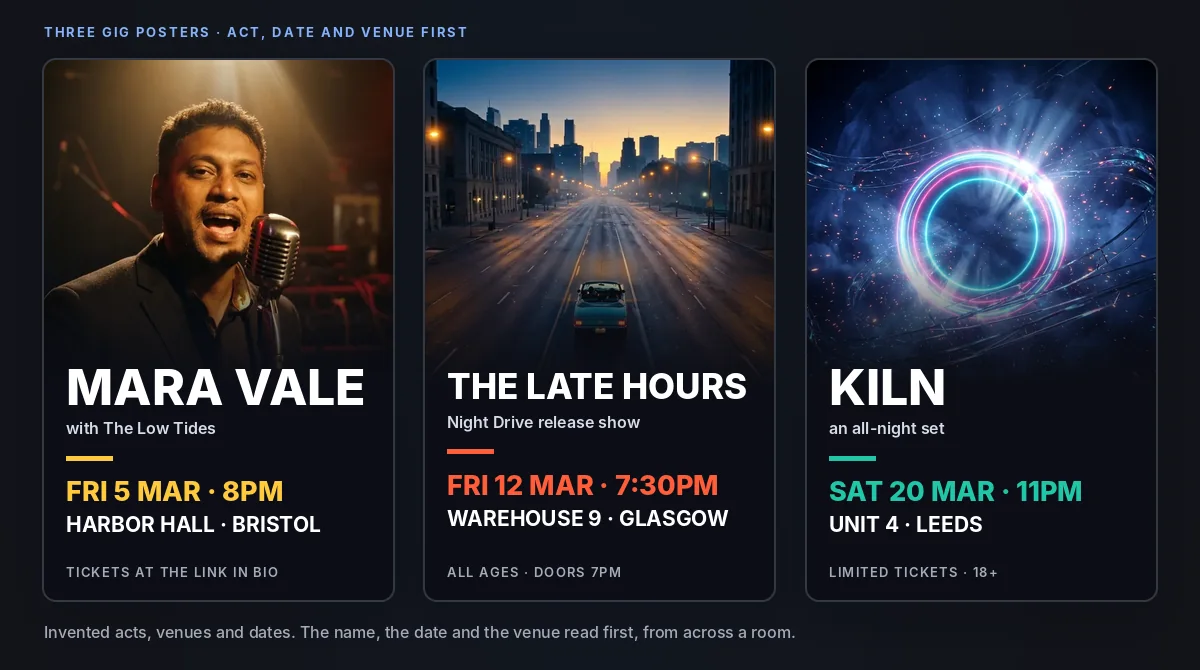
Spotify's requirements page covers only the file, and its other rules reach you through your distributor, which checks the cover against its own list before delivery. DistroKid, for one, lists QR codes and nudity among its refusals, as album cover size sets out with the sources. Links of every kind belong on posters, flyers and merch instead: the music QR code generator makes a code for those, and the cover stays clean.
Skip the blank page
Upload your song and Muvora's AI director plans a shot-by-shot storyboard on the beat. Edit every shot for free, and pay only if you render.
How to make an album cover, step by step
- 01
Start from the song
Write one sentence about what the song is: the place it happens, the hour, an object from the lyrics or the feeling of the chorus. That sentence is the brief, and every later choice should serve it.
- 02
Collect references and name a palette
Gather a dozen pictures that feel right, covers from your genre among them, and pick two or three colors you can name in words. The color palette generator pulls a palette out of any reference image.
- 03
Choose one kind of picture
Decide on a single approach: your photo, a photographer's, an illustration, type alone or a field of color. One subject beats a busy scene, because most people will see the cover small.
- 04
Make the picture at full size
Shoot, paint or design at 3000 pixels or more on the short side, in good light, using the camera's main lens rather than digital zoom. Keep the subject a little above center and clear of the edges.
- 05
Set the type
If the cover carries words, set the artist name and the title exactly as your distributor's form spells them, in a typeface licensed for commercial artwork, inside a margin of about a tenth of the width.
- 06
Test it small
Shrink it to 64 and 160 pixels and set it beside other covers from your genre. If the subject or the name disappears, simplify: bigger type, fewer elements, more contrast.
- 07
Export and check
Save a 3000 x 3000 sRGB JPG or PNG, keep the larger master beside it, and run the file through an album cover checker before you upload it with the release.
Choosing the picture
Every cover starts from one of a handful of kinds of picture, and each brings its own work, its own rights to sort out and its own way of failing when the cover shrinks.
| Picture | What it takes | Rights to sort out | At thumbnail size |
|---|---|---|---|
| Your own photo | A phone or camera, one light source, a plain background | None if you took it and you're alone in it; consent from anyone else in it | Faces and single objects read well; busy backgrounds don't |
| A photographer's photo | A shoot and a written agreement | A license that names the cover, promotion and merch, and the credit line | Pick the frame for the small size, not the print |
| Illustration or painting | Your own art, or a commissioned artist | Written permission from the artist for every use you plan | Fine line work fades; flat shapes and color survive |
| Stock image | A license from the stock library | The license's limits on copies, merch and editorial-only images | Someone else may use the same picture |
| AI image | An image tool whose terms allow commercial use | The tool's terms, the store's AI disclosure, and no real people | Check hands, faces and stray letters at full size |
| Type or color alone | A typeface and a color or gradient | A font license that covers artwork | Works only if the type is large |
A quick test before you commit: describe the cover in five words. "Red jacket on a gray pier" will hold its own in a playlist row; "the band, the city skyline and a sunset" won't. For finished concepts to start from, album cover ideas has 28 of them.
Type that reads at thumbnail size
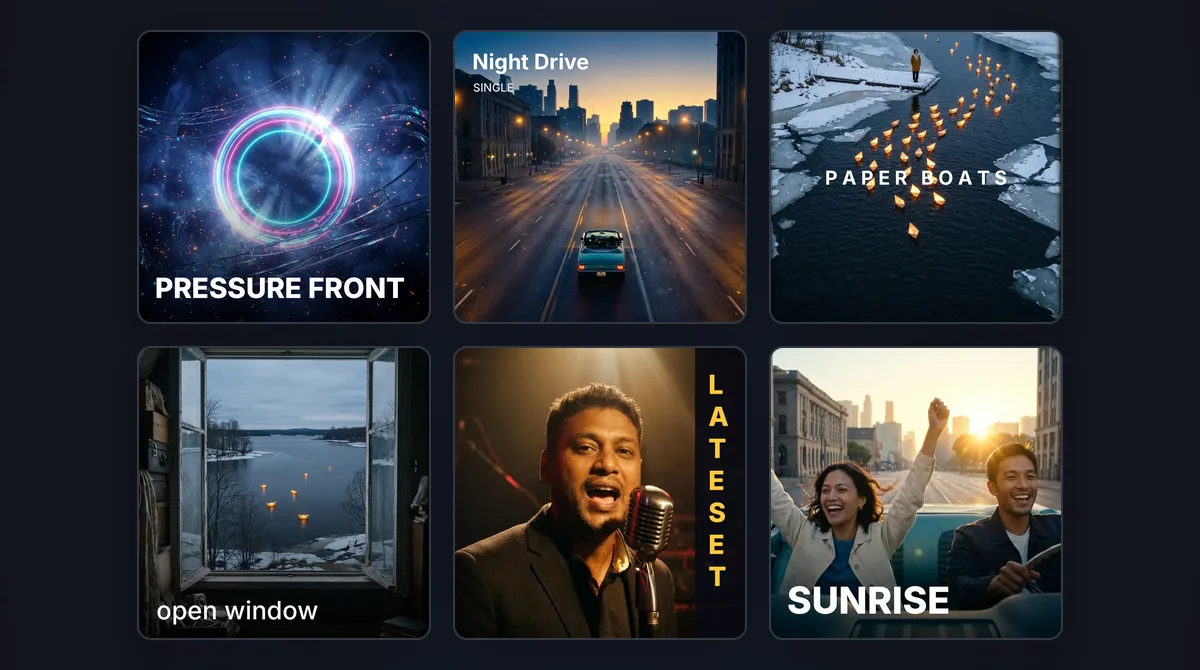
Most covers that fail small fail on the type. As a rule of thumb, words you want read in a playlist need capital letters about a tenth of the cover's height, around 300 pixels tall on a 3000-pixel cover, which still leaves them only about 6 pixels tall in a 64-pixel thumbnail. Treat that as a starting point and judge the result at small sizes with your own eyes.
- Two lines at most. The artist name and the title, one of them, or neither: a cover with no text is accepted everywhere.
- A heavy, plain typeface. Bold sans serifs and sturdy slab serifs hold up when shrunk; hairline serifs, thin scripts and very wide letter spacing break into specks.
- Contrast behind the letters. Set type over a quiet, even part of the picture, or darken that area with a soft gradient, then check the cover in grayscale: if the letters sink there, they sink in a playlist.
- One alignment. Center both lines, or anchor both to the same corner inside the margin. Mixed alignments look accidental at small sizes.
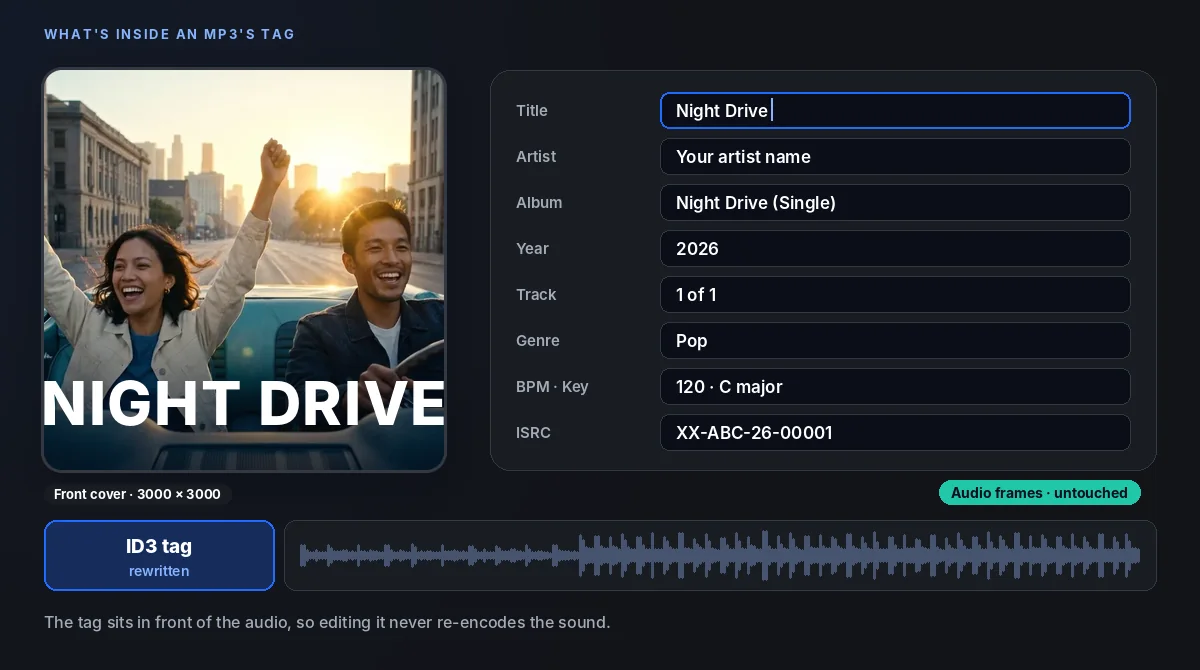
- Spelling that matches the metadata, capitals, featured artists and a version such as Acoustic or Remix included when they're part of the title.
Rights to the picture: photos, stock and AI images
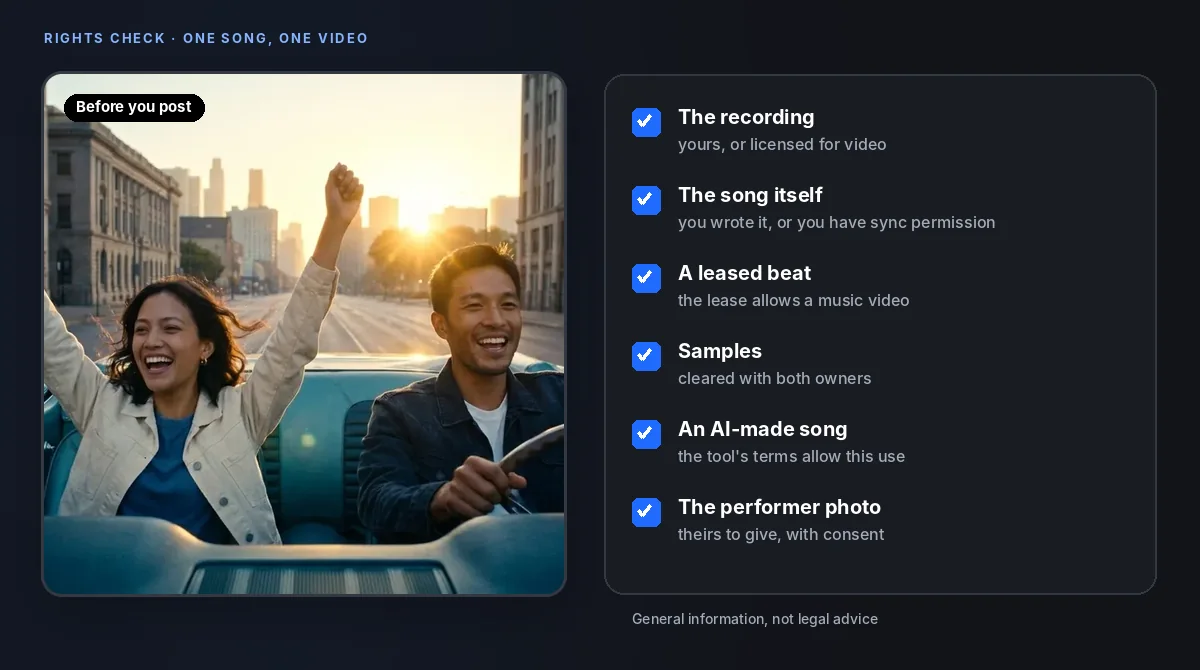
Everything on the cover has to be yours to use, for the cover itself and for everywhere it ends up: the stores, your video's thumbnail, posters and merch. Apple refuses images from other copyright holders without written permission, and distributors ask the same, so keep the proof with the release's files. What follows is general information, not legal advice; for a contract, ask a lawyer where you live.
- Photos you took. They're yours. Anyone recognizable in them should agree to being on the cover, in writing if you can, family included.
- A photographer's photos. Whoever takes a photo usually owns its copyright, even when you're in it and paid for the shoot. In the US, a commissioned work counts as a work made for hire, owned by the client, only in a few categories and with a written agreement saying so, as the Copyright Office's Circular 30 explains. So get a written license that names the cover, promotion, the video and merch, and agree on the photo credit.
- Stock images. Read the license itself, not the library's summary. Adobe Stock's standard license, for example, allows up to 500,000 copies, rules out merchandise people buy for the picture itself, such as a T-shirt with the photo on it, and says images marked Editorial Use Only can't be used commercially without the copyright owner's written consent. A stock photo can also turn up on someone else's release.
- Art found online. A picture from a search, a social feed or a wallpaper site belongs to someone. Without that person's written permission, it can't go on the cover.
- Look-alikes of real people. Apple refuses covers that prominently show or name an artist who doesn't perform on the record, and a picture drawn to resemble a famous singer raises the same problem as a photo of one.
AI images bring three questions of their own. First, the image tool's terms decide whether you may use its output commercially, so read them for the plan you're on. Second, in the US, material generated from prompts alone has no human author, so you may not be able to stop someone else reusing a cover the AI made by itself; who owns an AI music video sets out the Copyright Office's position. Third, the stores now ask: Apple Music introduced AI transparency tags for sound recordings, compositions, artwork and music videos in March 2026, and, Complex reported on August 22, 2026, told labels and distributors that content with a material portion made by AI must carry them, with a visible "Made With AI" label to follow. Tell your distributor when AI made a large part of the cover.
Font licenses: which fonts can go on a cover
A font is software with a license of its own, and that license decides whether you may use it in commercial artwork. Fonts under the SIL Open Font License are the simplest case: the OFL's FAQ says they may be used for any kind of design work, logos, posters and T-shirts included, with no further license, and that the artwork you make with them remains yours. Credit to the font's designer is welcome but not required.
Many fonts on free-font download sites are licensed for personal use only, and a cover sold and streamed worldwide is commercial use, so those need a paid license from their designer first. A font you bought comes with an end-user license of its own: read what it says about artwork, merchandise and logos before the cover goes onto a shirt. Keep the license file or the receipt with the release's files, beside the photo licenses.
Make it and check it in your browser
The album cover maker builds a cover from your own photo, cropped and positioned to a square, or from a solid color or gradient, sets the artist name and title in type, and saves a 3000 x 3000 JPG or PNG. It shows the cover at thumbnail sizes while you work, so you can see whether the type still reads. Everything runs on your device: the photo is never uploaded, which also means the rights to it stay your responsibility.
Album cover checkerRun any cover, made anywhere, through the checker: shape, pixel size, file type, color mode and file size against Apple Music, Spotify and the big distributors' published rules.A checker reads the file, not the picture. Before you upload, tick off by eye what only a person can see: the spelling against the release form, no stray text, logos or signs in the background, consent from every face, and the cover on a phone in both light and dark mode.
Using a frame from your music video
If the release has a music video, a frame from it can become the cover's picture, and the cover and the video then share one look by design. Muvora claims no ownership of what you make with it: as between you and Muvora, your storyboards, images and videos belong to you, to the extent the law allows, and you may use them for any lawful purpose, commercially included. Grab the exact frame from the exported MP4 with the video frame grabber, crop it square and set the type, since Muvora draws no lettering into its pictures.
Mind the size, though. A Muvora export is 1080p at most, 1920 x 1080 pixels for widescreen, so the largest square you can cut from a frame is 1080 x 1080. That clears Spotify's 640-pixel and DistroKid's 1000-pixel minimums but falls short of the 1400 pixels Apple's delivery spec and CD Baby ask for, TuneCore's 1600 and the 3000 x 3000 most distributors recommend. Enlarging the square adds pixels, not detail, and Spotify asks you not to upscale. So use the frame as the cover's starting point: the reference for a photo, a painting or a design made at full size, or a smaller panel placed at its own size inside a larger layout of color and type. And since the frame is AI-made, it counts toward the AI disclosure above when it fills most of the cover.
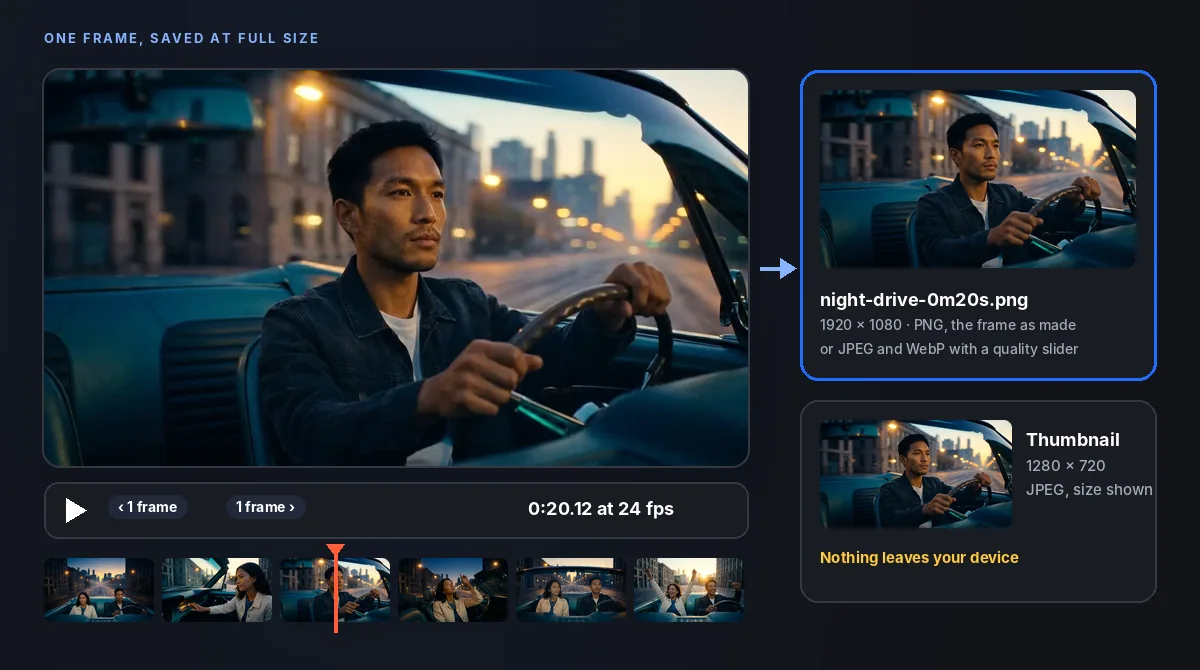
Make the video first, then pick the cover's frame
Upload the song and get a free storyboard, with style frames that show the look before you pay. Once it's rendered, the strongest frame becomes the reference for a cover in the same colors and light.
Give the song a video in the cover's look
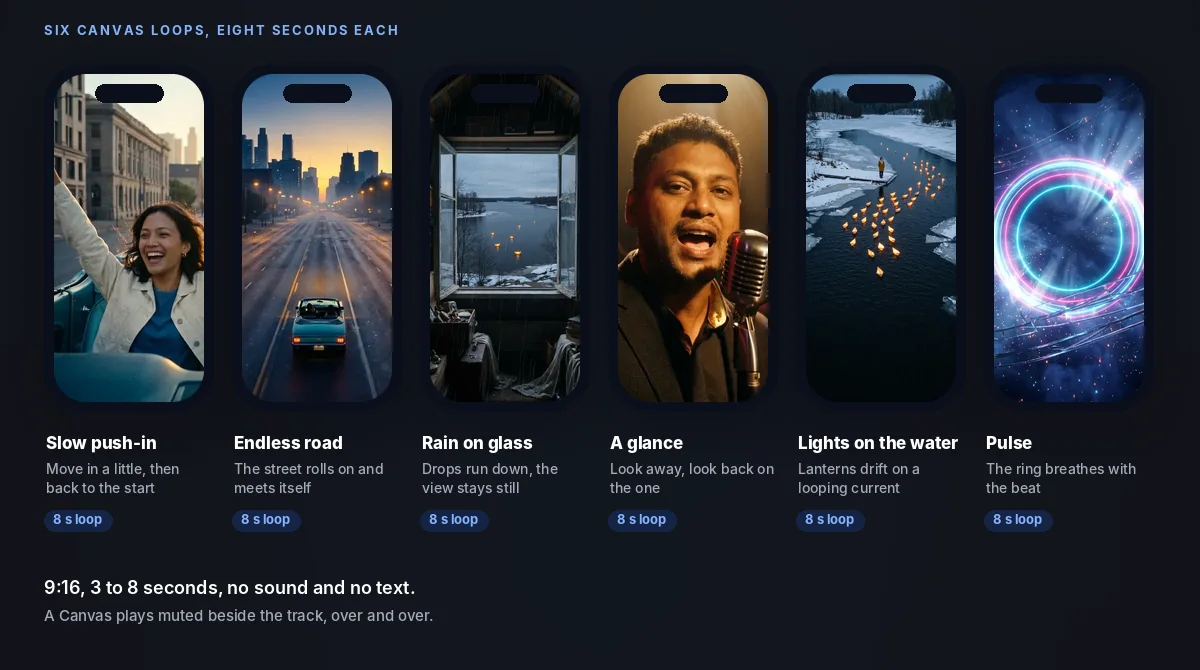
More often the cover comes first and the video borrows its look. In Muvora, describe the cover in the idea box when you storyboard the song: the palette by name, the central object or place, the light and the hour. The AI director writes a brief in that look and a shot for every part of the song, with each cut on a downbeat, and you can edit any of it for free. One render exports the widescreen video, the vertical and square cuts and an 8-second Canvas loop, so the cover, the Canvas and the video arrive as one release. For loops that suit the Now Playing screen, see Spotify Canvas ideas.
Cover done? Storyboard a video to match
Upload the song, put the cover's colors and central image in the idea box, and get a free storyboard cut to the beat, with 5 new storyboards a month on the free plan. The album visualizer shows how one look can run across a whole record.
Written by the Muvora team. Last updated November 17, 2026. Spotted something out of date? Tell us at [email protected].