The short answer
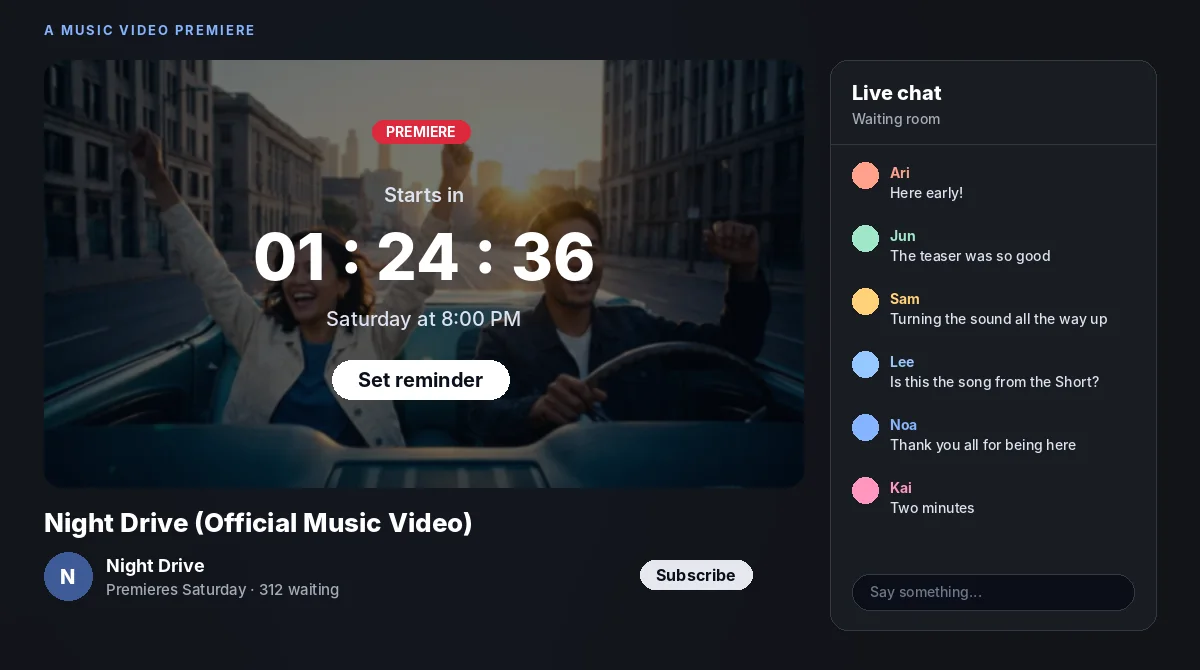
To premiere a music video on YouTube, upload the 16:9 video in YouTube Studio, choose Schedule, pick the date and time and tick Set as Premiere. Set up the countdown, and a trailer if your channel has more than 1,000 subscribers. YouTube makes the public watch page at once: share it all week, be in the live chat at the start, then pin a comment with the song's links.
- A Premiere is a scheduled upload with a public watch page, reminders, a countdown and a live chat; afterwards it's an ordinary video.
- Only long-form videos can premiere, at 1080p or below: Shorts, 360-degree and VR180 videos can't.
- Schedule it at least a day ahead, so subscribers see the thumbnail in their feed before it starts.
- Spend the week sending people to the watch page: Shorts, posts, stories, your bio links and an email.
- Once it ends, pin the links, add the end screen, test thumbnails and post the Out now Short.
On this page (8 sections)ShowHide
- 1.What a YouTube Premiere is, and what it changes
- 2.The limits to check before you schedule
- 3.How to set up a YouTube Premiere, step by step
- 4.The trailer and the countdown
- 5.The week before: send everyone to the watch page
- 6.During the Premiere: be in the chat
- 7.After the Premiere: keep the video moving
- 8.Make the video, the teasers and the Canvas from one render
- Questions
What a YouTube Premiere is, and what it changes
YouTube's page on premiering a new video describes a Premiere as a way for you and your viewers to watch a new video together in real time. In practice it's a scheduled upload with three things added: a public watch page that exists before the video plays, a countdown at the start, and a live chat that runs beside the video while it plays for the first time. For a music video that means release day gets a place and a time, the way a listening party or a launch show would.
- Before it starts. The watch page is public from the moment you schedule, and it shows up in search, on the home page and in recommendations like any upload. Visitors can set a reminder, comment and chat, and a trailer plays there if you added one.
- When it starts. A countdown runs in the theme you picked, then the video plays for everyone at once. Viewers can rewind, but they can't skip ahead of what has been shown live.
- After it ends. It stays on the channel as a regular video, without the countdown. The chat can be replayed, and the views from the Premiere count toward the video.
| What differs | Premiere | Ordinary scheduled publish |
|---|---|---|
| The watch page before the start time | Public from the moment you schedule, with its own link to share | None: the video stays private until its publish time |
| Reminders | Viewers who set one are notified about 30 minutes before and again at the start | No page to set a reminder on |
| The first viewing | Everyone at once, with a live chat and a replay of the chat afterwards | Whenever each viewer arrives, with comments |
| A trailer | Plays on the watch page, for channels with more than 1,000 subscribers and no strikes | Not available |
| Testing thumbnails and titles | Only once the Premiere has ended and it has become a regular video | From the start |
| Ads during the first viewing | Pre-roll ads only, where the channel can run ads | The channel's usual ad settings |
Neither choice suits every release. A Premiere works best for an artist with fans who will turn up at a set time, because a busy chat in the first minutes is the whole point. If you'd rather test thumbnails from the first hour (YouTube's A/B testing page says Premieres can only be tested after they end), or your listeners are spread across time zones no single hour suits, a scheduled publish does the same job without the event. How to get more views on a music video weighs the two against each other for growth.
The limits to check before you schedule
Most failed Premieres fail on a rule nobody read. These come from YouTube's Premieres and customization pages; check the live versions before release week, since YouTube changes them without notice.
- Long-form only. The Premieres page says Shorts aren't supported, so a vertical teaser can't be premiered; the 16:9 music video can.
- 1080p or below. The same page says 360-degree and VR180 videos, and outputs above 1080p, aren't supported for Premieres. If your master is 4K, premiere a 1080p file or read that line again first.
- A public upload. A Premiere is scheduled as a public video; the watch page is meant to be shared before it starts.
- No active strike. With a Community Guidelines strike on the channel, the Premiere won't publish during the penalty period: YouTube sets it to private, and you reschedule it once the freeze ends.
- A trailer needs more than 1,000 subscribers. The page on customizing a Premiere limits trailers to channels over 1,000 subscribers with no Community Guidelines strikes; the countdown has no such line.
- The final 16:9 music video at 1080p or 720p, with the mastered song as its sound
- The title in the Artist - Song (Official Music Video) format
- The description: a line about the song, streaming or pre-save links, credits, lyrics and chapters
- A custom thumbnail, since it becomes the image of the watch page
- A trailer of 15 seconds to 3 minutes, already uploaded, if the channel qualifies
- Two or three vertical teasers for Shorts, Reels and TikTok
- The start time written out in your fans' main time zones
Much of that list is shared with any upload. How to upload a music video to YouTube covers the title format, the description template and chapters in detail; this guide picks up where the upload becomes an event.
Skip the blank page
Upload your song and Muvora's AI director plans a shot-by-shot storyboard on the beat. Edit every shot for free, and pay only if you render.
How to set up a YouTube Premiere, step by step
- 01
Upload the video in YouTube Studio
Sign in to YouTube Studio on a computer, choose Create, then Upload videos, and select the 16:9 music video file.
- 02
Fill in every detail first
Add the title, the description with the song's links, the thumbnail, the playlist, the audience setting and subtitles while the file processes, because the watch page goes public with whatever is there when you schedule.
- 03
Schedule it as a Premiere
On the Visibility step choose Schedule, enter the date, the time and the time zone, and tick Set as Premiere.
- 04
Choose the countdown
Click Set up Premiere and pick a countdown theme and its length from the menus.
- 05
Add a trailer if the channel qualifies
In the same window, under Add a trailer, choose a 15-second to 3-minute video you've already uploaded to the channel, ideally in the same shape and resolution as the music video.
- 06
Save it and copy the watch page link
Click Schedule, open the new watch page and copy its address: it's the link for every post, story, bio and email until the Premiere starts.
- 07
Check it the way a fan will see it
Open the link on a phone, set a reminder, and check that the thumbnail, the title and the start time read correctly in your fans' time zones.
Two shortcuts exist. An instant Premiere (Save or publish, then Public, then Set as instant Premiere) starts as soon as the upload finishes processing, which leaves no time to gather anyone, so keep it for a surprise drop. And the YouTube app can create a Premiere too, from the Set visibility page, though YouTube's pages describe the countdown and trailer settings in YouTube Studio's upload steps.
Make the video you're going to premiere
Upload the finished song and Muvora writes a storyboard on its beats for free. The 16:9 export comes at 720p or 1080p, inside the Premiere limit, and the same render gives the vertical cuts for your teasers and the Out now Short.
The trailer and the countdown
The trailer is what a visitor sees if they open the watch page early, so it's worth a few minutes of thought. The countdown is the last minute or two before the video, and it's mostly a signal for the chat to get ready.
| Rule | What YouTube's page says | For a music video |
|---|---|---|
| Who can add one | Channels with more than 1,000 subscribers and no Community Guidelines strikes | Below that, the watch page shows the thumbnail and the chat until the start |
| Length | 15 seconds to 3 minutes | 15 to 30 seconds is enough to show the look and a line of the hook |
| Shape and resolution | The same aspect ratio and resolution as the premiering video is recommended | Cut it from the 16:9 export rather than from a vertical teaser |
| Rights and content | Nothing that infringes other content or breaks the Community Guidelines | Use only your own song and pictures you have the rights to |
| What it can't be | A video that has already premiered | Upload it as an ordinary video first, then pick it |
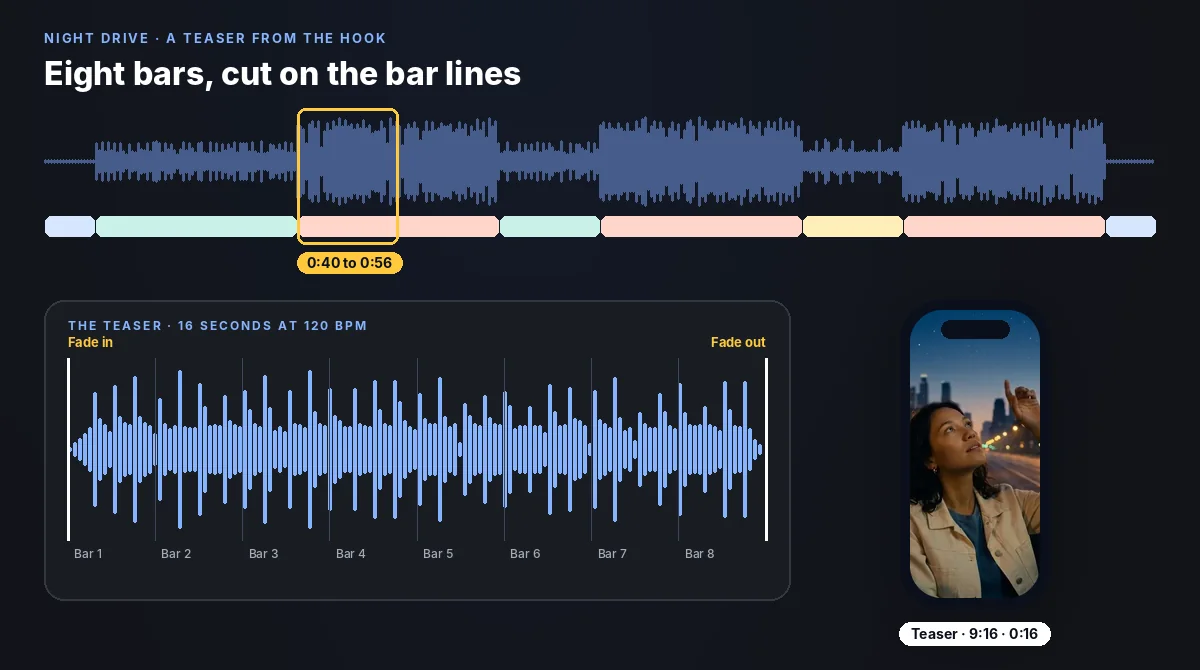
Don't give away the best shot. A trailer that shows the chorus's biggest frame spends the moment the Premiere is for; a few seconds of the opening, a close-up and the first line of the hook make people curious without spoiling it. Any video editor can trim the trailer from the finished export, and the song teaser guide explains how to pick the window on the bar lines.
The week before: send everyone to the watch page
The watch page is the one link worth repeating for a week, because every reminder set on it is a person who will be told when the video starts. Every post in the run-up should point to it, and the teasers should give people a reason to tap through.
| When | Where | What to post |
|---|---|---|
| 7 days out | YouTube and every profile | Announce the day and time with the thumbnail, and put the watch page link in every bio |
| 5 days out | Shorts, Reels and TikTok | A first vertical teaser: the opening lines and a few seconds of the hook, never the best shot |
| 3 days out | A YouTube post and your email list | The start time in two or three time zones and a nudge to press the reminder button |
| The day before | Stories on every app | A countdown story with the link, and a request to featured artists and collaborators to share it |
| The hour before | A live stream, if you run one | Go live, answer questions and send the stream's viewers into the Premiere when it ends |
- A post on your channel. YouTube's posts appear on your channel and can show up in subscribers' home and Subscriptions feeds; image posts may also show in the Shorts feed. Posts aren't available on channels set as made for kids.
- A Shorts preview of the song. The release strategy page describes a Preview, a snippet of the upcoming song delivered to the Shorts audio library before release so fans can make Shorts with it. Your label or distributor sets it up when it delivers the release to YouTube.
- The people in the video. Featured artists can be invited as collaborators, which YouTube's release strategy page suggests for reaching their audiences too.
- Offline. A QR code on flyers and merch tables at your shows can point to the watch page for that week.
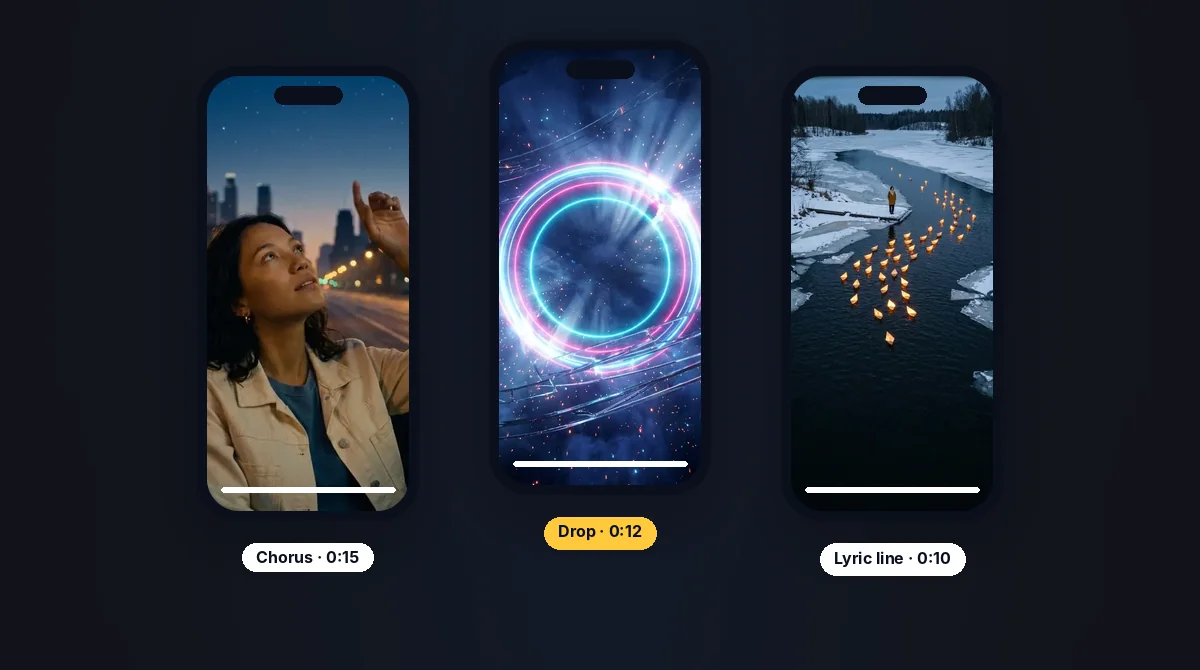
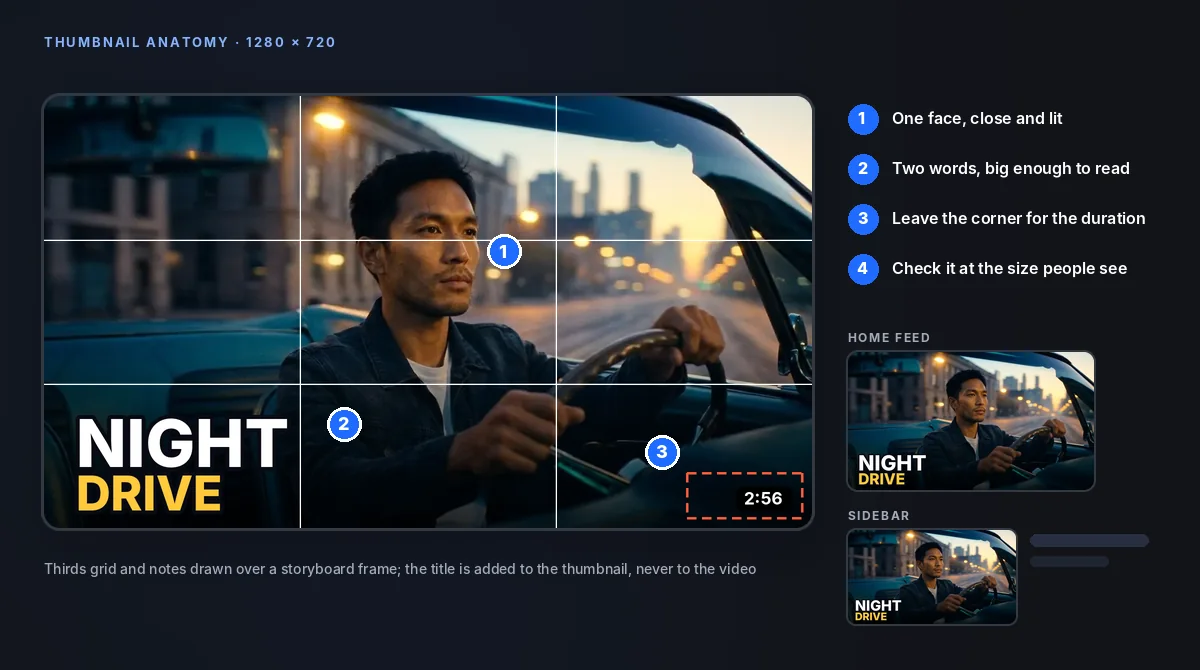
YouTube's tips page says to choose the thumbnail carefully because it's the image of the Premiere's landing page: one subject, strong contrast and little or no text still work best. How to make a music video thumbnail covers sizes and frame choice, and the YouTube description generator writes the description, credits and chapters before you schedule.
During the Premiere: be in the chat
The Premiere tips page is blunt about it: tell viewers you'll be watching with them, then do it. Turn on live chat and chat replay, so people who arrive late still see the conversation, and set up the chat before the countdown rather than during it. YouTube also notes that you can keep chatting for a short time after the video ends, which is the moment to answer questions and point people to the song.
- Moderators. Ask one or two trusted fans or a bandmate to moderate, so you can talk instead of policing.
- Blocked words and slow mode. Block the words you don't want in the chat, and turn on slow mode if it moves too fast to read.
- Talking points. Have three or four ready: what the second verse is about, where the chorus shot came from, the line people always ask about, where to stream the song.
- Thanks. Name the people who send Super Chats or Super Stickers, if you've turned them on, and the people who came to every release.
- The links. Pin a chat message with the streaming link near the end, so it's there when the song finishes.
Going live first can fill the room. Live Redirect sends a live stream's viewers into your Premiere automatically when the stream ends; YouTube's page limits it to channels with more than 1,000 subscribers and no strikes, and advises setting up the Premiere before the live stream and telling viewers to wait a few seconds for the page to reload. Fifteen minutes of talking about the song before it plays is plenty.
After the Premiere: keep the video moving
When the Premiere ends, the video becomes an ordinary upload, and most of its views are still ahead of it. The first two weeks decide whether it keeps being shown, so use them.
- Pin a comment. The streaming links, a line about the song and a thank-you to everyone who came; YouTube's tips page counts pinned comments among the ways to promote a Premiere.
- Add the end screen. End screens sit over the last 5 to 20 seconds of a video at least 25 seconds long, with up to four elements on a 16:9 video: the lyric video, the last single, a playlist or a subscribe button.
- Test the thumbnail. Once the Premiere has turned into a regular video, YouTube's A/B testing can compare up to three thumbnails or titles and keep the one with the most watch time.
- Post the Out now Short. The release strategy page suggests an Out now Short on release day, with the music video linked as its related video.
- Keep posting. The same page suggests new visuals every few weeks after release: a lyric video, a performance, the behind-the-scenes, more Shorts.
Read the numbers after a week rather than an hour. The Premiere's views move to the video, and YouTube Analytics shows how many people watched live and where later viewers came from. How to get more views on a music video explains which figures matter (click-through rate, average view duration, returning viewers) and what to change when one is low.
Make the video, the teasers and the Canvas from one render
A Premiere needs one finished video and a handful of vertical clips around it, and they work best when they share a look, so a viewer who taps a teaser recognizes what they find on the watch page. Muvora makes all of them from your song. It doesn't upload or schedule anything: you set up the Premiere in YouTube Studio as above, with the files it gives you.
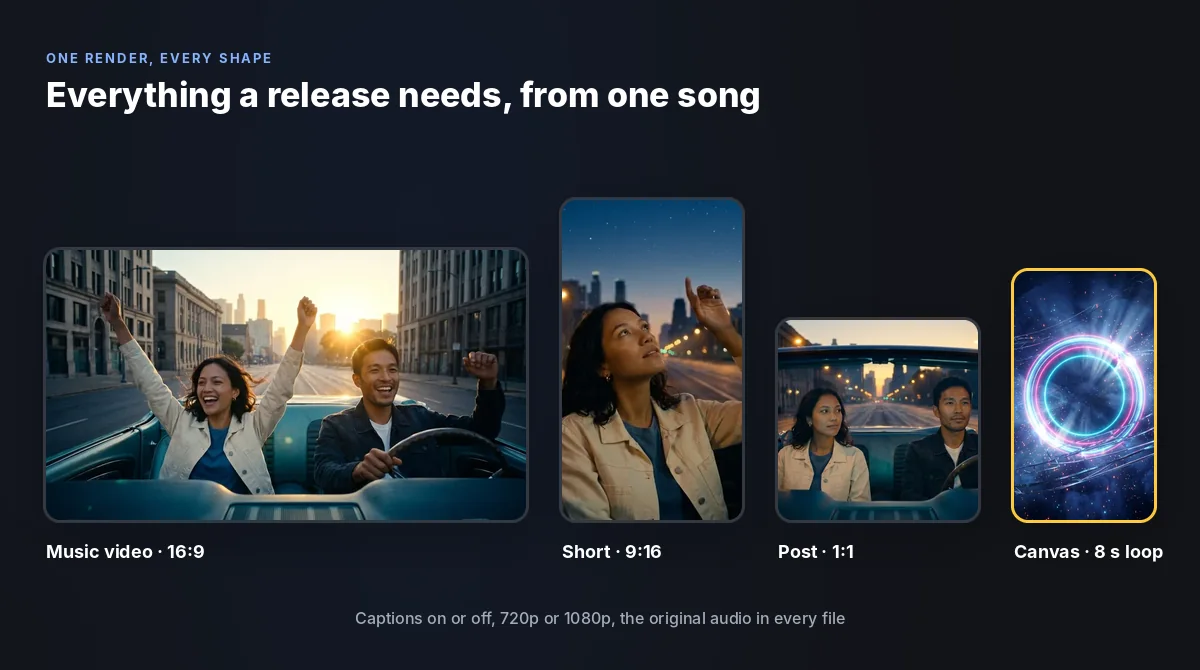
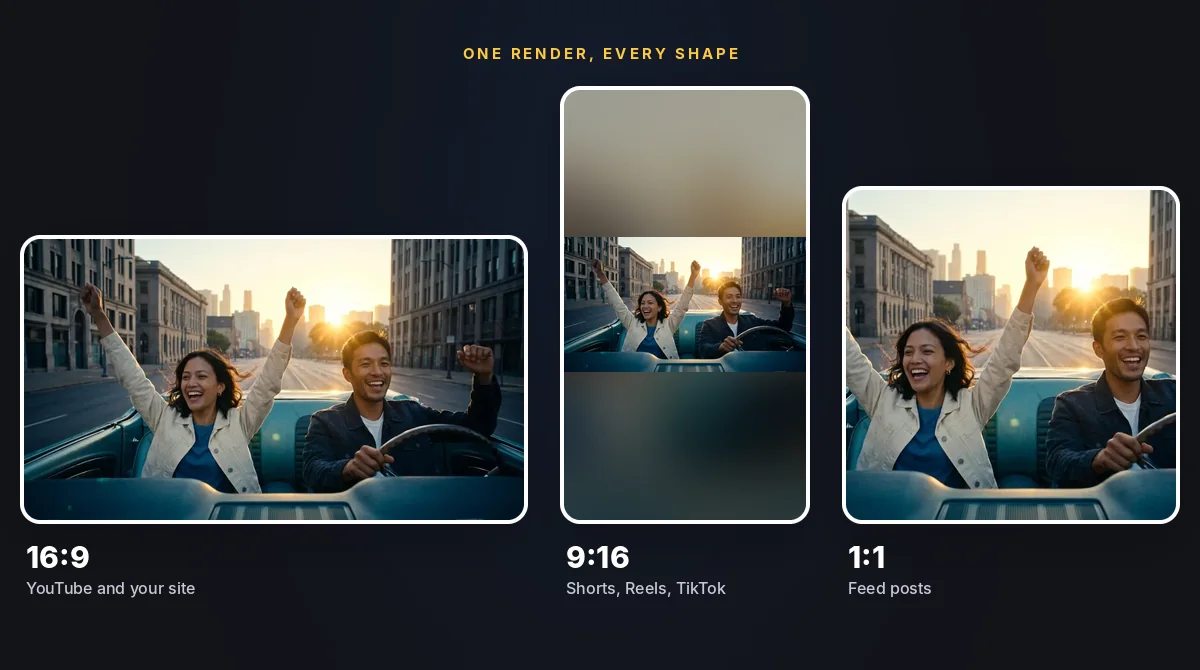
- The music video. Upload the song and choose 16:9: the AI director writes a storyboard on the song's beats and sections, which you edit for free, and the render is an H.264 MP4 at 720p or 1080p, the length of the song, with your upload as its untouched soundtrack.
- The teasers and the Out now Short. The same render gives a 9:16 version, so the clips you post before and after share the video's pictures and cuts.
- The square post and the Canvas. A 1:1 version for feeds and an 8-second Canvas loop for Spotify come from the same render too.
- The price first. The storyboard is free (5 new storyboards a month on the free plan), and rendering costs credits per finished second, from 38 a second, shown before you click Generate. Failed shots cost nothing.
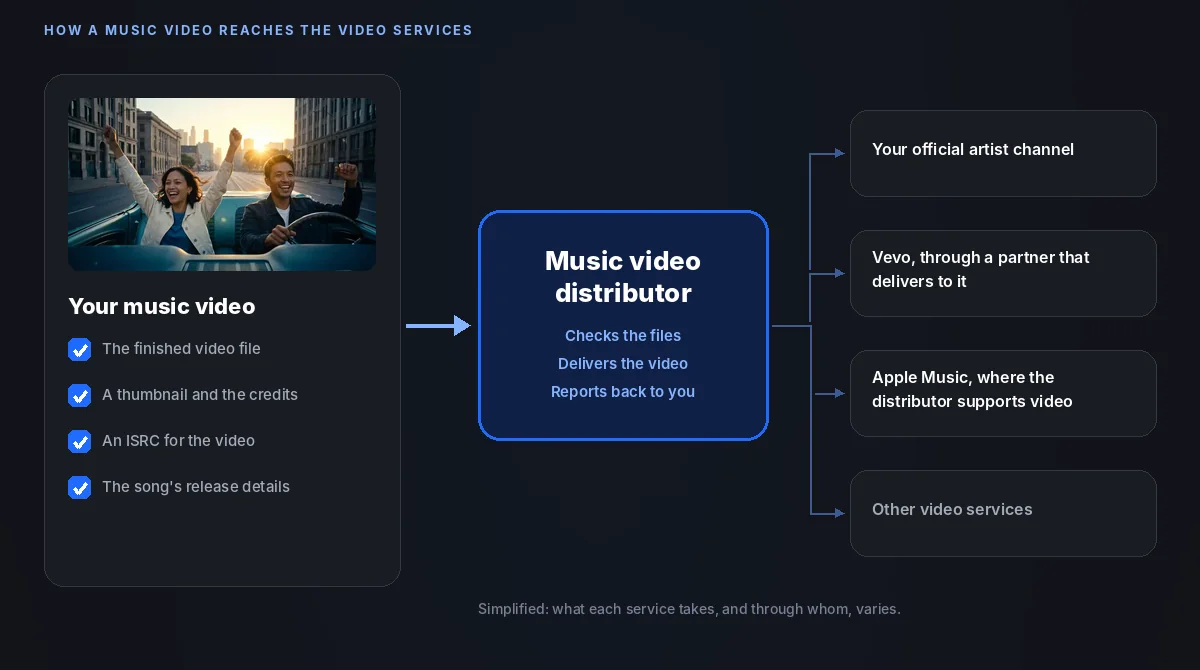
Leave time. Render the video two or three weeks before the Premiere, so there's room to re-roll a shot on the review page, cut the trailer and post the first teaser a week out. If YouTube is where most of your listeners are, the YouTube music video maker explains what each export is for, and if the video is also going to Vevo, how to get your music video on Vevo covers what changes when a distributor delivers it.
Get the Premiere's video ready
Upload your song, pick a style and a look, and read the whole storyboard before you pay anything. One render gives the 16:9 video for the Premiere, the vertical teasers and the Canvas.
Written by the Muvora team. Last updated November 17, 2026. Spotted something out of date? Tell us at [email protected].